
IAM Console
The IAM Console is where administrators run the instance from one place: the accounts, the permission sets and admin profiles, every project and share, what is running right now, the audit trail, and the instance-wide settings. It also brings quotas, per-plugin allowlists, per-browser sessions and LLM providers that the whole instance shares.
Each section opens only for whoever holds its permission: a User manager sees the accounts and nothing else, a Platform operator the operations view and the platform tools, a Security auditor the accounts, the projects and the audit log. Identity & Access Management explains accounts, Root, permissions, sets and profiles; Sharing Projects explains sharing. This page is the tour of the console itself, one screen at a time.
On this page: Turning it on · Opening the console · Users · Permission sets and admin profiles · Projects and shares · Operations · Audit · Instance · Device sessions · Per-plugin allowlists · Forwarding the audit log · What is recorded
Turning it on
The console is behind its own switch, on by default, and needs the identity and permissions switches. ./redamon.sh install, update and up write the lines below into .env when they are missing or blank and keep any value you set; if you set one to false, change that line back rather than adding a new one:
RBAC_IDENTITY_ENABLED=true
RBAC_PERMISSIONS_ENABLED=true
RBAC_GOVERNANCE_ENABLED=true
After changing one, run ./redamon.sh up (after turning the permissions switch on or off, also run docker compose restart agent).
With the switch off, everything is as before: there is no /admin page and the Users page stays under Global Settings (see Identity & Access Management: Without the IAM Console); no quota is enforced; plugin allowlists are ignored; per-browser sessions are neither written nor checked; instance LLM providers are not offered; audit retention deletes nothing. What you configured stays stored and counts again when the switch is back on. One thing to know before turning it off: a project whose model is an instance LLM provider stops running its agent (instance_provider_unavailable) until its owner picks another model. It is never sent to another provider instead.
Opening the console
Whoever holds at least one console permission sees IAM in the header, where Users used to be. Clicking it opens the first section you may open (Users, for Root and most administrators); there is no separate overview page. The left navigation lists only the sections you may open. A console address you may not open (for example a bookmarked /admin/audit) says which permission it needs, and an account that holds none of them is told "The IAM console needs an administration permission."
Settings → Users and the user menu's Manage Users now take whoever reads the user directory to IAM → Users (other console users to /admin); members stay where they are, and Change Password in a member's user menu works as before.
| Section | Opens with | What it holds |
|---|---|---|
| Users | users:read | Accounts, invitations, status, permission sets and sign-ins |
| Permission sets | roles:manage | The sets members hold, their holders, the default for new members |
| Admin profiles | admin_profiles:manage (the confirmed Root only) | What each kind of administrator may do |
| Projects | projects:oversee | Every project, with its owner and its shares |
| Shares | users:read, with sharing on and Root's Administrators see every share | Every share between accounts, with its level and expiry |
| Operations | platform:operations | Agent runs, scans, triage runs and shell sessions running or queued now |
| Audit | audit:read (export: audit:export) | Who did what and when, with filters, export and retention |
| Instance | instance:settings, instance:quotas or any platform: permission | Security and sharing policy, audit retention, quotas, LLM providers, tunnel, TrafficMind, Nuclei templates |
Full admin (every administrator without a profile) opens every section but Admin profiles, which is Root's. User manager opens Users (and Shares); Platform operator Operations and the platform panels of Instance; Security auditor Users, Projects and Audit (and Shares). While the sharing policy hides other people's shares, Shares says "Shares are not listed here now" instead of the list.
Users
IAM → Users lists every account on the instance.
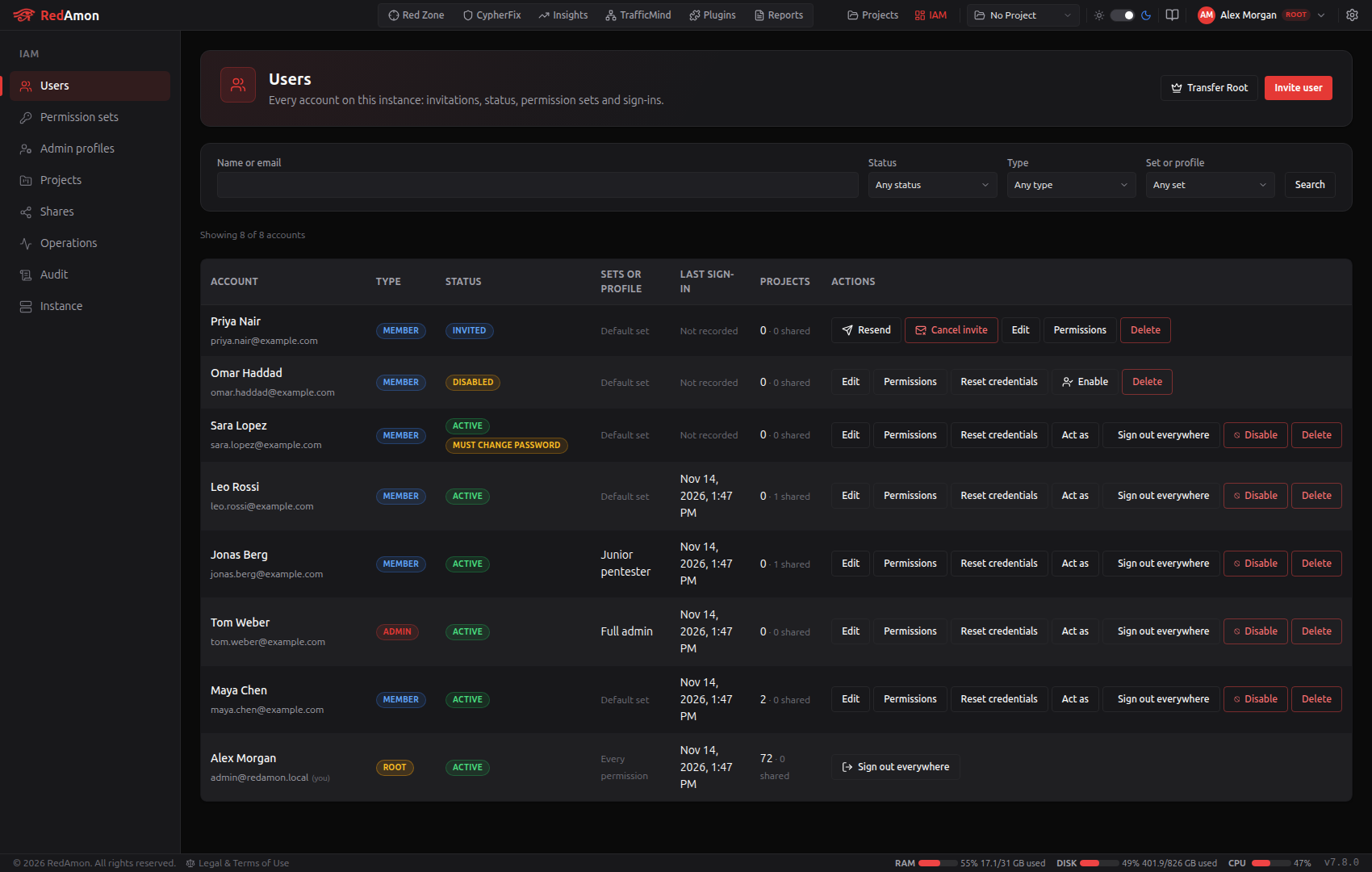
- Find accounts: search by Name or email, filter by Status (Active, Invited, Disabled), Type (Root, Admin, Member) and Set or profile, then Search. The filters stay in the address, so
?set=builtin:recon-operatorlists who holds Recon operator. Load more at the bottom reads the next page. - Each row shows the account's type, status (with Must change password when it applies), its permission sets or admin profile, its last sign-in, the projects it owns and the ones shared with it.
- The actions on a row are the ones the server says you may take on that account, and nothing else:
| Action | What it does | More |
|---|---|---|
| Edit | Change the name and the sign-in email | Below |
| Permissions | Permission sets, overrides and (for an admin) the profile | Giving permissions |
| Reset credentials | Sign out everywhere, then a reset link or a temporary password | Reset credentials |
| Act as | See and work as that member, with a reason and your password | Acting as another user |
| Sign out everywhere | End every session and MCP token; the account stays active | Sign out everywhere |
| Disable / Enable | Block the account and keep its data, or let it in again | Disable and enable |
| Resend / Cancel invite | On an invited row: a new link, or remove the invitation | Invite |
| Delete | Delete the account and its projects | Deleting a user |
Above the list, Invite user (with users:create) adds a person, and Transfer Root (Root only) offers Root to another administrator. The legacy-grant review cards stay at the top until every grant is decided.
Inviting from the console
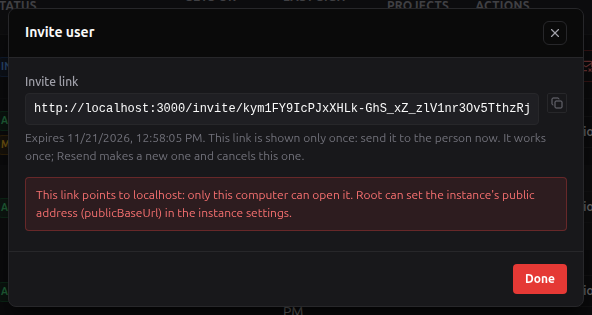
Invite user opens the same invite as everywhere: name, email and the permission set the member starts with, then Create the invite link. The link is shown once, with its expiry.
| The invite | The link, shown once |
|---|---|
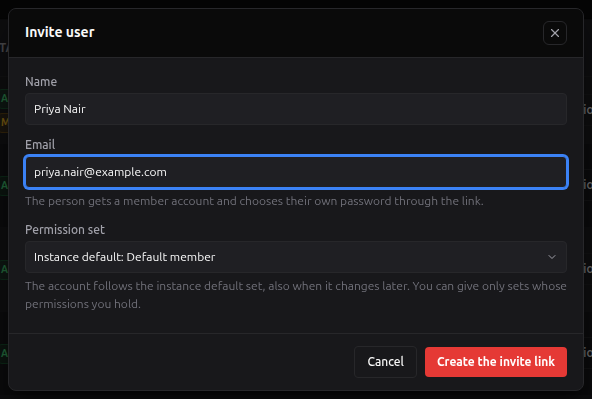 |  |
The console has no form to create an account with a temporary password, nor to set a password directly: Invite user creates the account, and Reset credentials → Set a temporary password gives an existing account one.
An account's page
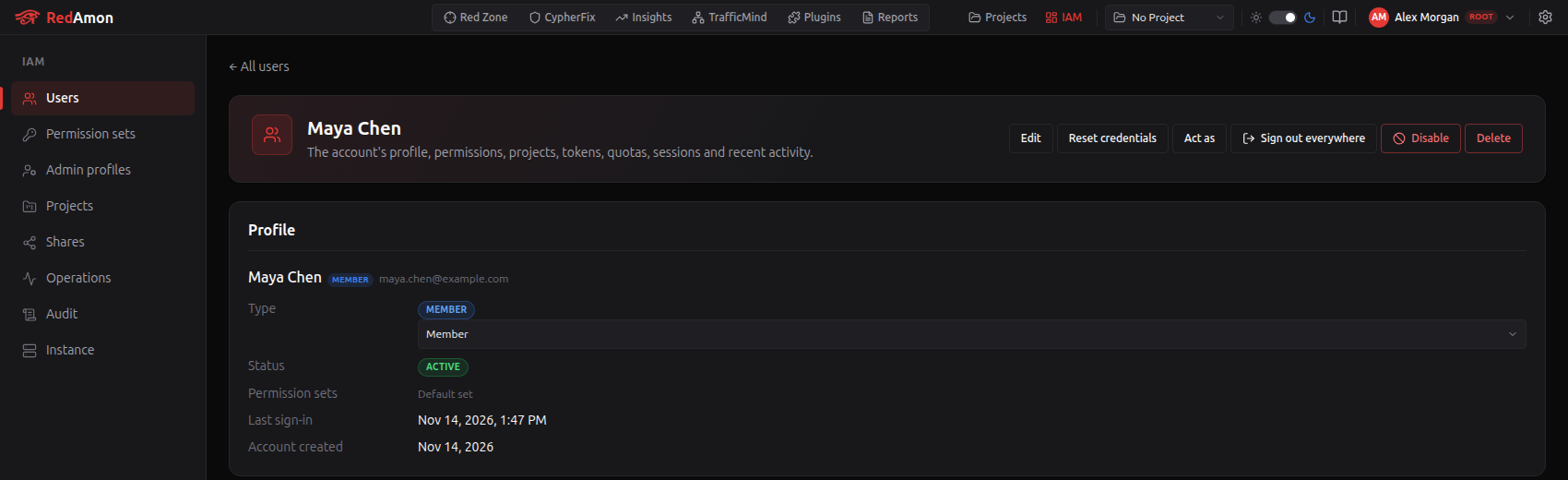
Click a name to open the account's page. The header repeats the row's actions; below it:
| Section | What it shows |
|---|---|
| Profile | Name, email, type, status, permission sets, last sign-in and creation date. Root changes the type here (Member / Admin, with Root's password). |
| Permissions | The full permission editor (how it works), or why you cannot change them. |
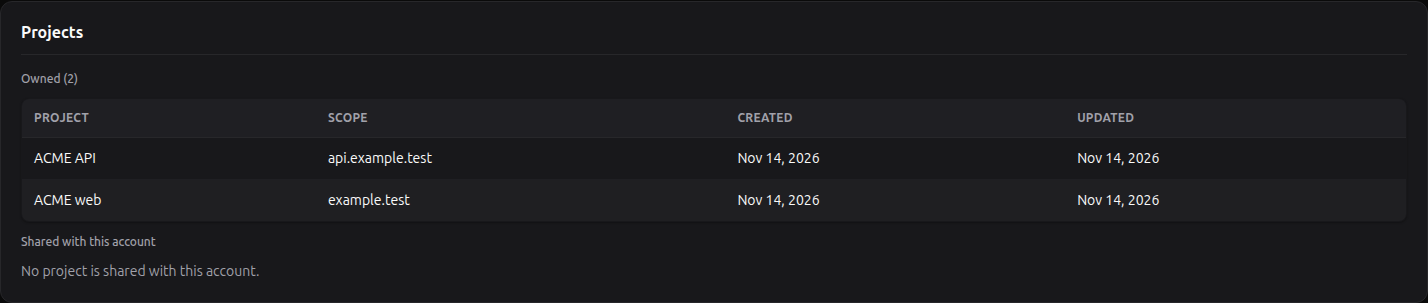
| Projects | The projects the account owns and, with sharing on, the ones shared with it (unless Root hides shares from administrators). |
| MCP tokens | The account's MCP Server tokens, each with Revoke (recorded). |
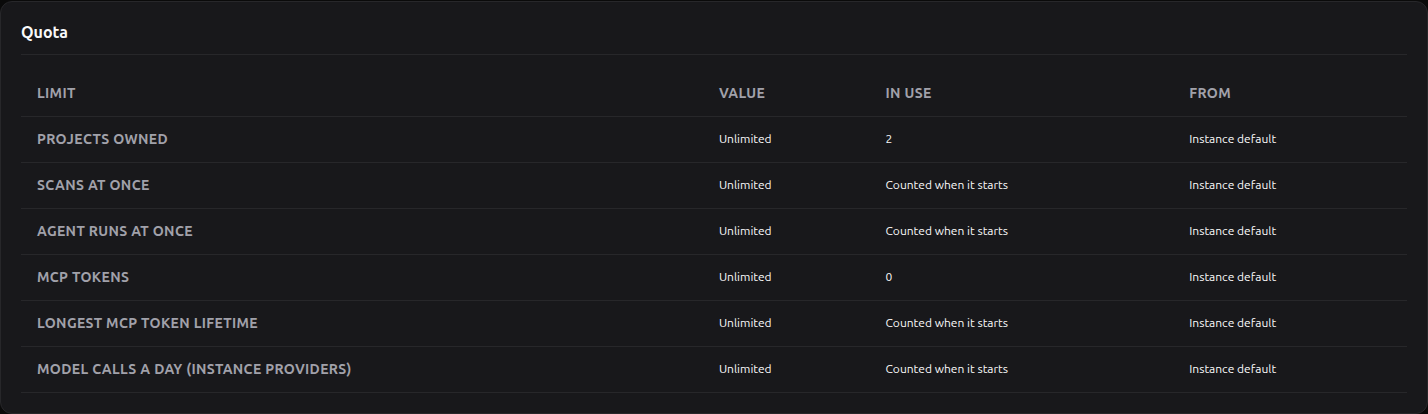
| Quota | Each limit, its value, the current use and where the value comes from (Quotas). |
| Device sessions | One row per browser the account signed in from, with Revoke (Device sessions). |
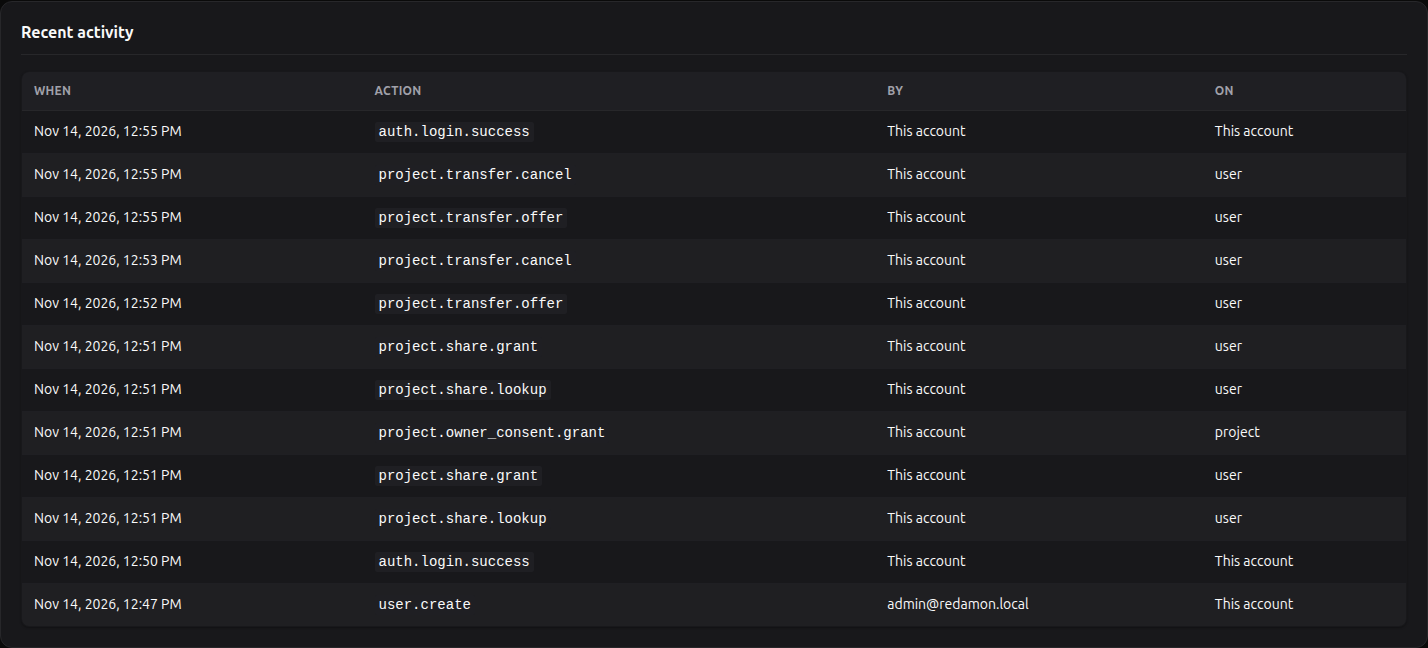
| Recent activity | The last 20 audit rows the account wrote or that name it, if you hold audit:read. |
| Projects | Quota |
|---|---|
 |  |

Editing an account
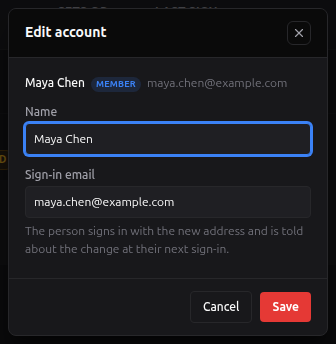
Edit changes the account's Name and Sign-in email. Changing the email, or anything on another administrator's account (Root's, or an admins:manage holder's), asks for your own password. The person signs in with the new address from then on and is told about the change at their next sign-in.
Deleting from the console
Delete asks for a confirmation (for an administrator, Root's password). For an account that owns projects shared with other people, the server refuses until each of those projects is resolved, and the console shows the refusal:
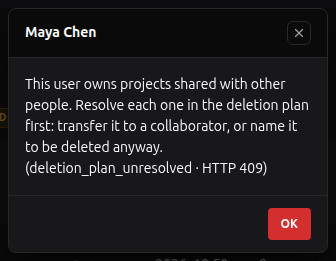
The console has no form for that plan yet. Resolve each shared project first: its owner can transfer it to a collaborator, or revoke its shares; the confirmed Root can revoke the shares from Shares, and from Projects delete a project that should go anyway. Once the account owns no shared project, Delete goes through. The full deletion plan (offer, transfer or delete anyway, project by project) is described in Identity & Access Management: Deleting a user.
Permission sets and admin profiles
Permission sets
IAM → Permission sets lists the built-in member sets (read-only; Clone makes an editable copy) and your custom ones (Edit, Clone, Delete). Each row shows how many permissions it holds (click to list them by area) and how many people hold it. The set tagged Default for new members is chosen on the Instance page.
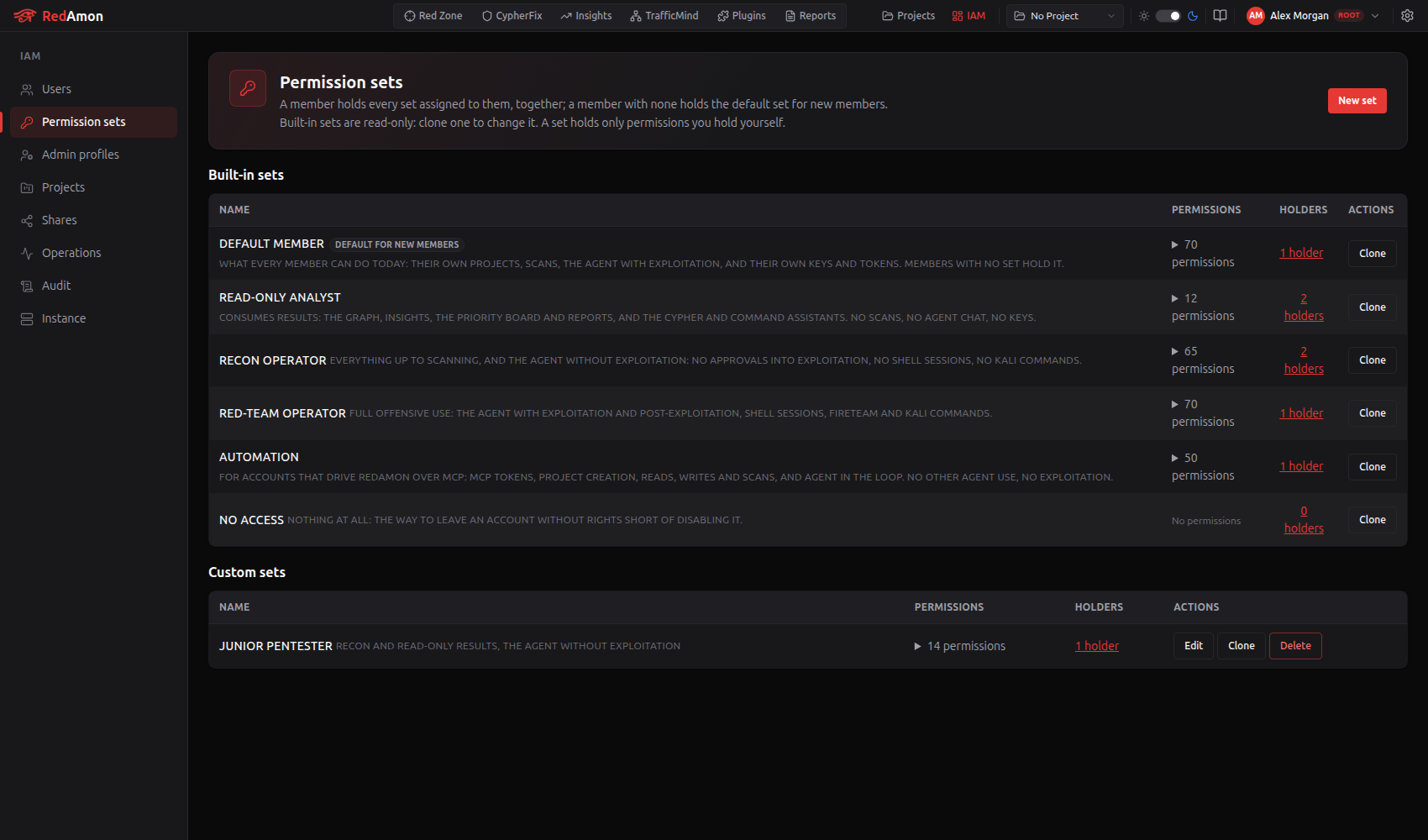
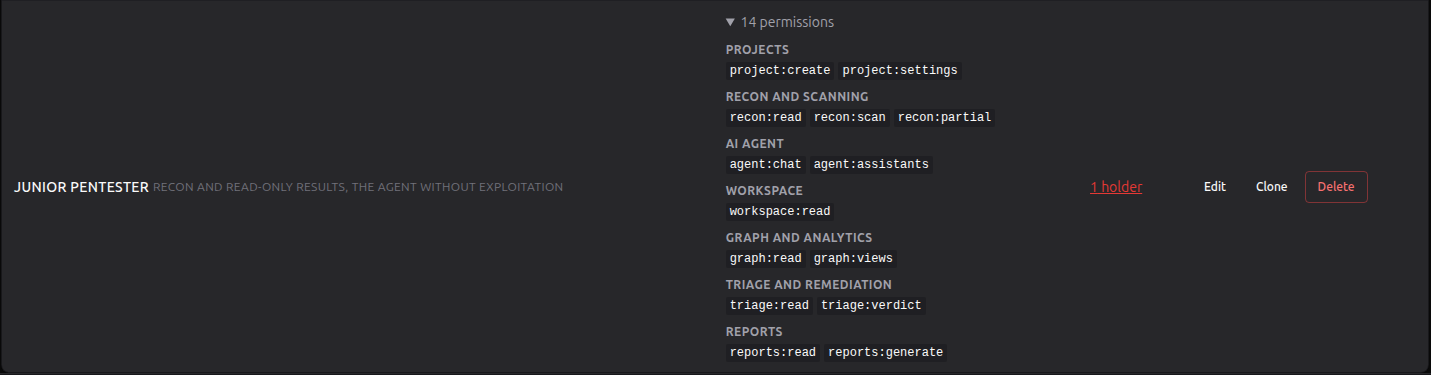
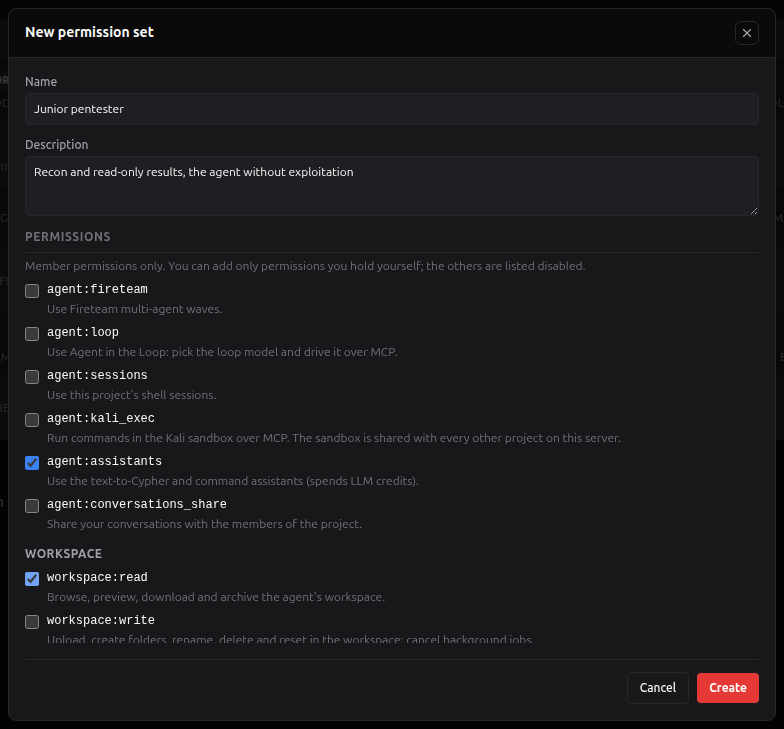
New set (or Clone, or Edit) opens the editor: a Name, a Description, and the member permissions by area. It offers only the permissions you hold yourself; a permission you lack is shown disabled with the reason.
The holders count opens Who holds the set: the first 100 holders, and Open in the users directory for the full, filtered list.

Deleting a set someone holds is refused and lists them; so is deleting a set a plugin allowlist or an instance LLM provider names.
Admin profiles
IAM → Admin profiles is the confirmed Root's alone. It lists the four built-in profiles (Full admin, User manager, Platform operator, Security auditor) with their permissions and holders, and the custom ones.
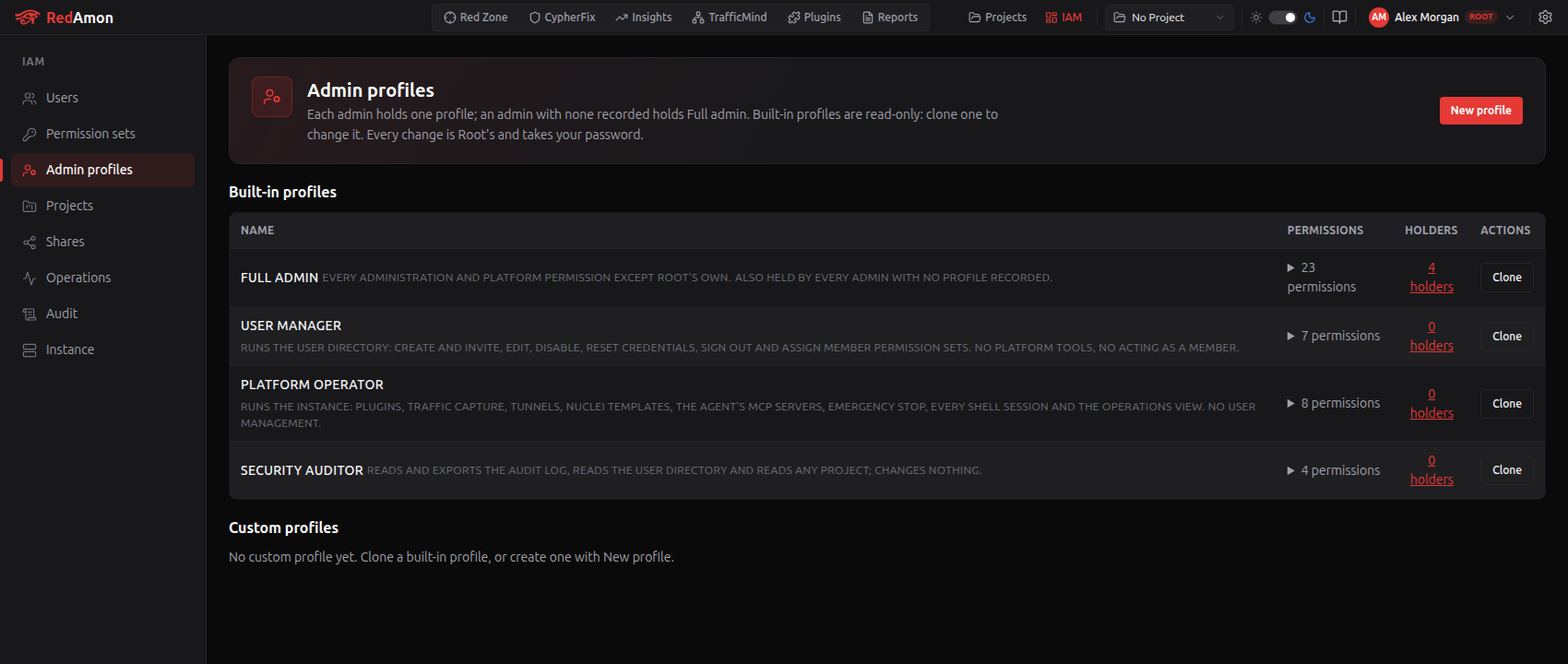
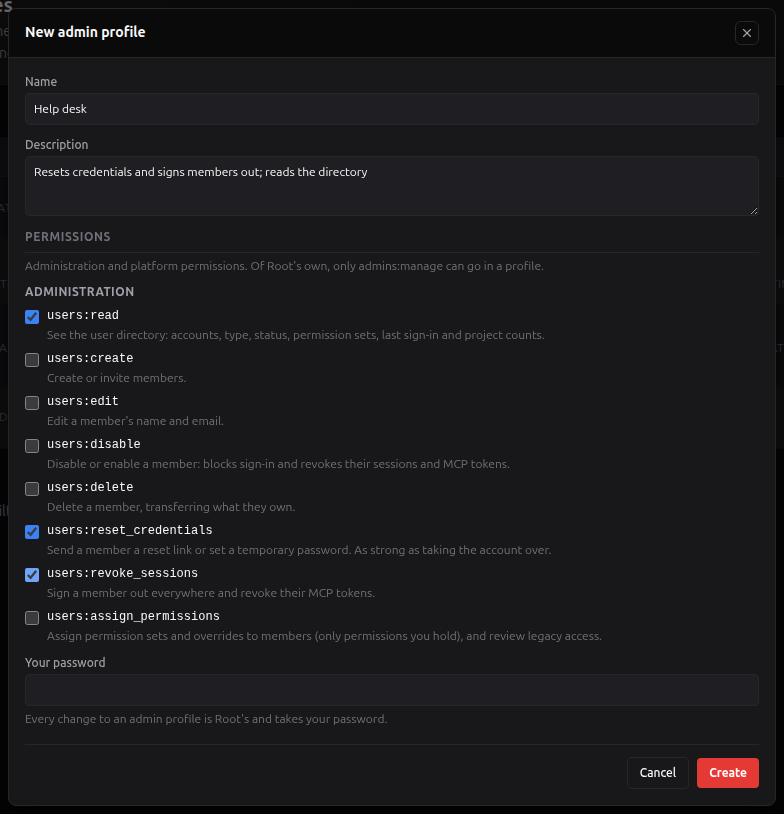
Root clones a built-in profile or makes a New profile, edits and deletes profiles, each time with Root's password. Of Root's own permissions only admins:manage can go into a profile. A profile an administrator holds cannot be deleted.
Projects and shares
Projects
IAM → Projects lists every project on the instance with its owner, its live share count, its last activity and its creation date. Project or owner searches by name, owner name or owner email.
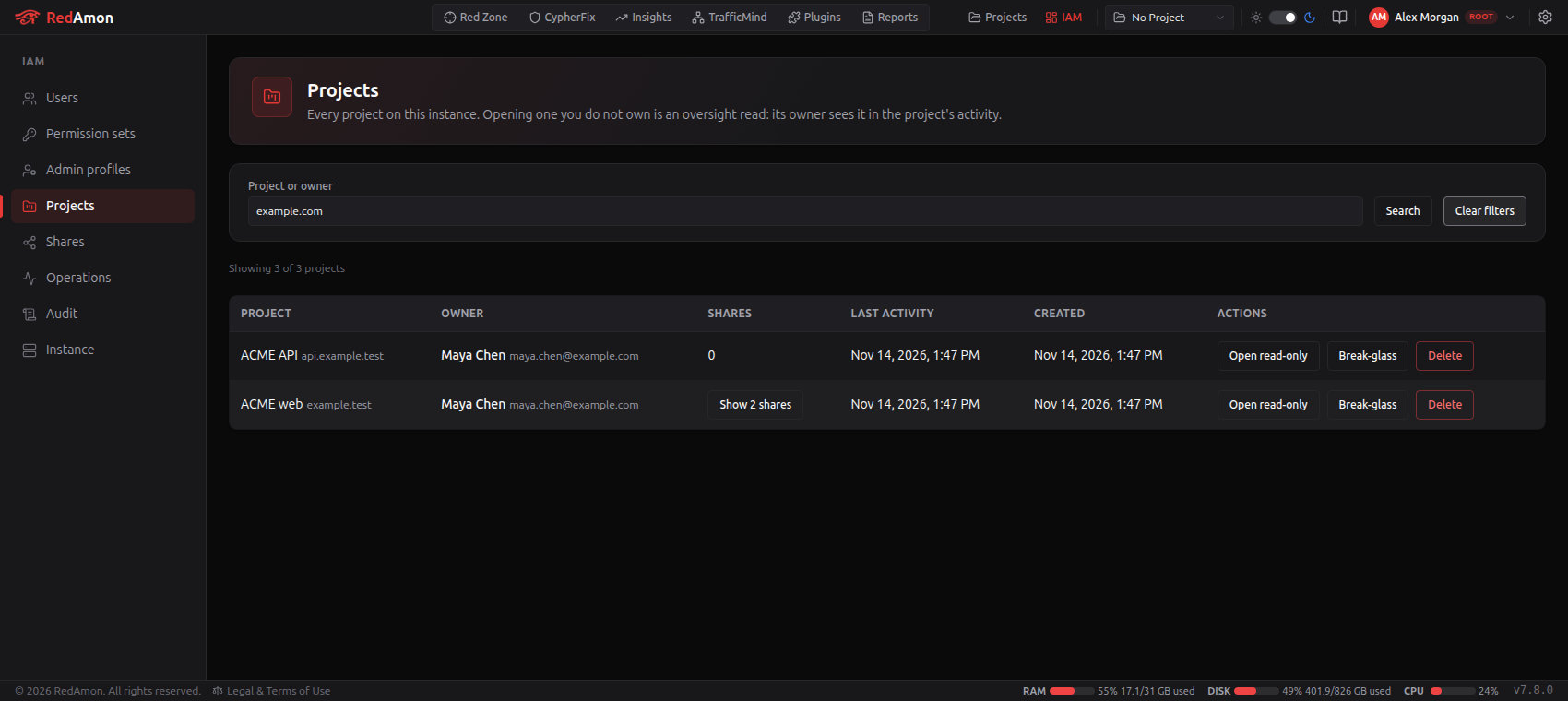
- Show N shares unfolds the project's shares in place.
- Open read-only opens the project through oversight. The first such read each day is recorded and shown to the owner (see Sharing Projects).
- Break-glass (the confirmed Root) opens it with raw data and files too, for a limited time, with a reason and Root's password.
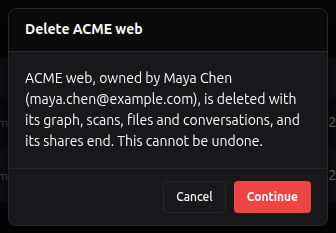
- Delete (the confirmed Root): after a confirmation and Root's password, the project is deleted exactly as its owner would delete it, and recorded as a forced deletion.
While you act as someone, Projects offers no Open read-only or Break-glass; Root's Delete and Revoke are recorded with the account you act as.
Shares
IAM → Shares lists every share with its project, owner, collaborator, level, expiry and when it was given; an expired one is marked. Project, owner or person searches the list.
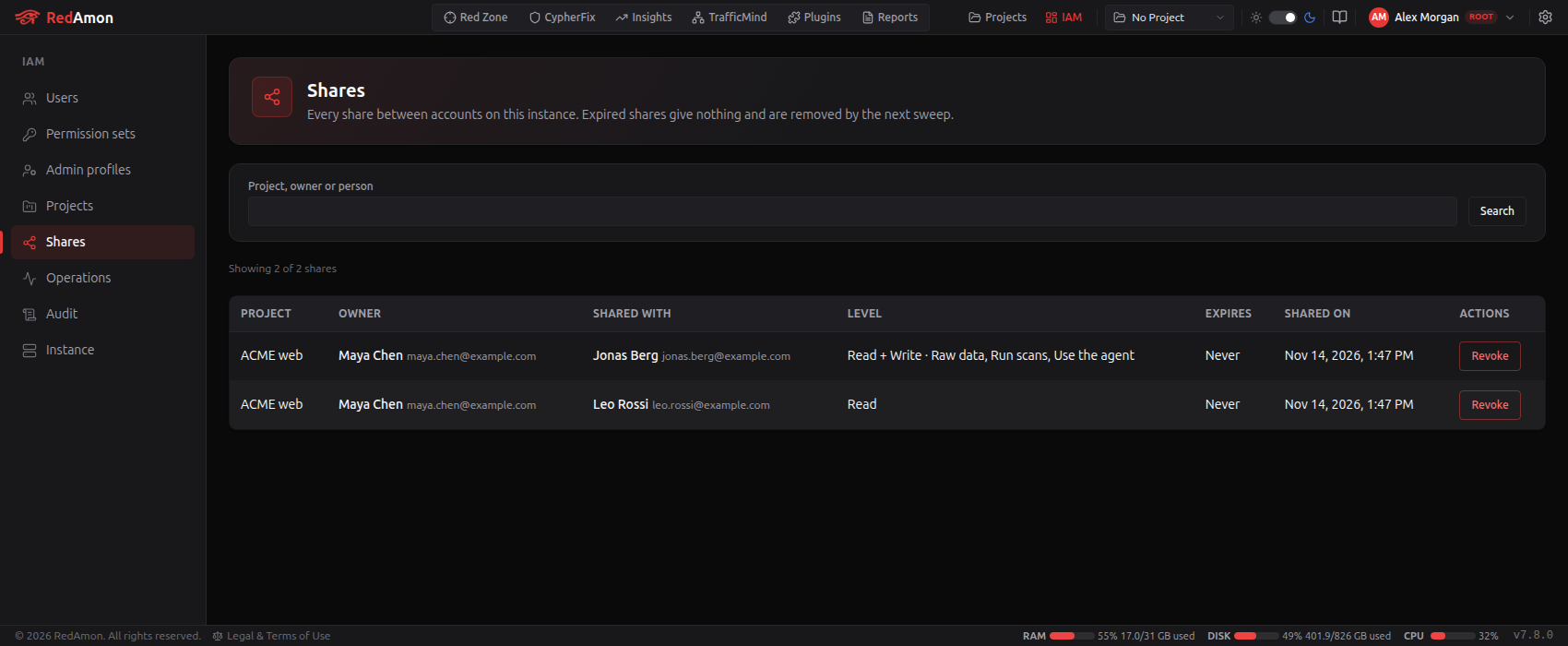
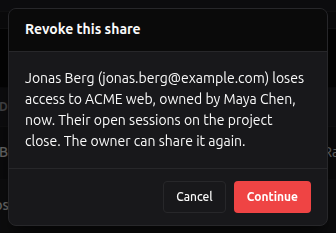
The confirmed Root can Revoke a share after a confirmation and Root's password: the share is removed, the person's open connections to the project are closed, and the revoke is recorded as forced, also in the owner's project activity. While Root's sharing policy has Administrators see every share off, the section is hidden from everyone, Root included.
Operations
IAM → Operations shows what runs on the instance now, whoever started it: Agent runs, Scans running, Queued scans, Triage runs and Shell sessions, each with its project, its owner and the person who started it (and the administrator behind an act-as). It reads everything again every 10 seconds; Refresh now does it at once. It shows names only, never a project's content.
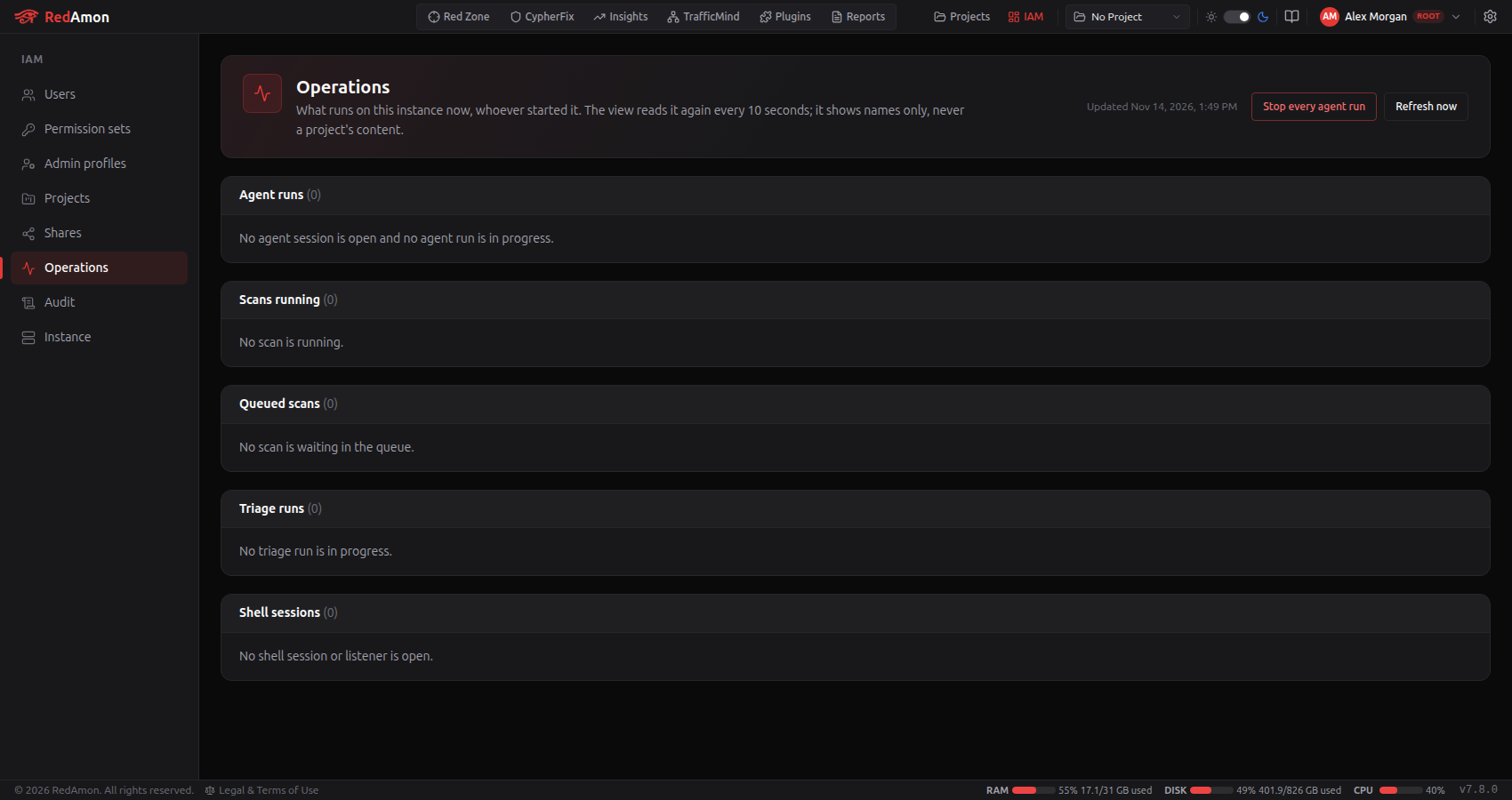
- Stop on an agent run ends it after a confirmation; Stop every agent run stops every user's running agent runs at once, with the tool calls in flight (scans and triage runs are not touched). Both need
platform:emergency_stoptoo, and are recorded. - Scans and triage runs are stopped by their owners' own controls. Shell sessions show no target or connection details.
- A source that cannot be reached (the agent, the orchestrator) is named in its section; the others still show.
Audit
IAM → Audit reads three tables in tabs: Audit log, Act-as and Fireteam settings. The chip at the top says which retention is in force (and which change waits), with a link to change it.
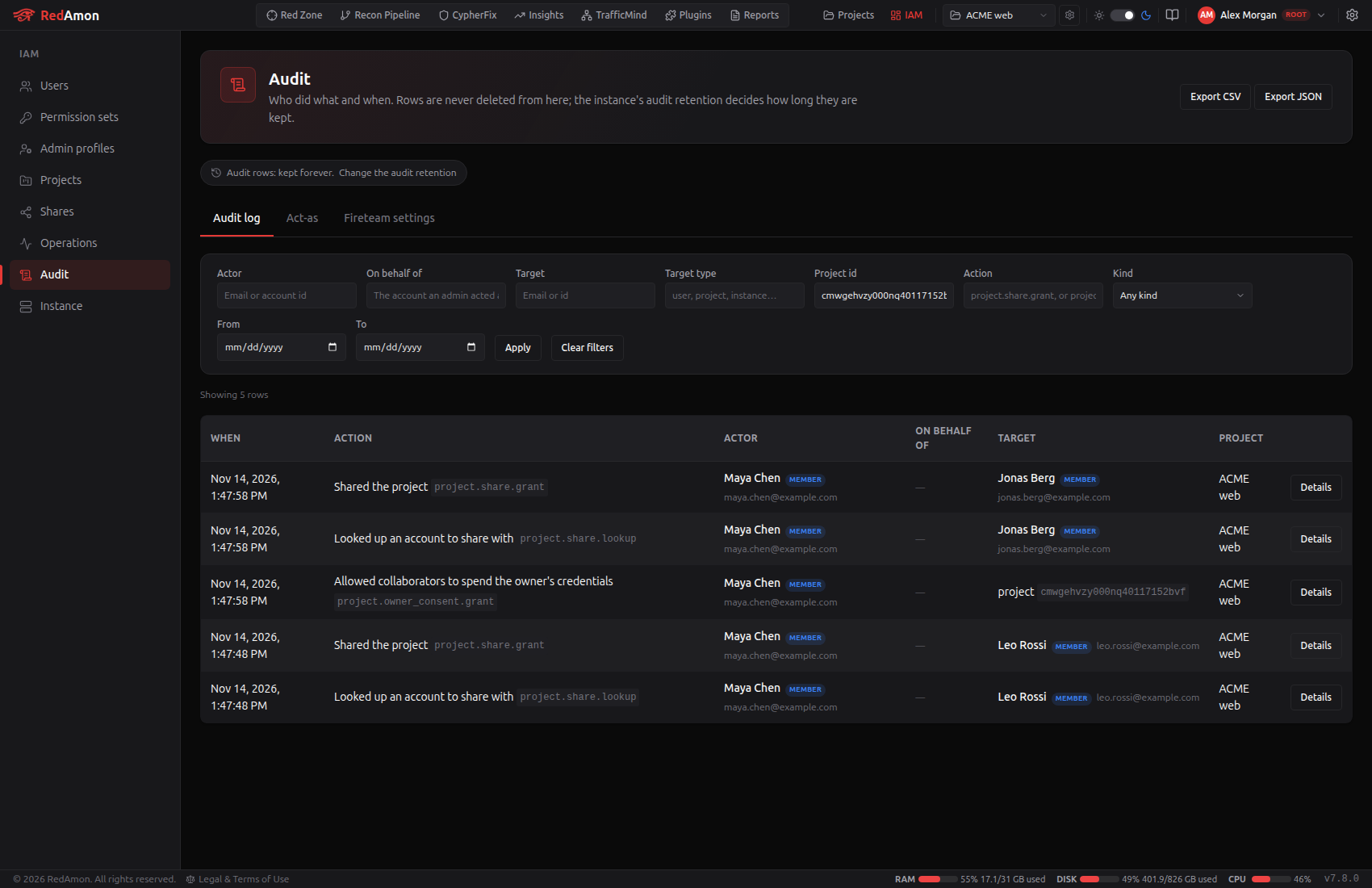
- Filters: actor (email or id, so a deleted account is still found by the email it had), the account an administrator acted as (On behalf of), target, target type, project, action (exact, or a prefix such as
project.share.*), kind, and a date range; Apply. The filters stay in the address. - Rows name each person with their email and account type.
- Details opens one row with its before and after, credentials withheld.
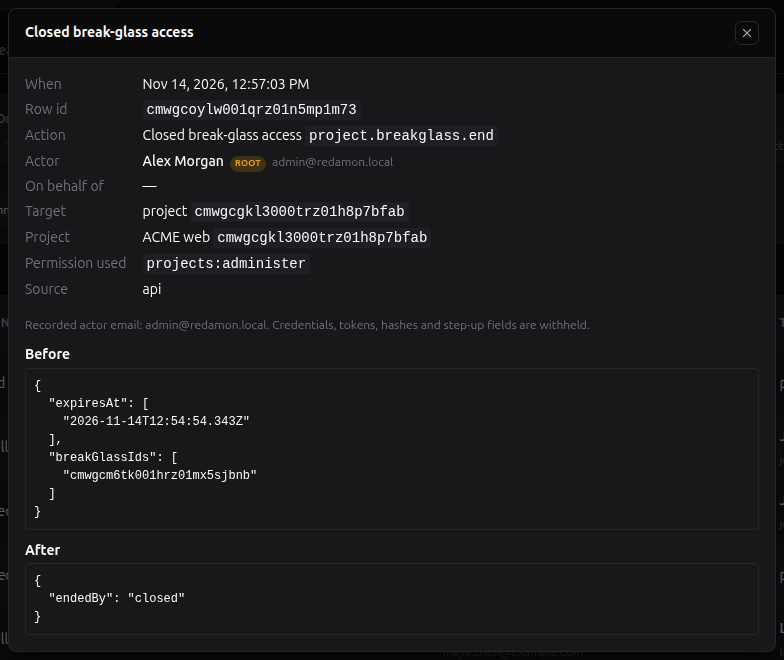
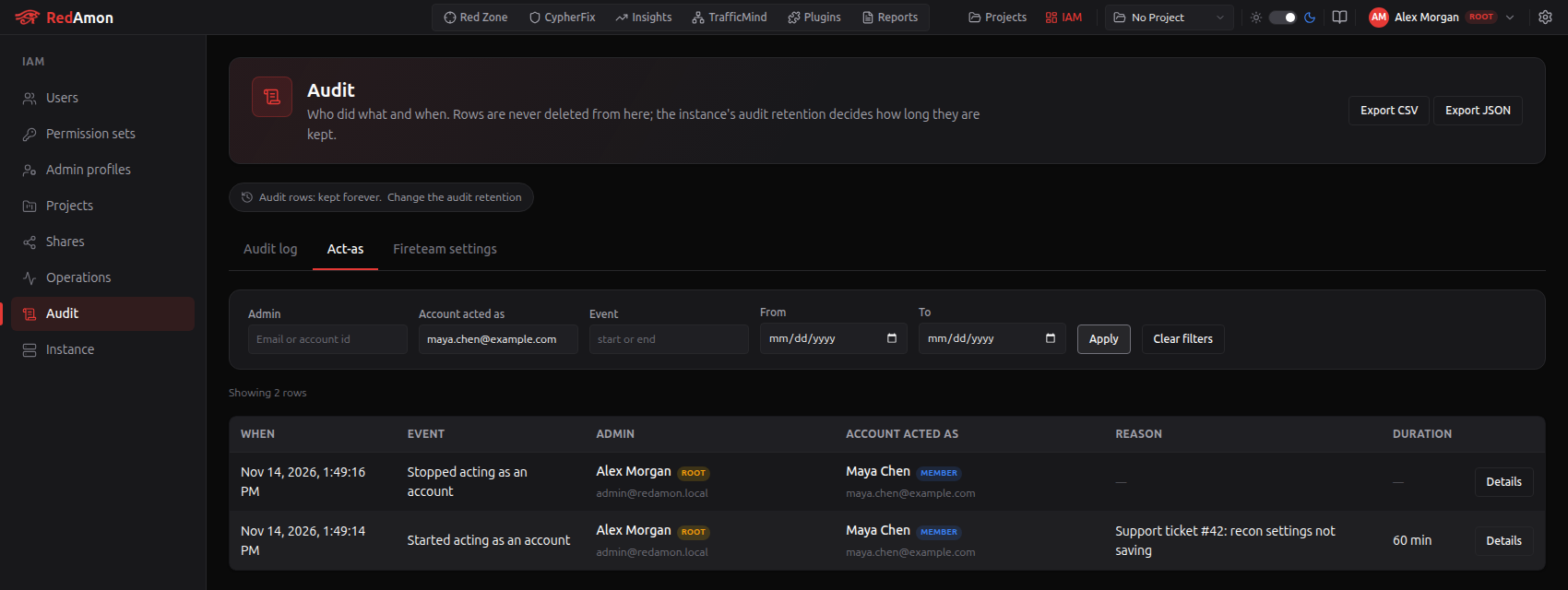
The Act-as tab lists every time an administrator started or stopped acting as someone, with the reason and the duration (filters: admin, account acted as, event, dates). The Fireteam settings tab lists every change to a project's Fireteam settings: when, the project, the setting, its old and new value, and who changed it.
Export CSV and Export JSON (with audit:export) download what the filters select, at most 100,000 rows, written before the export started; each export is itself recorded (audit.exported), and when that record cannot be written nothing is exported. Reading the viewer is not recorded. No screen or route deletes an audit row: only retention does.
Instance
IAM → Instance gathers the instance-wide settings in panels. The bar at the top jumps to each panel, and each panel is shown to whoever holds its permission:

| Panel | Who changes it |
|---|---|
| Security policy and Public address | The confirmed Root, with Root's password |
| Sharing policy (with the sharing switch on) | The confirmed Root, with Root's password |
| Audit retention | The confirmed Root, with Root's password |
| Defaults for new members | The confirmed Root, with Root's password |
| Instance LLM providers | The confirmed Root only (other administrators do not see it) |
| Quotas | instance:quotas (Full admin, Root) |
| Tunnel | platform:tunnels |
| TrafficMind and egress policy | platform:traffic_capture (TrafficMind) |
| Nuclei templates | platform:nuclei_templates |
| Plugins | platform:plugins (a link to the Plugins page) |
| Platform tools used elsewhere | Any other platform: permission (where to find the tool) |
Root's panels show their values to the other administrators read-only, with "Only Root changes these settings." On an instance whose Root the host has not confirmed yet, they say to confirm Root first (./redamon.sh set-root). With the console on, Global Settings' Tunneling section offers whoever may change the tunnel a link to this page instead of the fields; members keep the tunnel status.
Security policy
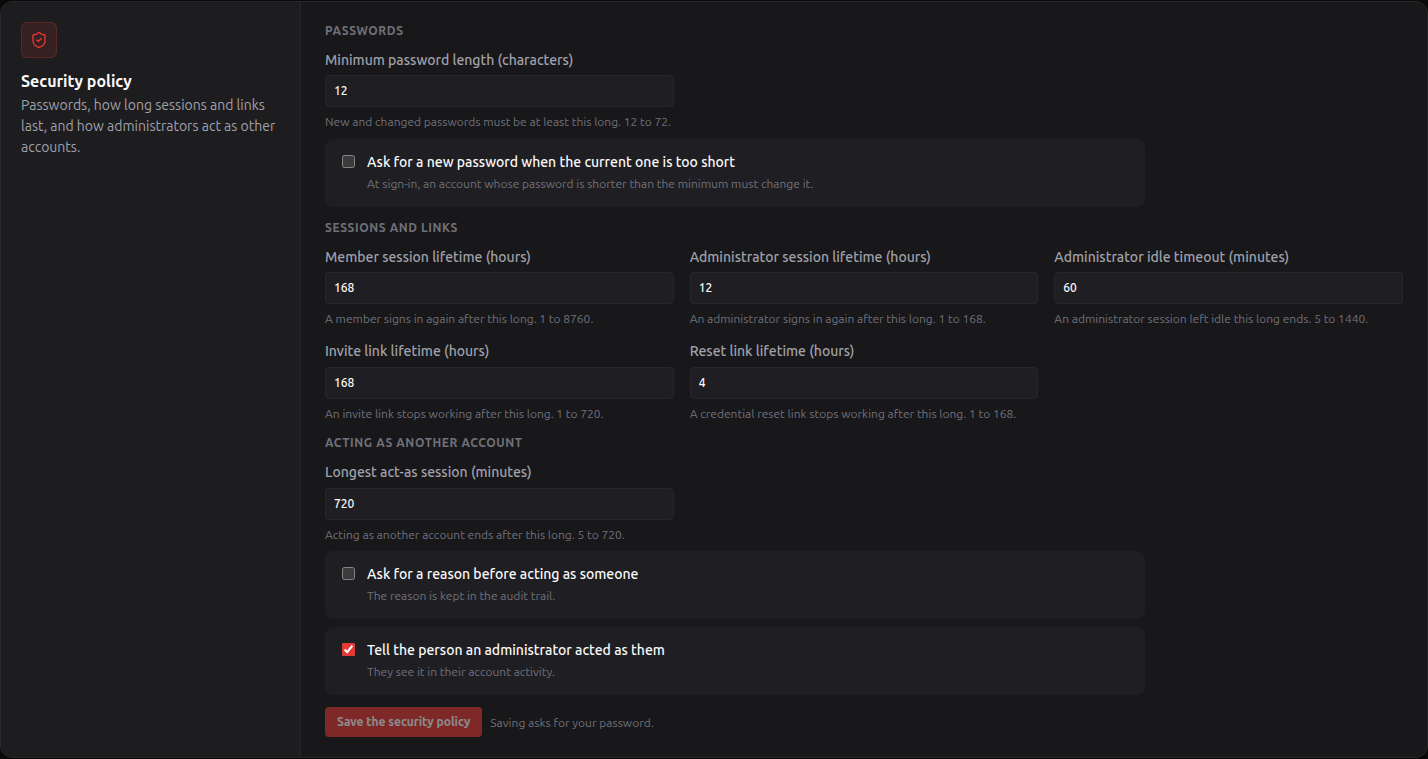
| Setting | Default | What it does |
|---|---|---|
| Minimum password length | 12 | New and changed passwords must be at least this long (12 to 72) |
| Ask for a new password when the current one is too short | off | At sign-in, an account whose password is shorter than the minimum must change it |
| Member session lifetime (hours) | 168 | A member signs in again after this long (1 to 8760) |
| Administrator session lifetime (hours) | 12 | An administrator signs in again after this long (1 to 168) |
| Administrator idle timeout (minutes) | 60 | An administrator session left idle this long ends (5 to 1440) |
| Invite link lifetime (hours) | 168 | An invite link stops working after this long (1 to 720) |
| Reset link lifetime (hours) | 4 | A credential reset link stops working after this long (1 to 168) |
| Longest act-as session (minutes) | 720 | Acting as another account ends after this long at most (5 to 720) |
| Ask for a reason before acting as someone | off | The reason becomes required; it is kept in the audit trail |
| Tell the person an administrator acted as them | on | They are told at their next sign-in and see it in My activity |
Save the security policy asks for Root's password.
Public address

The address invite and reset links point to. Empty: the links use the server deploy's public address, else http://localhost:<port>, which only this computer can open (the invite dialog then warns). No query or fragment. Saving asks for Root's password.
Sharing policy
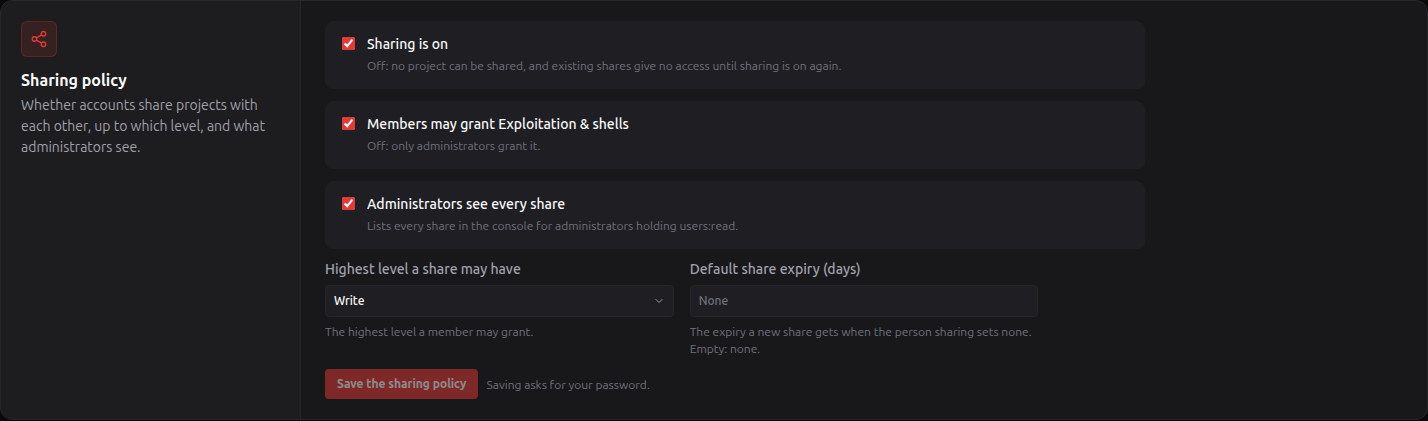
Whether accounts share projects with each other, up to which level, and what administrators see. Sharing is on, Members may grant Exploitation & shells, Administrators see every share, Highest level a share may have (Read or Write) and Default share expiry (days); Sharing Projects explains each one. Saving asks for Root's password.
Audit retention

By default audit rows are kept forever. Root picks For a number of days (from 90) or Forever and clicks Ask for this retention, with Root's password. Every change waits 7 days before it applies (Change waiting, which Root can cancel), so a deletion is never immediate; the request, the cancel and the moment it comes into force are each recorded. The deletion runs every 5 minutes, only with the console on, and only on the audit log: act-as and Fireteam settings rows are kept. RedAmon keeps the rows it reads back itself whatever their age (the upgrade's markers, the legacy-grant decisions and their conversion, the permission changes of legacy-grant holders, the Root assignment, the What changed in this update dismissal). The Audit page says which retention is in force and which change waits.
Defaults for new members

The permission set a member holds until an administrator assigns one: new members, and members never assigned a set (Default member unless you change it). Pick the set and Make it the default, with Root's password. A member never assigned a set who loses a permission with the change is signed out.
Instance LLM providers

Root adds providers the whole instance shares (Add an instance LLM provider: any chat provider type of AI Model Providers, not Jev), each with Root's password, and assigns each to permission sets: member sets or admin profiles. Whoever holds an assigned set finds its models in every model picker as Instance: <name>, even without the right to add providers of their own, and Global Settings lists them under Provided by your administrator. Root uses every instance provider. Their keys are masked on every screen and never shown again; scan containers never receive them.
On a project shared with you, the owner's assignments decide. A project on an instance model never falls back to another provider: if the provider is deleted, no longer assigned, or the console is turned off, the run stops with instance_provider_unavailable until the owner picks another model. Model calls a day (instance providers) is the daily budget: the stricter of the limit of the person running the call and the project owner's refuses it with llm_budget_exhausted. With Only accounts allowed to add their own providers keep them (then Save the policy), an account without the permission to add providers no longer has its own providers used.
Quotas
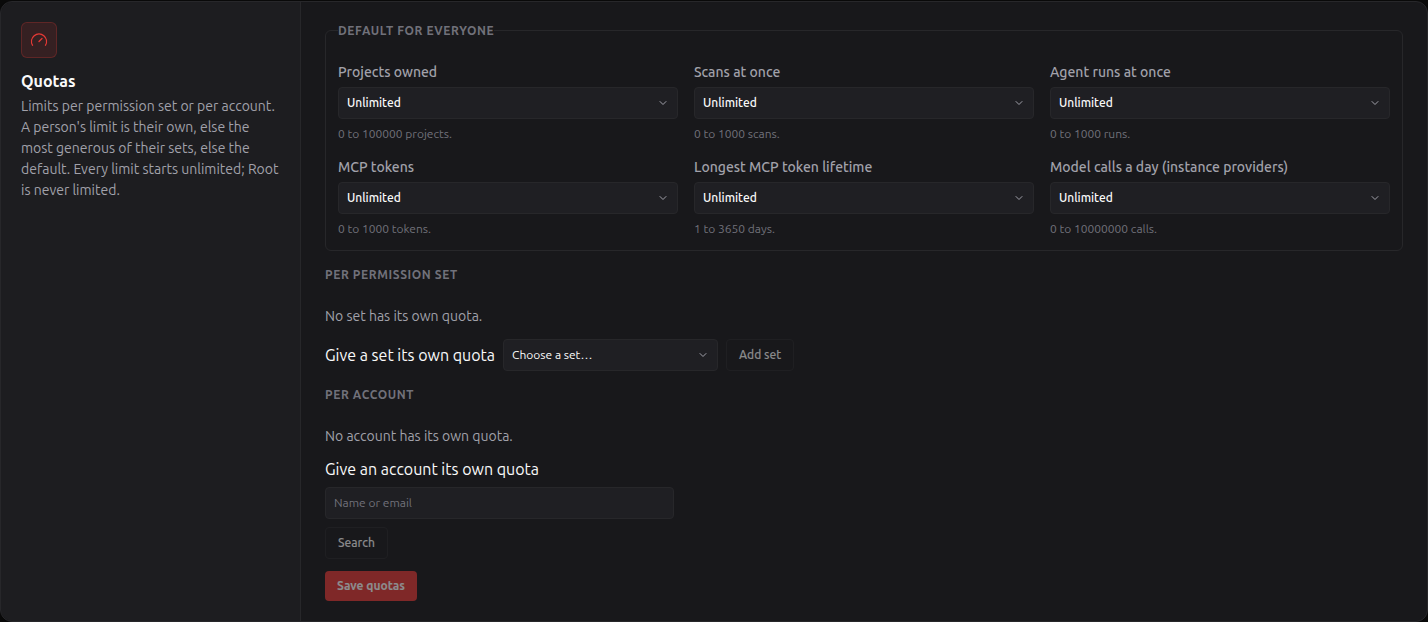
Every quota is unlimited until set, so nothing is refused after turning the console on. The panel sets a value for everyone (Default for everyone), per permission set (Give a set its own quota) and per account (Give an account its own quota), then Save quotas:
| Quota | What it limits |
|---|---|
| Projects owned | Creating or importing a project (also over MCP create_project), counted on the owner |
| Scans at once | Scans running at the same time, counted on the person who starts them (the server's own per-user cap still applies) |
| Agent runs at once | Opening another agent chat while that many runs are in progress; reopening the chat of a running run is never refused |
| MCP tokens | Live MCP tokens an account holds |
| Longest MCP token lifetime | The token form then offers only the presets within it and no No expiry; an existing token cannot be extended past it |
| Model calls a day (instance providers) | Calls to instance LLM providers per person per day (UTC) |
An account's own value wins; otherwise the most permissive value among the sets it holds; otherwise the value for everyone. An empty value is unlimited, 0 refuses the first. Root is never limited. A refusal says "Quota reached: your limit is …" and is logged ([rbac] quota_exceeded). When RedAmon cannot read an account's quota or the agent's run count, it refuses rather than guess; the daily model-call budget is the exception (an unreadable budget lets the call through and logs [rbac] llm_budget_unreadable), and a stored quota setting that cannot be parsed counts as unlimited, logged. My account and the account's page in Users show a Quota table with the limits and the current use.
Tunnel
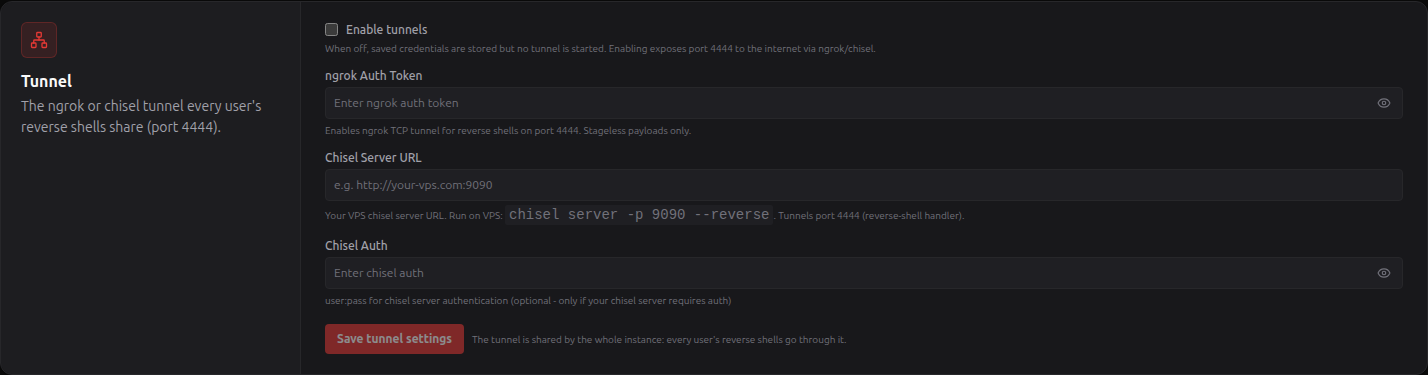
The ngrok or chisel tunnel every user's reverse shells share (port 4444): Enable tunnels, the ngrok Auth Token, or the Chisel Server URL and Chisel Auth, then Save tunnel settings. Changing the chisel server URL asks for the chisel auth again and for your password. See Tunnel Providers.
TrafficMind and egress policy

The capture proxy every user's scans and agent runs share, and the destinations it refuses to reach: whether it is on, its scope, port, retention and egress guard. Edit TrafficMind settings opens the full form; see TrafficMind.
Nuclei templates
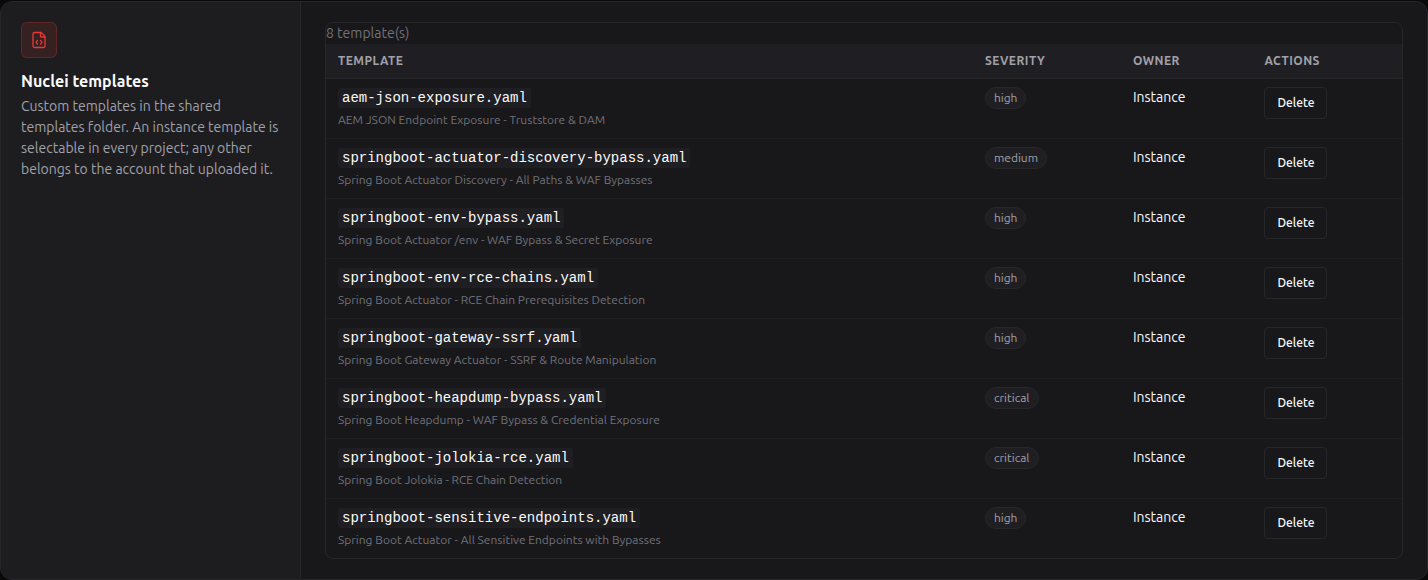
Every custom template in the shared templates folder, with its severity and owner. An Instance template is selectable in every project; any other belongs to the account that uploaded it. Make instance turns a member's template into an instance one; Delete removes a template.
Plugins and the other platform tools
| Plugins | Platform tools used elsewhere |
|---|---|
 |  |
Plugins links to the Plugins page, where plugins are installed, updated, enabled, disabled and uninstalled. Platform tools used elsewhere tells a holder of the other platform permissions where each tool lives: the Kali terminal and every shell session on a project's graph page, the emergency Pause All, the agent's MCP servers in Global Settings, and Operations. A member who holds one of them as a personal override sees this page for that reason, and is told so.
Device sessions
With the console on, every sign-in from a browser is a session. My account → Sessions and tokens lists yours, each with its browser, address, when it was last active and its state, and marks This device:
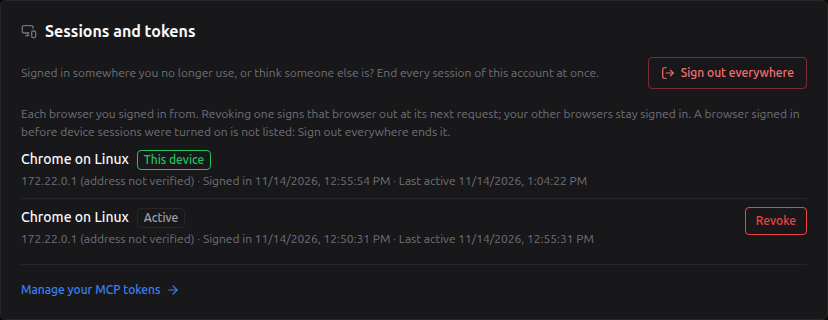
Revoke on another one signs that browser out at its next click; it also closes every open agent and terminal connection of your account (the other browsers reconnect by themselves). Signing out ends the session of that browser. An administrator holding users:revoke_sessions revokes them from the account's page in Users (another administrator's ask for a password; Root's are refused). A session's address and browser are kept while it lives and for 30 days after. A browser signed in before the switch was turned on is not listed, and keeps working until it expires: Sign out everywhere ends it.
Per-plugin allowlists
Whoever manages plugins can limit a plugin to chosen permission sets from its details: see Plugins.
Forwarding the audit log
AUDIT_FORWARD=stdout in .env (then ./redamon.sh up) prints every audit row once, as JSON after [audit-forward], in the webapp's container log, so the log can be shipped to a store nobody holding the database can rewrite. It is independent of the console switch and off by default.
What is recorded
Besides the actions of Identity & Access Management and Sharing Projects: audit.exported; instance.audit_retention_requested, _cancelled and _activated; instance.settings_changed naming the quota keys changed; instance.llm_provider_created, _updated, _deleted and instance.llm_policy_changed (never a key or an endpoint); user.session_revoked; plugin.access_rules_changed; project.delete and project.share.revoke marked forced for Root's actions; agent.run_stop for a run stopped from Operations.
Next Steps
- Identity & Access Management: accounts, Root, admins, invites, permissions and acting as someone
- Sharing Projects: sharing, oversight and break-glass
- Plugins: installing plugins and limiting who may use one