
Identity & Access Management
This page shows how to run the people side of a RedAmon instance: who can sign in, what each person may do, and how to add, change, pause and remove accounts, members and administrators alike. Each task is a few numbered steps with a screenshot of the screen you will see. Administrators do this work in the IAM Console (IAM in the header); this page explains the tasks, and the IAM Console page tours every screen of the console. The Permission reference at the bottom lists every permission one by one and which built-in set holds it.
Who is this page for? Anyone who manages accounts (Root and admins), and members who want to understand their own account. Everything here happens in the web app, except creating the very first admin and recovering a lost password, which you do from the server's terminal.
On this page
- The basics in two minutes
- First start: create the first admin
- Signing in
- The user menu
- Where accounts are managed: IAM → Users (and without the IAM Console)
- Adding people: invite, temporary password, what the person sees
- Managing an account: edit, password, reset credentials, disable / enable, sign out everywhere, make admin / member, delete
- Managing administrators
- Permissions: sets, admin profiles, the Permissions dialog, rules, missing a permission
- Acting as another user
- Root
- My account
- Passwords, sessions and sign-in security
- Sharing, oversight and the IAM Console
- Shared Tools and Legacy Access
- Turning the controls on and off and Downgrading
- How authentication works
- Permission reference: member sets, admin profiles, every permission
The basics in two minutes
Three kinds of account
| Type | Badge | Who it is | What they can do |
|---|---|---|---|
| Root | ROOT | Exactly one account per instance: the first admin you created | Everything. The only one who manages other admins, changes the instance's security policy and hands Root over. Nobody can demote, disable, reset, act as or delete Root. |
| Admin | ADMIN | People who run the instance | Manage members (invite, reset, disable, give permissions, act as them) and the platform tools (plugins, tunnels, the Kali terminal, ...). What exactly depends on their admin profile. |
| Member | MEMBER | Everyone else | Work on their own projects and the ones shared with them: scans, the AI agent, reports. What exactly depends on their permission sets. |
Admin
An admin manages the members and the shared platform, with two limits:
- Their secrets. While an admin acts as a member who can sign in, the member's Global Settings, model providers, agent skills, MCP Tool Plugins and tradecraft are shown with every secret masked, and saving is refused ("Only the account itself can change this"). A passwordless managed account stays editable that way, since nobody else can configure it. An admin can still delete or narrow another account's MCP Server token.
- Other admins. Only Root manages another admin (with Root's password); admins manage members. See Managing administrators.
Everything an admin does to an account is recorded in the audit log, with the admin as the actor.
Member
A member signs in, creates projects, runs scans, talks to the AI agent and reads reports, all inside their own projects and the projects shared with them. A member shares their own projects, changes their own password and profile on My account, uses installed plugins, and uses only their own share of the shared tools. A member does not see the IAM Console and cannot act as anyone.
Passwordless accounts
An account created without a password cannot sign in. It is a managed account: an admin reaches it only by acting as it. Accounts that existed before sign-in was added to RedAmon are like this, so older databases keep working. Set a password on it (or reset its credentials) to let the person sign in.
Four account states
| Status | Meaning |
|---|---|
| Active | Normal account; can sign in. |
| Invited | Created by an invite link that nobody has used yet. Cannot sign in until the person opens the link and chooses a password. |
| Disabled | Kept with all its data, but blocked: cannot sign in, its sessions and MCP tokens are revoked, its scheduled scans are skipped. |
| Must change password | Shown next to Active when the person signed in, or will sign in, with a password someone else chose. Until they choose their own, they can only open My account. |
How permissions work, in one paragraph
What an account may do is a list of permissions such as recon:scan (start a scan) or agent:chat (talk to the agent); there are 98. You never tick them one by one. A member gets them from permission sets (bundles such as Recon operator or Read-only analyst); with no set ticked, a member holds the instance default set, Default member. An admin also has one admin profile for the administration side (Full admin, User manager, ...). On top, an override grants or denies one single permission to one account, optionally until a date. Permissions explains this step by step, and the Permission reference lists every permission.
Quick tasks
| I want to... | Where | Section |
|---|---|---|
| Add a colleague | IAM → Users, Invite user | Invite someone |
| Help someone who forgot their password | Their row, Reset credentials | Reset credentials |
| Change someone's name or sign-in email | Their row, Edit | Edit |
| Block someone temporarily | Their row, Disable | Disable and enable |
| Kick someone out of every browser | Their row, Sign out everywhere | Sign out everywhere |
| Limit what a member may do | Their row, Permissions | Giving permissions |
| See exactly what a member sees | Their row, Act as (or the user menu) | Acting as another user |
| Make someone an admin | Their page, Type (Root only) | Managing administrators |
| Decide what an admin may do | Their row, Permissions → Admin profile | Admin profiles |
| Work on a project with a colleague | The project's share icon | Sharing Projects |
| Change my own password | User menu, My account | My account |
| Recover a lost admin password | Server terminal, ./redamon.sh reset-password | Forgotten password |
First start: create the first admin
The first time you run ./redamon.sh install (or ./redamon.sh up / ./redamon.sh update on an empty database), the script sees that there is no admin yet and asks for one in the terminal:
[WARN] No admin user found. Let's create one.

  Admin name: Your Name
  Admin email: admin@example.com
  Admin password: ********
  Confirm password: ********
| Field | What to type |
|---|---|
| Admin name | The name shown in the header and on the Users page. Anything you like. |
| Admin email | The address you sign in with. Letter case does not count (Admin@example.com and admin@example.com are the same account). |
| Admin password | At least 12 characters (at most 72 bytes). It is stored only as a bcrypt hash. |
This first admin is the instance's Root. Then open http://localhost:3000 and sign in.
Signing in
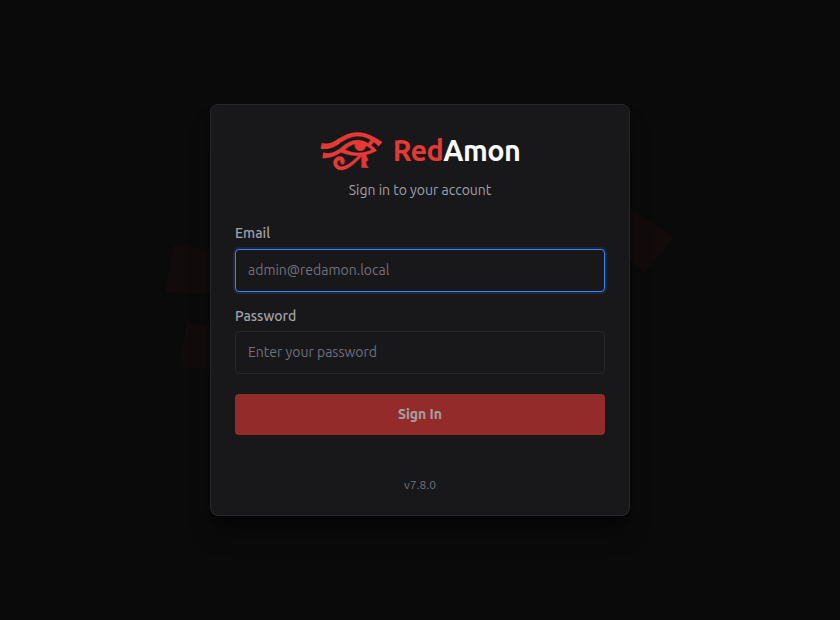
- Open
http://localhost:3000(or your server's address). If you are not signed in, you land on this page. - Enter your email and password and click Sign In.
- You land on the Red Zone (
/graph). The first time, the welcome and disclaimer window appears.
Good to know:
- Too many wrong passwords lock sign-in for that email: 5 failed attempts within 15 minutes lock it for 15 minutes (
LOGIN_MAX_ATTEMPTS,LOGIN_LOCKOUT_SECONDSin.env). The page answers the same way for a wrong password and an unknown email, so it never reveals whether an account exists. - A sign-in may open a notice first, for example when an admin reset your password or acted as you, or Root opened break-glass on your project. See What the person is told.
- How long you stay signed in: 7 days for a member, 12 hours for an admin or Root, and an admin idle for 60 minutes is signed out. See Sessions.
The user menu
Click your name at the top right of any page.
| An admin's menu | A member's menu |
|---|---|
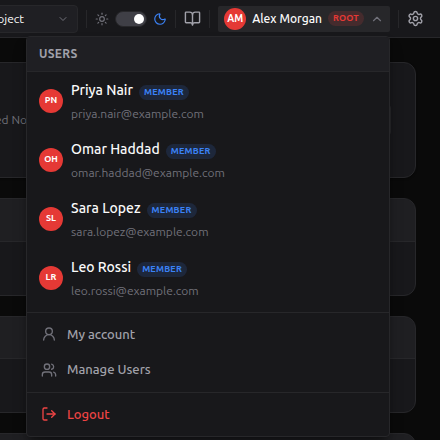 | 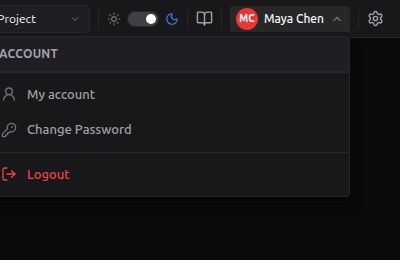 |
- Users (admins with
users:impersonate): the accounts you may act as. Clicking one opens Act as another account. - My account: your profile, password, sessions, permissions, quota and activity. See My account.
- Manage Users (whoever holds
users:read): opens IAM → Users. The header's IAM link opens the IAM Console too. - Change Password (members): a quick dialog for your own password, the same as the Password section of My account.
- Logout: signs this browser out.
Where accounts are managed: IAM → Users
Administrators manage accounts in the IAM Console: click IAM in the header (or Manage Users in the user menu) and open Users. It is there for whoever holds users:read: Root, and the admins whose profile includes it (Full admin, User manager, Security auditor).
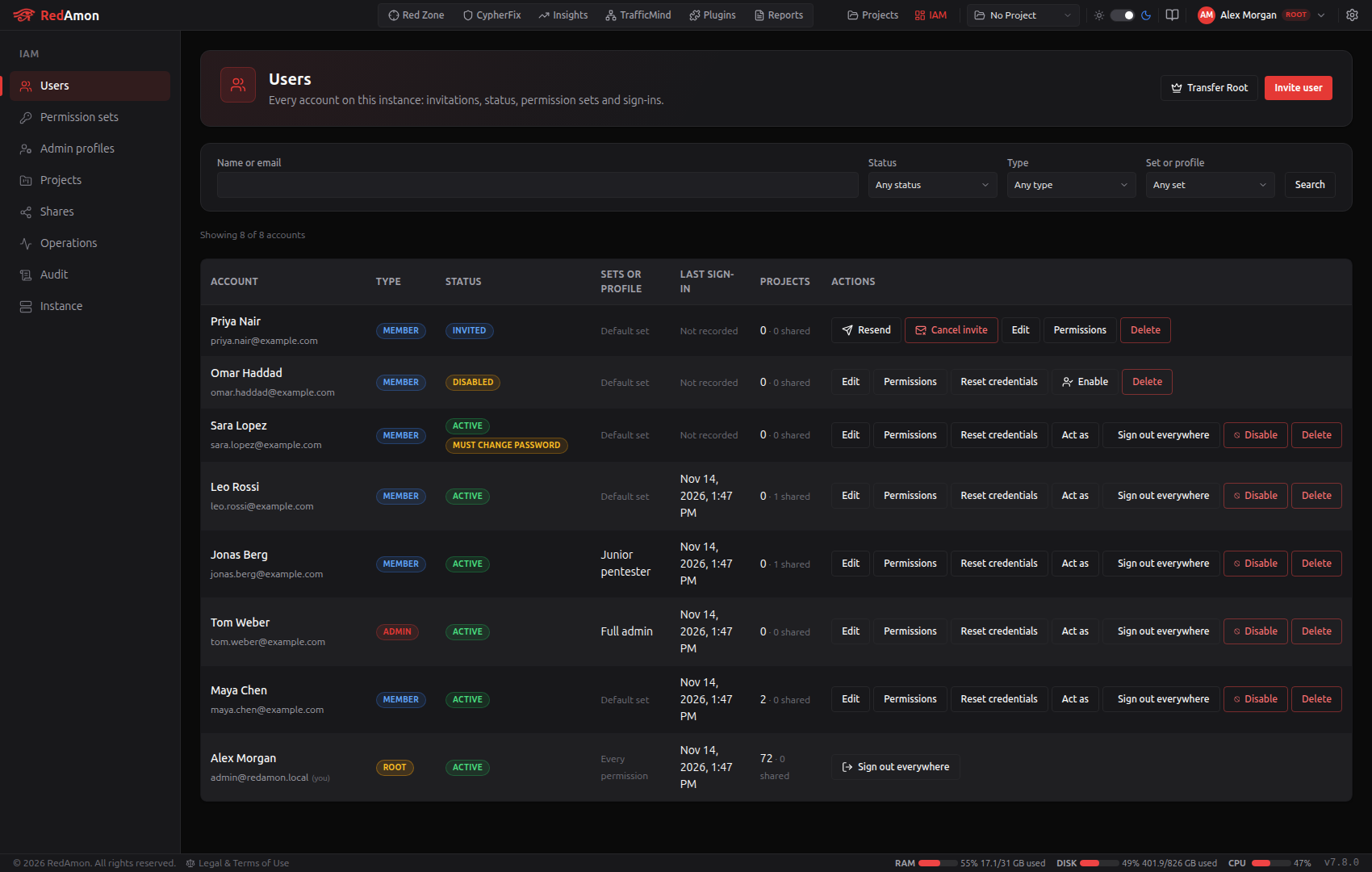
- At the top, Invite user adds a person, and Root has Transfer Root.
- Find accounts by name or email, and filter by status, type and permission set or profile.
- Each row shows the account's type (Root, Admin, Member), its status (Active, Invited, Disabled, plus Must change password), its permission sets or admin profile, its last sign-in (Not recorded when none was recorded since this version), and the projects it owns and the ones shared with it.
- The buttons on a row are the actions you may take on that account, and only those:
| Button | What it does | Section |
|---|---|---|
| Edit | Change the name and the sign-in email | Edit |
| Permissions | Permission sets, overrides and (for an admin) the profile | Giving permissions |
| Reset credentials | Sign the account out everywhere, then send a reset link or set a temporary password | Reset credentials |
| Act as | Work as that person for a while, with a reason and your password | Acting as another user |
| Sign out everywhere | End every session and MCP token of the account; it stays active | Sign out everywhere |
| Disable / Enable | Block the account and keep its data, or let it in again | Disable and enable |
| Resend / Cancel invite | On an invited row: a new link, or remove the invitation | Invite |
| Delete | Delete the account and its projects | Deleting a user |
Who gets which buttons:
- Admins act on members. On another admin's row only Root has actions, each with Root's password, unless Root gave an admin
admins:manage. - Nobody acts on Root's row except Root itself (and Root cannot delete or disable itself).
- Permissions shows on a member's row for whoever holds
users:assign_permissions, and on an admin's row for whoever holdsadmins:manage(Root). Never on your own row. - Delete needs
users:delete; Act as needsusers:impersonate.
Click a name to open the account's page: its profile (where Root changes the type), its permissions, projects, MCP tokens, quota, device sessions and recent activity. The IAM Console page shows each section.
Without the IAM Console
With RBAC_GOVERNANCE_ENABLED=false there is no console: Users in the header opens the classic Users page (/settings/users), with the same accounts and an icon per action. (With the console on, that address takes administrators to IAM → Users.)
The classic Users page, its icons and its two ways to add people (click to open)
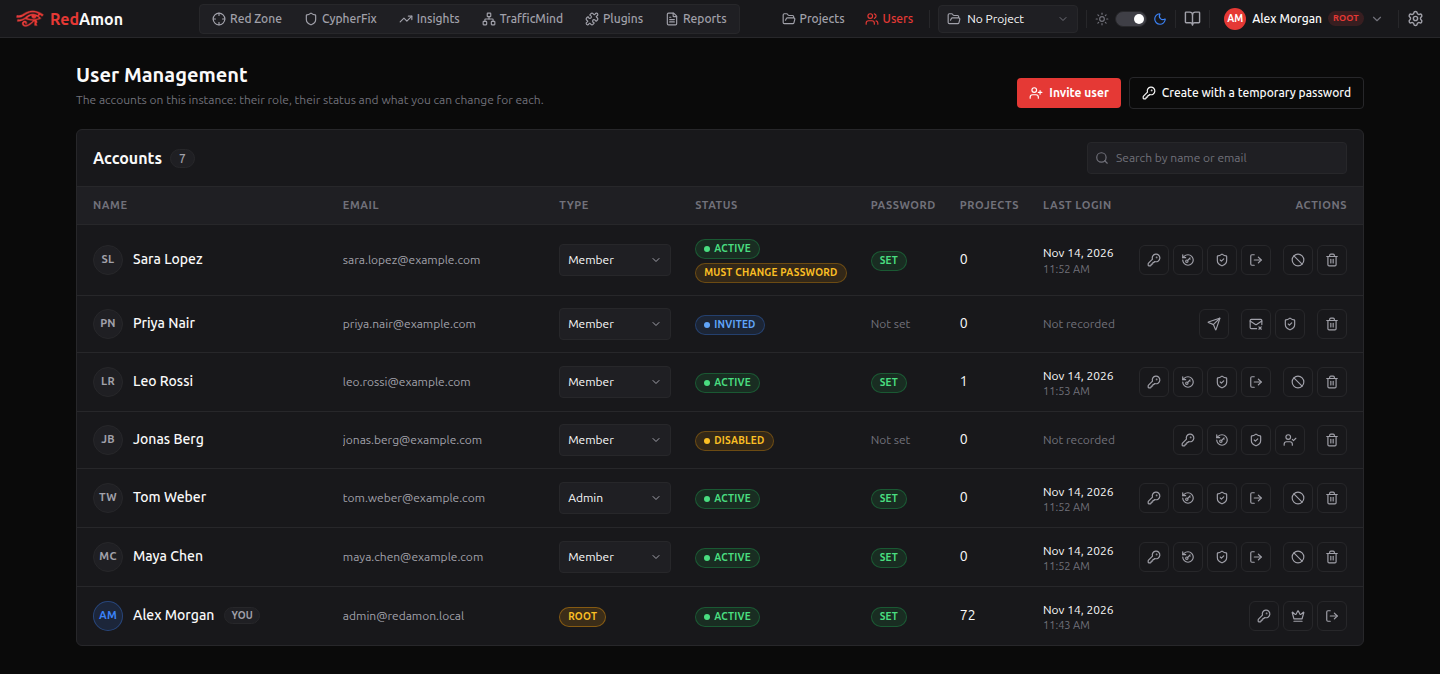
The actions are icons; each shows its name when you hover it.
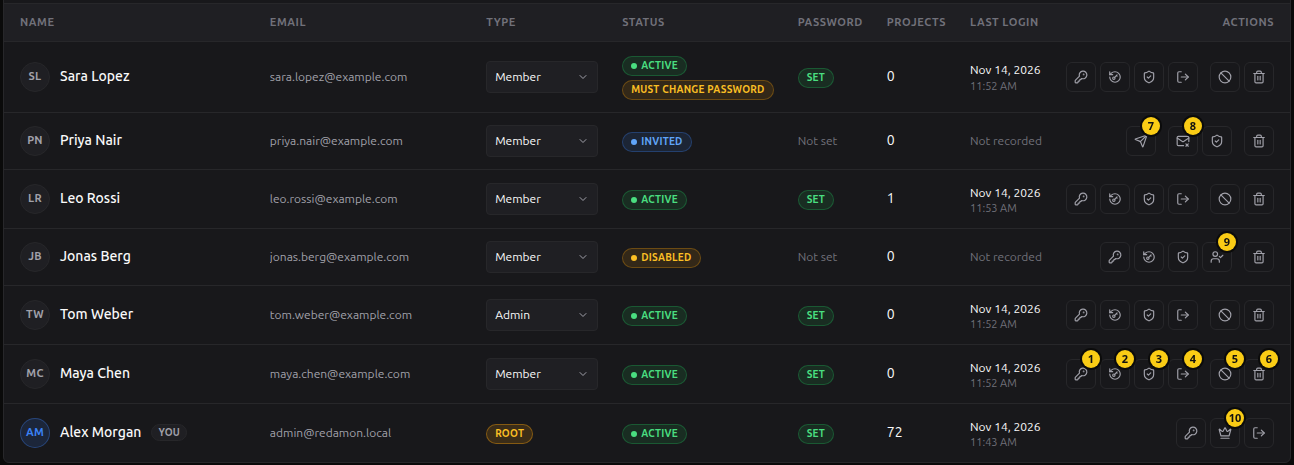
| # | Action | Section |
|---|---|---|
| 1 | Set Password | Set a password |
| 2 | Reset credentials | Reset credentials |
| 3 | Permissions | Giving permissions |
| 4 | Sign out everywhere | Sign out everywhere |
| 5 | Disable | Disable and enable |
| 6 | Delete | Deleting a user |
| 7 | Resend (invited row) | Invite |
| 8 | Cancel invite (invited row) | Invite |
| 9 | Enable (disabled row) | Disable and enable |
| 10 | Transfer Root (Root's own row) | Transferring Root |
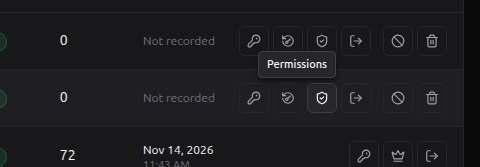
Root changes an account's type from the Type menu on its row. The page also offers Create with a temporary password next to Invite user, and Set Password on each row.
Adding people
Invite is the way to add someone: the person chooses their own password, so you never know it.
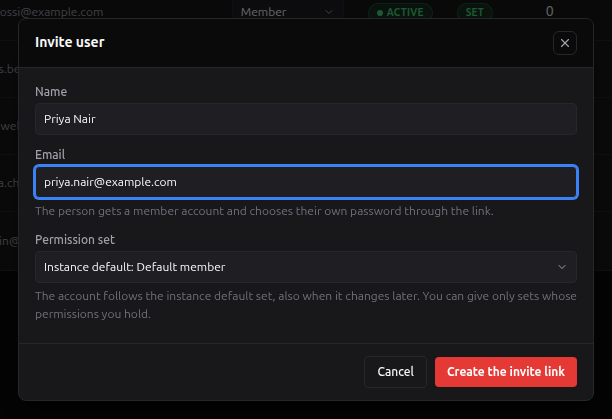
Invite someone (recommended)
-
In IAM → Users, click Invite user.
-
Enter the person's Name and Email.
-
Pick the Permission set they start with, or leave Instance default (see Permission sets). The list shows only the sets whose permissions you hold yourself.
-
Click Create the invite link.
-
Copy the link with the copy button and send it to the person yourself (chat, email, ...). It is shown only once.
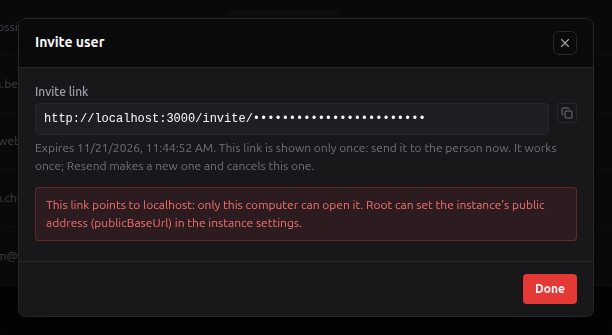
The account appears in the list as Invited. An invited account is always a member; Root can make it an admin from its page.
- The link expires after 7 days by default (Root sets it in the security policy) and works once.
- Lost the link or it expired? On the invited row, click Resend: it makes a new link and the old one stops working.
- Changed your mind? Click Cancel invite: the account is removed and the link stops working.
- The red warning ("This link points to localhost") means the instance has no public address yet, so only your own computer can open the link. Root sets the public address; on a server deploy the links already use the server's address. On a server behind the deploy's firewall gate, add the invitee's address to
OPERATOR_ALLOW_CIDRSfirst, or the link never reaches the app.
Create an account with a temporary password
The IAM Console creates accounts only by invite. When the person needs to sign in right away and you can hand them a password directly:
-
With the console off, the classic Users page has Create with a temporary password: name, email, a password typed twice (it follows the password policy), Require a change at first sign-in (keep it ticked), the Role (Standard = member; Admin is offered to Root only, with Root's password) and the Permission set, then Create User.
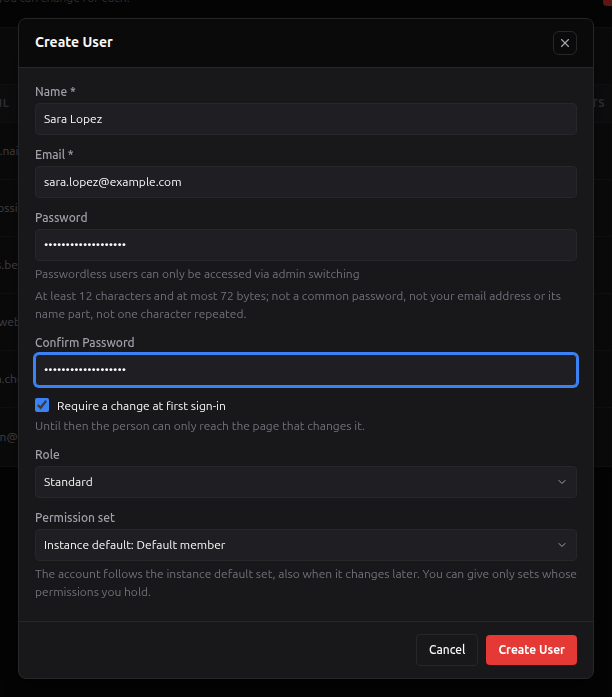
-
With the console on, invite the person and send the link; or create the account through the API,
POST /api/userswithname,email,passwordand"requirePasswordChange": true(it needsusers:create, and"role": "admin"plusstepUpPasswordis Root's).
Leaving the password empty creates a passwordless account that cannot sign in. With sharing on, the form needs a password: a project can be shared only with someone who signs in, and the Projects page's quick New User form (which makes only passwordless accounts) becomes a link to the Users page.
What the new person sees
With an invite link, the person opens the link, reads the password rules, chooses a password twice and clicks Set password and sign in. They are signed in straight away. The link works once, and the token leaves the address bar as soon as the page opens.
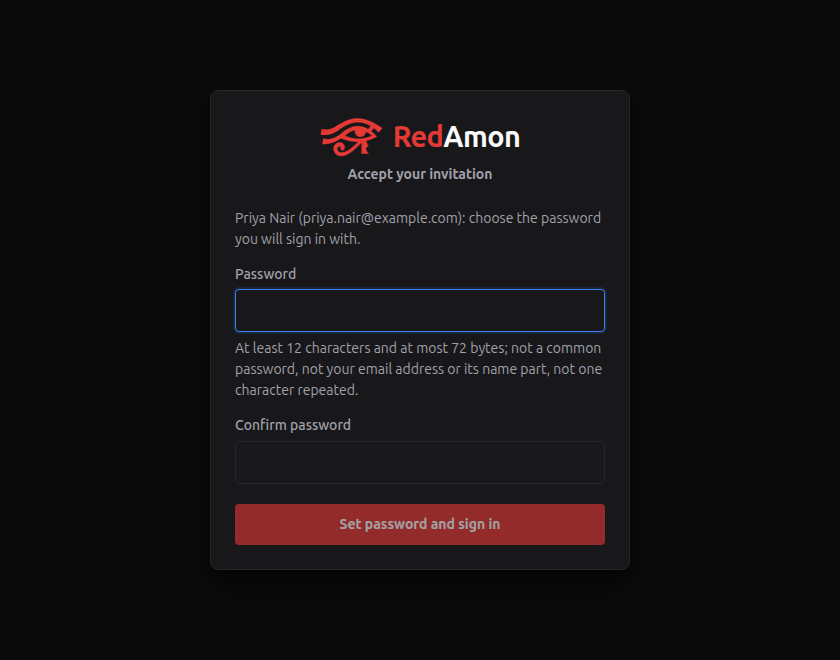
With a temporary password, the person signs in with it and lands on My account, which asks for a new password before anything else:
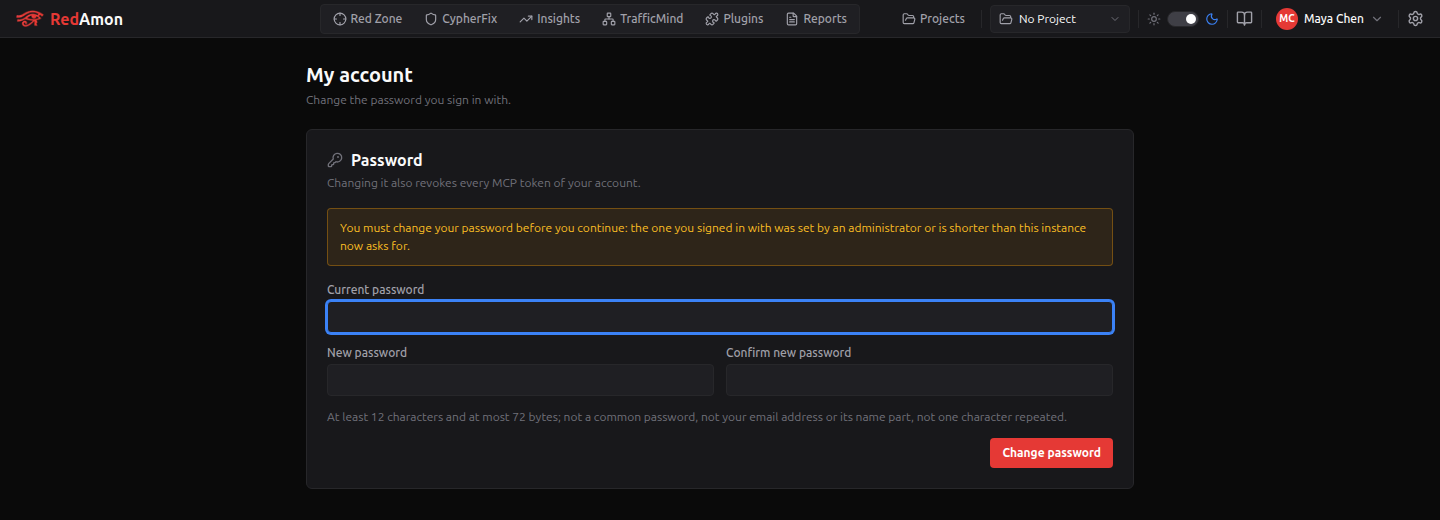
They type the temporary password as Current password, choose a new one twice and click Change password. Until they do, every other page and API call is refused.
Managing an account
Everything here starts from the account's row in IAM → Users (or the same buttons at the top of its page). Every action asks you to confirm first, and every action is recorded in the audit log. On another admin's row, each one also asks for your own password.
Edit the name and email
Edit changes the account's Name and Sign-in email. Changing the email, or anything on another admin's account, asks for your own password. The person signs in with the new address from then on and is told about the change at their next sign-in.
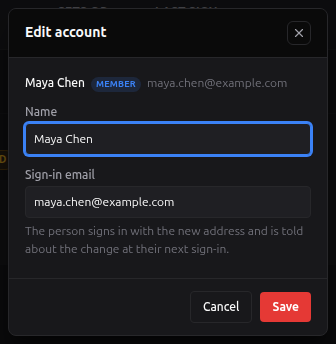
Everyone changes their own name and email on My account (the email change asks for their current password).
Set a password
The IAM Console has no Set Password: use Reset credentials with Set a temporary password, which does the same and tells the person why. With the console off, the classic Users page has Set Password on each row:
- Click Set Password on the row.
- Type the new password twice.
- Keep Require a change at first sign-in ticked unless the person chose this password themselves.
- Write a Reason (required when the person has signed in before; they read it at their next sign-in).
- Click Set Password.
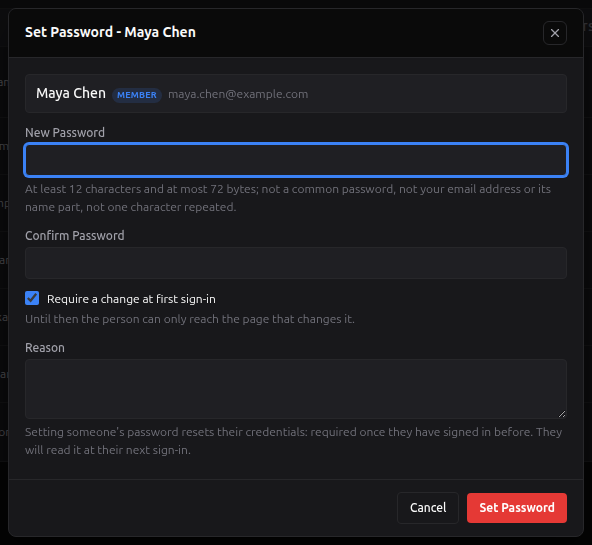
Setting someone's password counts as a credentials reset: their sessions and MCP Server tokens end. On a passwordless account it lets the person sign in for the first time. On your own row the dialog asks for your Current Password instead.
Reset credentials
Use this when someone forgot their password, lost a device, or you think someone else knows their password.
- Click Reset credentials on the row.
- Choose How:
- Send a reset link (recommended): you get a link, valid for 4 hours by default, that you send to the person. They choose a new password through it.
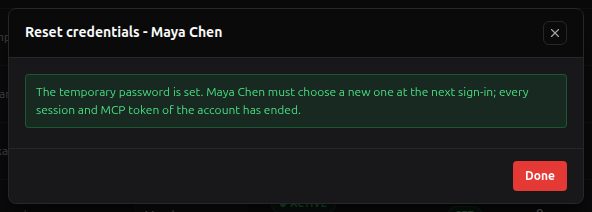
- Set a temporary password: you type one; the person must replace it at their next sign-in.
- Write a Reason. It is required once the person has signed in before, and they read it.
- Click Reset credentials.
| Send a reset link | Set a temporary password |
|---|---|
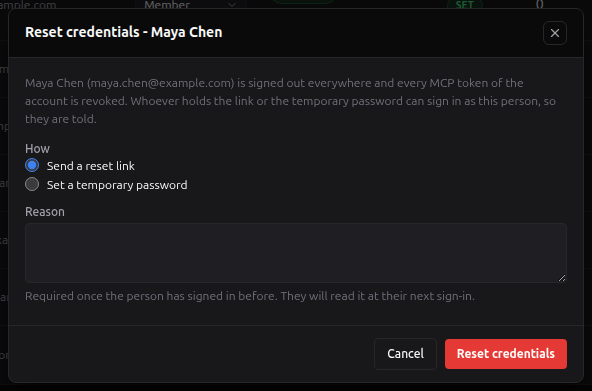 | 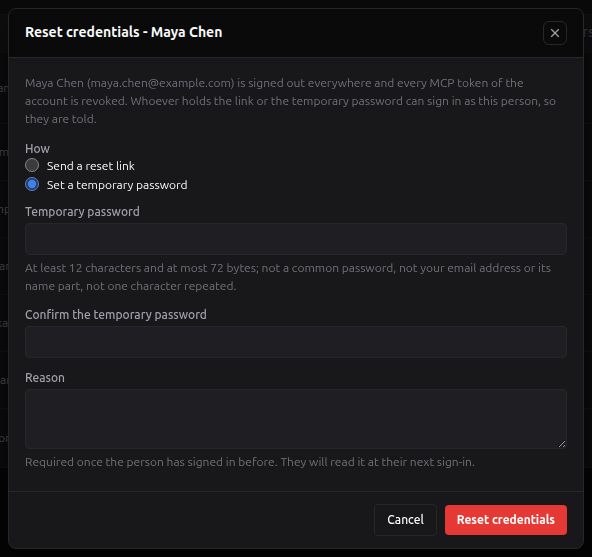 |
What happens at once: every session and MCP Server token of the account ends, its open invite and reset links are cancelled, and its open agent and terminal connections close.
What the person is told
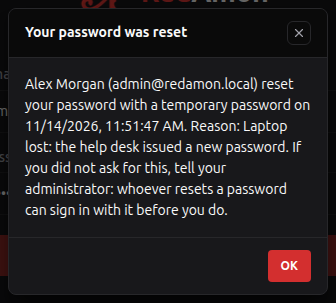
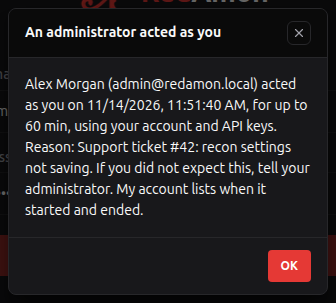
At their next sign-in the person sees who reset their credentials, when and why, before anything else. The same sign-in is recorded, with its address and browser, in their My activity. If an admin acted as them meanwhile, or Root opened break-glass on one of their projects, they are told that too.
| After a reset | After someone acted as them |
|---|---|
 |  |
Disable and enable
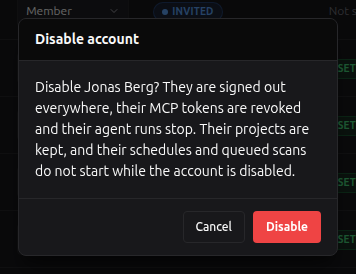
Disable blocks an account without deleting anything:
- it is signed out of every browser and its MCP Server tokens are revoked;
- its running agent chats stop and its open agent and terminal connections close;
- its scheduled scans are skipped and its queued scans cancelled;
- sign-in answers the same generic error as a wrong password.
Its projects and data stay. The last admin with a password cannot be disabled.
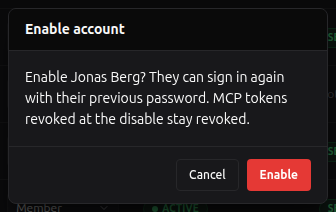
Enable (on a disabled row) lets the account sign in again with its previous password. MCP tokens revoked at the disable stay revoked.
Sign out everywhere
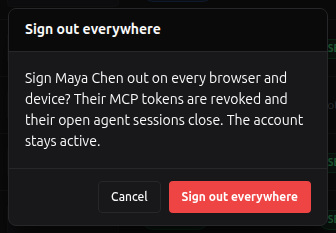
Sign out everywhere ends every session of the account on every browser and device, revokes its MCP Server tokens and closes its open agent sessions. The account stays active: the person can sign in again at once. Use it when someone left a session open on a shared computer. Everyone can do this for their own account on My account, where each browser can also be signed out alone.
Make someone an admin or a member
Only Root changes an account's type, on the account's page in IAM → Users:
- Open the account (click its name) and, in Profile, set Type to Admin (or Member).
- Confirm with your own password and click Make admin (or Make member).
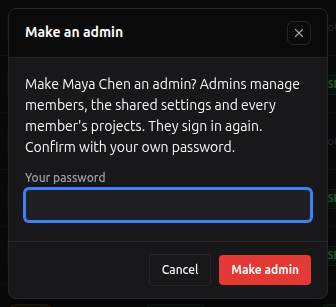
The person is signed out and signs in again with the new type. Two safety rules: the last admin with a password cannot be demoted, and nobody changes Root's type. With the console off, the same menu is the Type column of the classic Users page. See Managing administrators for what to do next (the admin profile).
Without the identity switch there is no Root and no Type menu; an admin then changes a role through the API (PUT /api/users/<id> with {"role": "admin"} or {"role": "standard"}, plus "stepUpPassword" to demote another admin). From the server, FORCE_PROMOTE=1 ./redamon.sh create-admin promotes an existing member.
Deleting a user
- Click Delete on the row.
- Check the name and click Delete. For an admin, confirm with your own password.
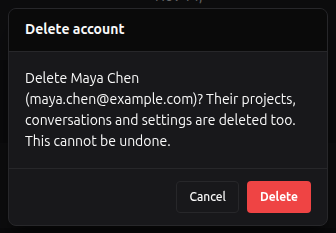
Warning: deleting a user permanently removes all their projects, recon data, graph nodes, agent conversations, settings and reports. It cannot be undone. If you only want to stop someone, disable the account instead.
What happens, in order:
- Each of the user's projects is torn down exactly like a project delete: its running scans, agent chats and triage runs stop, its engagement authorization records are archived, and the project with its files, workspace and graph nodes is removed.
- If an authorization record cannot be archived, the deletion stops there: the account is kept, the projects already deleted stay deleted, and the error names the project.
- The user's uploaded Nuclei templates pass to you.
- When the account goes, its agent runs and connections on other people's projects end, its queued scans there are cancelled, and its conversations on other people's projects pass to each project's owner, read-only, naming it as a deleted account.
You cannot delete your own account, and the last admin with a password cannot be deleted.
A user who owns shared projects (with RBAC_SHARING_WRITE_ENABLED on). Their projects that other people can open would disappear for those people too, so the server refuses the delete until each shared project has a decision (DELETE /api/users/<id> answers 409 deletion_plan_unresolved, naming each project). In the IAM Console the refusal is shown as is:
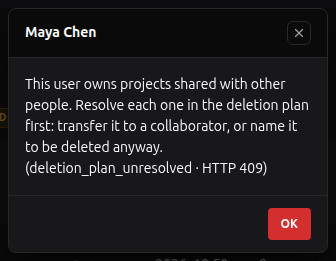
The console has no form for this deletion plan yet. Resolve each shared project first, then delete:
- the owner transfers it to a collaborator, or revokes its shares;
- or the confirmed Root revokes its shares from IAM → Shares, or deletes it from IAM → Projects.
With the console off, Delete on the classic Users page opens a wizard instead. It lists the account's shared projects, its unshared ones (deleted with it) and the shares it holds on other people's projects (they end). For each shared project, choose:
- Offer it to one of its collaborators (with your password). The collaborator accepts with their own password, as an ordinary transfer; until then you can withdraw the offer.
- Transfer it without asking (the confirmed Root only, with Root's password): it moves at once and is recorded as a forced transfer. Nothing may be running on the project.
- Delete anyway: it is deleted with the account, for everyone.
Delete stays disabled until every shared project is transferred or marked delete anyway; an open offer must be accepted or withdrawn first. With write sharing off, deleting a user deletes every project as above.
Managing administrators
Administrators are managed by Root. Every action on another administrator (change its type, its profile, edit, reset, sign out, disable, act as, delete) is Root's and asks for Root's password; an ordinary admin sees no buttons on another admin's row. Root can hand part of this to an admin with admins:manage (below).
Making someone an admin
- Invite the person (as above). Every invited account starts as a member.
- Root opens their page in IAM → Users (click their name) and sets Type to Admin, with Root's password (Make someone an admin). If they are signed in, they are signed out and sign in again as an admin.
- Choose what this admin may do: Permissions on their row → Admin profile.
Choosing what an admin may do
An admin holds one admin profile for the administration side, on top of a member side (their own sets, Default member when none):
| Profile | Gives this admin | Typical use |
|---|---|---|
| Full admin (no profile picked) | Every administration and platform permission except Root's own | A deputy who runs everything but the other admins |
| User manager | The user directory: invite, edit, disable, reset credentials, sign out, assign member sets. No deleting accounts, no acting as members, no platform tools | Help desk, team lead |
| Platform operator | Plugins, traffic capture, tunnels, Nuclei templates, the agent's MCP servers, the emergency stop, every shell session, Operations. No user management | Whoever runs the server |
| Security auditor | Reads the user directory, the audit log (and exports it) and every project. Changes nothing | Compliance review |
| A custom profile | What Root ticked in IAM → Admin profiles | Anything in between |

The IAM Console then opens for that admin only the sections the profile allows, and the Permission reference lists exactly what each profile holds. Overrides on an admin cover member permissions only: the administration side is the profile, whole.
Delegating admin management
Root can put admins:manage into a custom admin profile. An admin holding it manages the admins whose profile is strictly inside their own (for example, a Full admin with admins:manage can manage User managers), each time with their own password, and only with the permissions they hold themselves:
- Can: edit those admins, change their permissions and give them a profile strictly inside their own, disable and enable them, sign them out everywhere, delete them.
- Cannot: create an admin, reset another admin's credentials, act as another admin (these stay Root's), or touch Root.
Of Root's own permissions only admins:manage can go into a profile; the other four never do.
What only Root does
Even a Full admin cannot: manage other admins (unless given admins:manage), create or edit admin profiles, change the instance security policy, the public address, the sharing policy, the audit retention or the default set for new members, add instance LLM providers, open break-glass, transfer or delete any project, revoke any share, or transfer Root. See Root.
Removing an admin
- Make them a member again: their page → Type → Member, with Root's password. They are signed out.
- Disable them, or Delete them (Root's password).
- The last admin with a password cannot be demoted, disabled or deleted: promote another account first.
Admins sign in for 12 hours at most and are signed out after 60 minutes idle (Root sets both in the security policy). Everything an admin does is in the audit log under their name.
Permissions (RBAC_PERMISSIONS_ENABLED)
Permissions decide exactly what each account may do. They are on by default (the switch is in .env, see Turning the controls on and off). There are 98 permissions in 12 areas; each is listed in the Permission reference.
You rarely think about single permissions. Instead:
| Building block | For | What it is |
|---|---|---|
| Permission set | Members | A named bundle of member permissions, such as Recon operator. A member can hold several sets; they add up. |
| Admin profile | Admins | One bundle of administration permissions, such as User manager. An admin holds exactly one. |
| Override | Members and admins | One permission granted or denied to one account, optionally until a date and with a reason. A deny always wins. |
| Instance default set | Members with no set | Default member, unless Root chose another one. |
Permission sets for members
A member holds every permission of every set ticked, together, plus their overrides. With no set ticked, the member holds the instance default set and follows it when Root changes it.
| Built-in set | In short | Holds |
|---|---|---|
| Default member | Everything a member can do on their own projects (scans, the agent with its approvals, Kali commands, reports, settings), and nothing that reaches other users. It is what a member with no set holds, so it is not offered as a choice. | 70 |
| Red-team operator | The same permissions as Default member: tick it to keep these rights whatever the instance default becomes. | 70 |
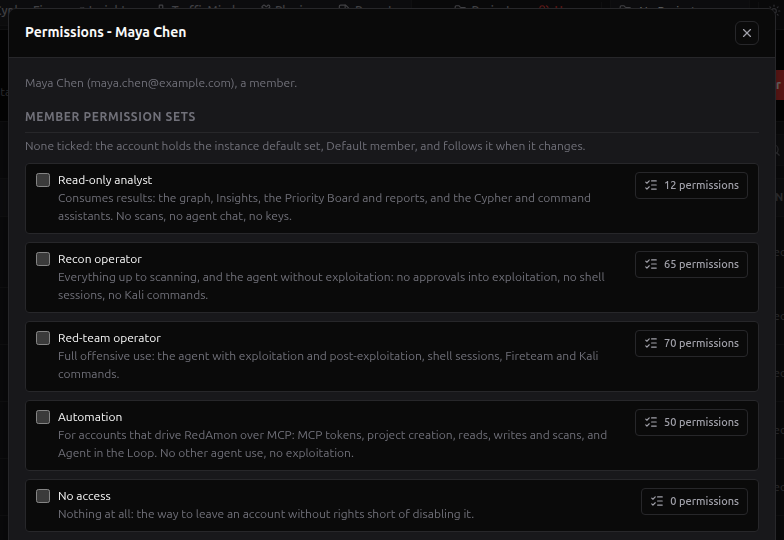
| Recon operator | Default member without the exploitation approvals, dangerous-tool confirmations, live shell sessions, Kali commands and traffic replay. | 65 |
| Automation | What an MCP token or a script needs: projects, scans, reads and writes, Agent in the Loop. No chat, no approvals, no personal settings. | 50 |
| Read-only analyst | Reading only: recon output, the graph and its queries, triage, remediations, reports and traffic, the Cypher assistant. No scan, no chat, no change. | 12 |
| No access | Nothing: the account can sign in and see that it holds nothing. The way to leave an account without rights short of disabling it. | 0 |
How sets combine:
- Sets only add. Most built-ins sit inside one another (Read-only analyst and Automation are inside Recon operator, which is inside Red-team operator), so ticking a set contained in another one changes nothing. No access ticked together with other sets changes nothing either.
- Default member is not offered when you give a set or invite someone. Leave every set unticked for the instance default, or tick Red-team operator for the same rights whatever the default becomes. An account that already holds Default member still shows it, marked no longer offered, so you can untick it; the API still accepts it.
- A member whose every set was deleted holds No access.
- Built-in sets cannot be edited. An admin holding
roles:managecreates custom sets (a copy of a built-in, or from scratch) withPOST /api/admin/permission-sets, and Root picks the instance default set (PUT /api/admin/permission-sets/<id>with"instanceDefault": trueand Root's password). With the IAM Console on, IAM → Permission sets and IAM → Instance are the forms for this.
The full list of what each set holds is in What each member set holds.
Admin profiles for admins
An admin holds one admin profile for the administration side, on top of a member side (their own sets, Default member when none):
| Built-in profile | In short | Holds |
|---|---|---|
| Full admin (an admin without a profile) | Every administration and platform permission except Root's own. | 23 |
| User manager | The user directory: create and invite, edit, disable, reset credentials, sign out, assign member permission sets. No platform tools, no acting as a member. | 7 |
| Platform operator | The platform: plugins, traffic capture, tunnels, Nuclei templates, the agent's MCP servers, the emergency stop, every shell session, the operations view. No user management. | 8 |
| Security auditor | Reads and exports the audit log, reads the user directory and reads any project. Changes nothing. | 4 |
Root holds everything, including the five Root-only permissions. Only Root creates custom admin profiles (POST /api/admin/admin-profiles, or IAM → Admin profiles with the console on) and gives admins:manage, which lets an admin manage the admins whose profile is strictly inside their own, each time with their own password. See What each admin profile holds.
Giving permissions, step by step
Click Permissions on the account's row in IAM → Users (on the account's own page the same editor is the Permissions section). The dialog has four parts, top to bottom.
1. Member permission sets. Tick the sets the account should hold. None ticked means the instance default. The N permissions button on the right of each set opens what the set contains.
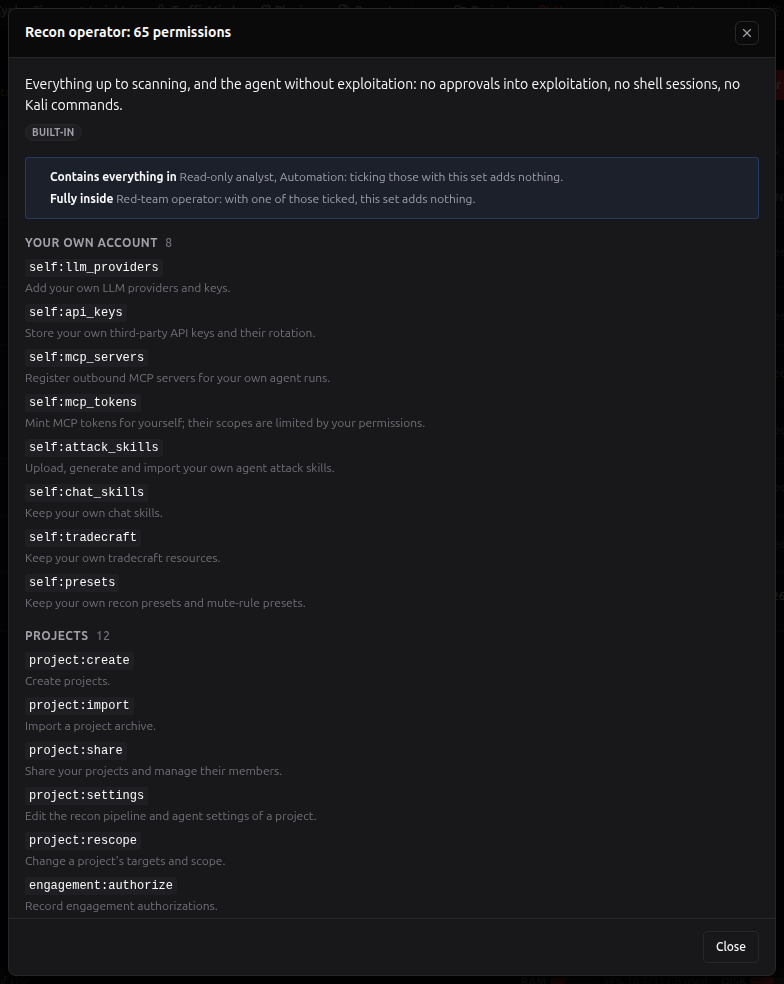
The set window lists its permissions by area, each with what it allows, and how it overlaps the other sets: the sets it contains whole, the ones it sits fully inside, and any with the same permissions.
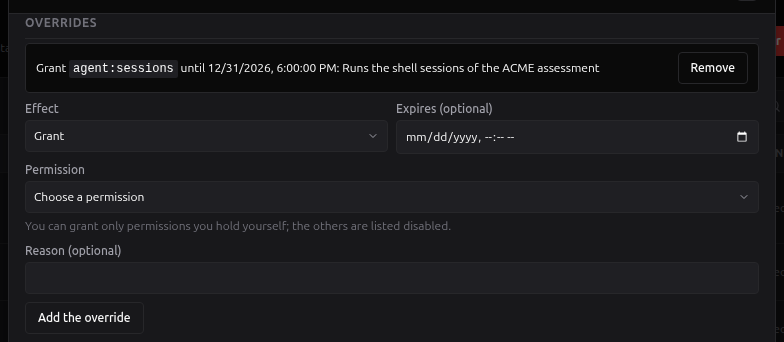
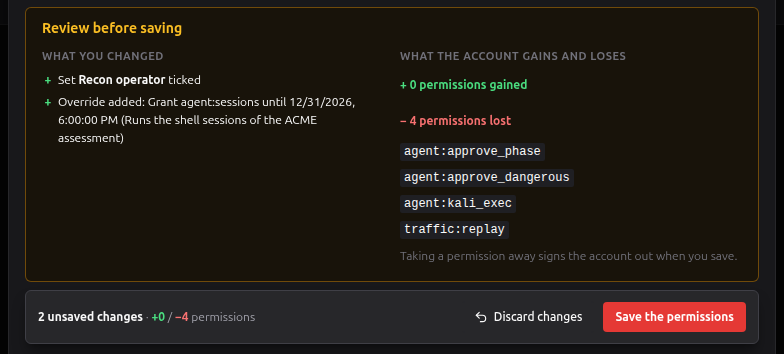
2. Overrides. To grant or deny one single permission: pick the Effect (Grant or Deny), the Permission, optionally an Expires date and a Reason, and click Add the override. Permissions you do not hold yourself are listed disabled. Remove takes an override away. In the example below, the member gets Recon operator plus the shell sessions until the end of the year.
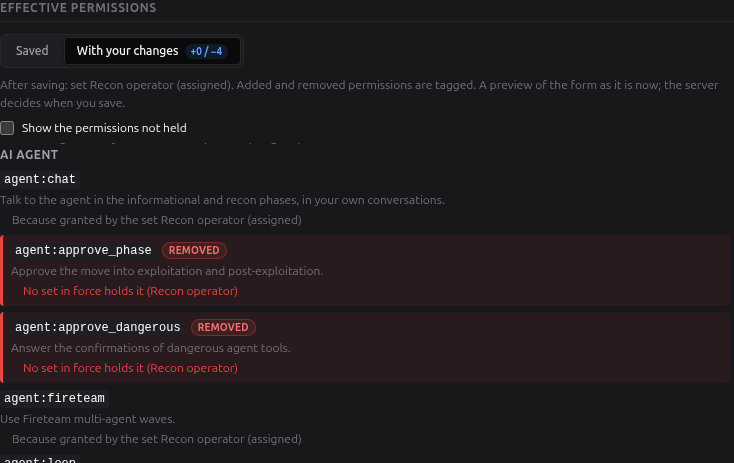
3. Effective permissions. What the account can actually do, each permission with why (which set or override gives it). Switch between Saved (what it holds now) and With your changes (what it would hold if you saved the form as it is); permissions your change adds are tagged added, those it takes away removed. Tick Show the permissions not held to see the rest.
4. Review and save. As soon as the form differs from what is saved, Review before saving lists what you changed and what it does: the permissions gained and lost. The bar at the bottom stays in view while you scroll, with the number of unsaved changes, Discard changes and Save the permissions.
For an admin, the dialog also has an Admin profile picker (Root, or an admin holding admins:manage), with its own N permissions button:
Invite user and Create with a temporary password also offer the Permission set a new member starts with.
The rules the server enforces
Whatever the page shows, the server checks:
- You give only what you hold. A set or an override with a permission you lack is refused, naming it.
- You never change your own permissions, and nobody changes Root's.
- Some grants ask for your password: an exploitation approval, a dangerous-tool confirmation, live shell sessions, Kali commands, or any platform tool. (In the reference, these are marked Giving it asks for your password.)
- Taking a permission away signs the account out everywhere and closes its open agent and terminal connections. Adding one counts at its next request.
- Overrides on admins cover member permissions only; an admin's administration side is its profile, whole. Platform tools go to a member only through an override.
- Every change is in the audit log (
user.permissions_changed,permission_set.*,admin_profile.*,instance.default_member_set_changed).
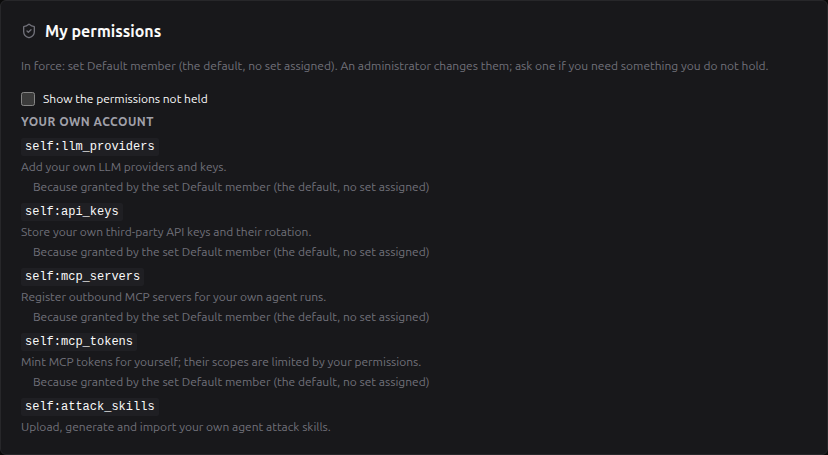
Everyone sees their own permissions on My account → My permissions.
What a person without a permission sees
Buttons and pages follow your permissions. What you do not hold is either hidden, or shows "You do not have the permission this needs." with the permission's name, what it allows, and "Ask an administrator to grant it to you." Here a Read-only analyst opens a project: the scan buttons are disabled and the empty graph explains why.
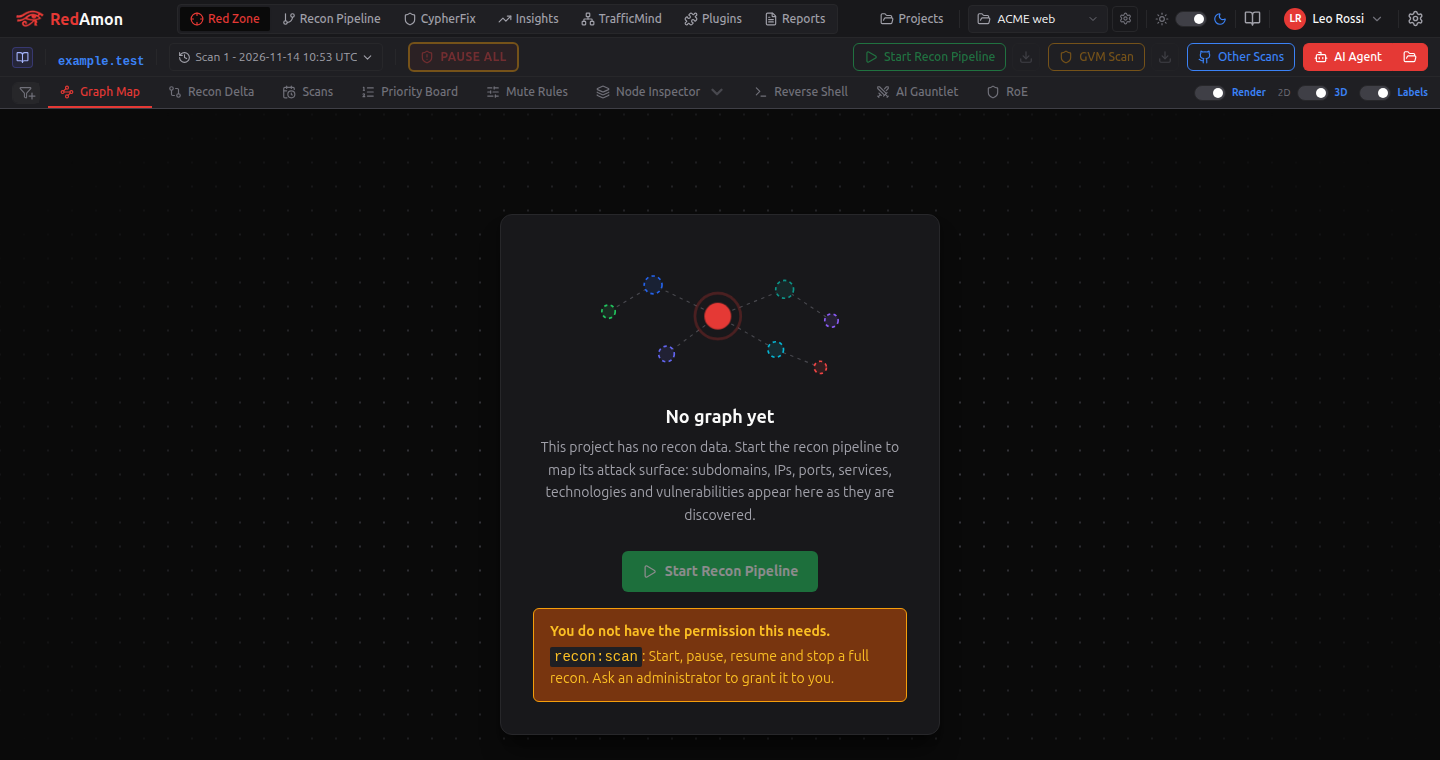
This covers the Users link and page, the user switcher, the plugin management buttons, the TrafficMind settings, the Kali terminal tab, the shell sessions panel, the graph page's scan buttons (Start Recon Pipeline, GVM Scan, every start in Other Scans, the recon dialog's Overwrite choice), the Workflow view's partial-recon play and the AI Agent drawer. Everywhere else the server decides: a request you may not make is refused with 403 naming the permission, and the error shown names it too. A project you cannot see still answers not found.
In the agent chat, an exploitation approval needs agent:approve_phase, a dangerous-tool confirmation agent:approve_dangerous, and a Fireteam member confirmation both agent:fireteam and agent:approve_dangerous (see AI Agent Guide). MCP Server tokens never do more than their owner may: a scope whose permission the owner lacks cannot be ticked, and an existing token loses it at its next call.
Acting as another user
An admin can see RedAmon exactly as a member sees it, to help or to check something: their projects, graph, conversations, scans, reports and settings, and nothing else. This needs users:impersonate.
- Click Act as on the person's row in IAM → Users, or open the user menu and click their name in the Users list.
- Write a Reason (Root can make it required), choose For how long (1 hour by default; from 15 minutes up to Root's limit, at most 12 hours), and type Your password.
- Click Act as <name>.
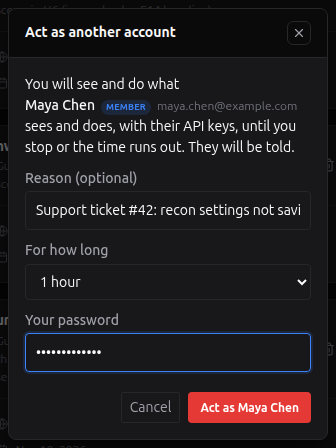
A banner on every page then says whom you are acting as, why, how much time is left and that their API keys are used, with Stop:

Rules:
- Admins act as members only. Only Root acts as another admin, and nobody acts as Root.
- While acting, you hold a member permission only when both you and the person hold it; your administration permissions stay yours.
- Some things stay with the person even while you act as them: their password and credentials, their sign-in email, deleting their account, creating MCP tokens in their name, revealing their secrets, using their GitHub token, writing their agent or chat skills, adding MCP servers, and changing where an MCP server or an LLM provider sends their keys. Each attempt answers "not available while acting as <name>" and is recorded (
act_as.refused). - Opening a URL of another person's project answers not found while you act as someone. With sharing on, the projects shared with the person are included, read-only, never more.
- It ends when you press Stop, when the time runs out, when you sign out, when the account is disabled, deleted or made an admin, and when you lose
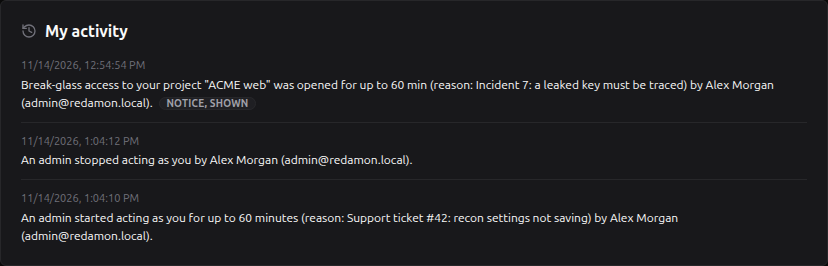
users:impersonateor your sessions end. Ending it closes the agent chats you opened as them. A reload or a new tab shows the same session's banner; nothing restarts silently. - The person is told at their next sign-in (unless Root turned that off), and finds each session in My activity: who, why, for how long and how it ended. Every start and end is in the audit log.
Root
One account per instance is Root: the top account, which no other account can take over.
Who is Root. On a new install, the first admin you create. On an install that already had admins, the update picks one: the only admin with a password, or the oldest. A choice made automatically is unconfirmed until the host confirms it. Meanwhile every admin sees "Root is <email>, chosen automatically on <date>. Root can transfer it once the host confirms it", or "This instance has no Root" when no admin has a password, and the Users page shows unconfirmed under the Root badge.
Confirming Root. ./redamon.sh update confirms Root after the restart: the only admin at once; with several it lists them and asks (Enter confirms the proposal, a number picks another admin, n decides later). An update without a terminal, such as ./deploy.sh update, confirms the admin that ADMIN_EMAIL names and otherwise leaves Root unconfirmed. ./redamon.sh set-root <email> confirms or changes Root at any time.
Protected. No other account can demote, disable, delete, reset, sign out or act as Root, or list, change or delete Root's MCP Server tokens. Each attempt is refused and recorded in the audit log.
Root-only actions (once confirmed, each with Root's password):
- creating an admin, resetting another admin's credentials and acting as another admin (always Root's);
- promoting members, and editing, disabling, signing out or deleting another admin (Root's, unless Root gave an admin
admins:manage; other admins manage members only); - the instance security policy: the password minimum, the session and link lifetimes, the public address used in links, the act-as limits (
PUT /api/admin/instance-settings, or the IAM Console's Instance page when it is on); - the instance default permission set, custom admin profiles, the sharing policy, and break-glass on a project.
Transferring Root
-
In IAM → Users, click Transfer Root at the top (it is also on My account, and, with the console off, the crown icon on your own row of the classic Users page).
-
Pick the admin (an active admin with a password), type your password, and click Offer Root.
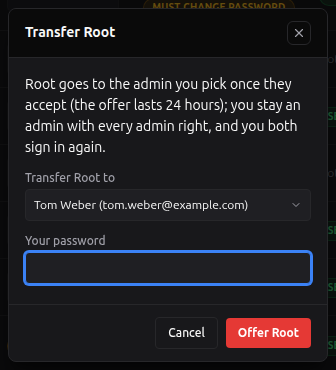
-
Until they answer, a banner reminds you of the offer, with Cancel the offer. The offer expires after 24 hours.

-
The other admin sees Accept Root (with their own password) and Decline:

Accepting signs both accounts out. The previous Root stays an admin with every admin right.
Lost Root
Run ./redamon.sh set-root <email> on the host. It makes that account an admin and the confirmed Root, enables it if it was disabled, signs it and the previous Root out, and revokes the new Root's MCP Server tokens. The account needs a password: set one first with ./redamon.sh reset-password if needed.
My account
Everyone has My account in the user menu (/account). It is where you look after your own account.
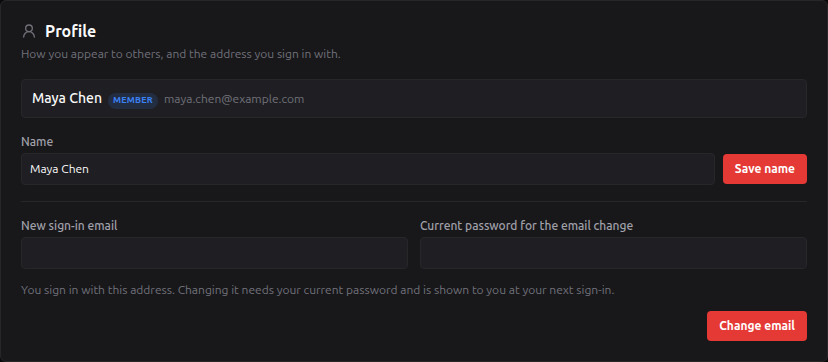
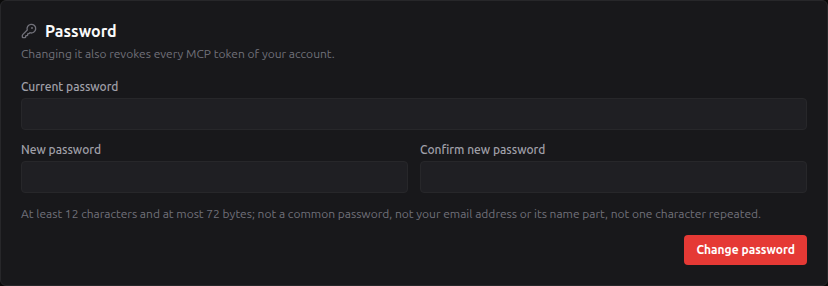
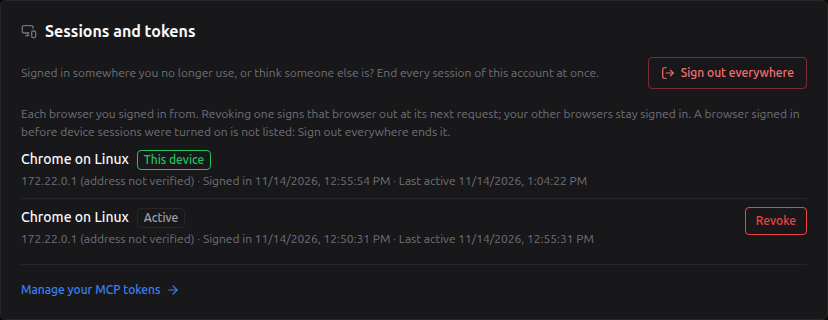
| Section | What you do there |
|---|---|
| Profile | Change your name, and your sign-in email (with your current password). If an admin changes your email, you are told. |
| Password | Change your password: current password, then the new one twice. It also revokes your MCP tokens. |
| Sessions and tokens | Sign out everywhere (this browser included), every browser you are signed in from, each with Revoke (yours is marked This device), and a link to your MCP tokens. |
| Quota | Your limits (projects, scans and agent runs at once, MCP tokens, model calls) and what you use now. See Quotas. |
| My permissions | Your sets, your overrides with their expiry and reason, and every permission you hold, with why. |
| My activity | What happened to your account: notices you received, credentials resets and the first sign-in after one (with its address and browser), sign-in email changes, Root changes, and every admin who acted as you. |
Root also finds Transfer Root here.
| Profile | Password |
|---|---|
 |  |
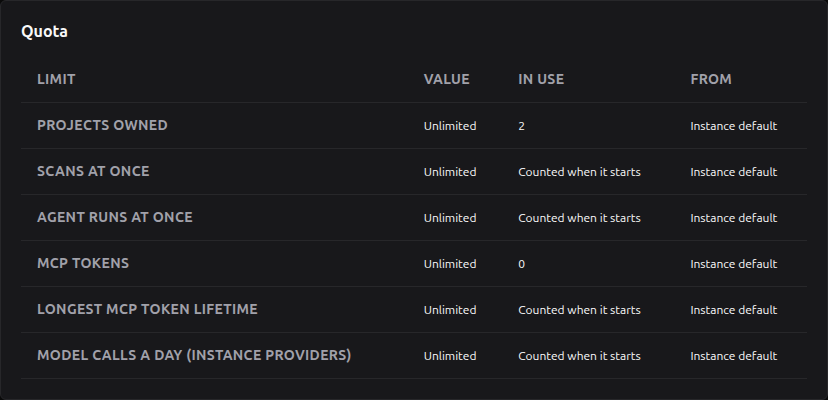
| My permissions | My activity |
|---|---|
 |  |
Too many wrong current passwords lock the password change for a while, as at sign-in. The browser sessions and the quota come with the IAM Console switch; without it, Sessions and tokens has only Sign out everywhere.
Passwords, sessions and sign-in security
Passwords
Every new password follows the policy shown under each password field:
- at least 12 characters (Root can raise the minimum) and at most 72 bytes;
- not a common password;
- not your email address or its name part;
- not one character repeated.
A password an admin sets for someone else (Set Password, Reset credentials, Create with a temporary password) is temporary by default: after signing in with it, the person can only open My account until they choose their own. Root can also ask, at sign-in, for a new password from any account whose password is shorter than the minimum. Changing a password always revokes the account's MCP Server tokens.
Sessions
| Who | Signed in for | Also |
|---|---|---|
| Member | 7 days | |
| Admin, Root | 12 hours | Signed out after 60 minutes without activity |
| Acting as someone | Up to 12 hours (Root's limit) | 1 hour by default |
Disabling an account, signing it out everywhere, changing its type or resetting its credentials ends its sessions at its next request (within a few seconds when several webapp copies run). Your account and type are checked on every request, not only at sign-in: an admin who is demoted loses admin powers at once. With the IAM Console on, each browser you sign in from is a session of its own that you can sign out alone (Device sessions).
Forgotten password: the terminal
If you cannot sign in (for example the only admin forgot their password), reset it on the server:
./redamon.sh reset-password
It asks for the account's email and a new password. It works for any account, never changes the account's type, revokes its MCP Server tokens, and is recorded in the audit log.
./redamon.sh create-admin creates a new admin. With an existing admin's email it resets that admin's password (nothing changes when the password is the same). With an existing member's email it refuses, so a typo cannot promote the wrong account; to promote that member on purpose, run FORCE_PROMOTE=1 ./redamon.sh create-admin.
Either command also signs the account out of every browser, enables it if it was disabled, and cancels its open invite and reset links. If the account you lost is Root, ./redamon.sh set-root <email> moves Root to another admin (see Lost Root).
Sharing, oversight and the IAM Console
Two more parts build on user management, both on by default. Each has its own page.
Sharing Projects (RBAC_SHARING_ENABLED, and RBAC_SHARING_WRITE_ENABLED for Read & Write) lets an owner share a project with colleagues at a level they choose, change or revoke it, let them spend the project's credentials, and transfer the project. It waits for Root's sharing policy, which is off until Root turns it on in IAM → Instance → Sharing policy. What it means for accounts:
- Oversight. An administrator holding
projects:overseereads any project at Read, without raw data and files and without anyone's agent conversations, from All projects (oversight) on the Projects page or IAM → Projects. Full admin and Security auditor hold it (so does every administrator without a profile); User manager and Platform operator do not. To keep an administrator out, give them a profile without it. Each administrator's first read of a project each day (UTC) is recorded (project.oversee) and shown in the owner's project activity. Oversight never applies while acting as someone, and never reaches an MCP token. - Break-glass. Only the confirmed Root (
projects:administer) opens a project with Raw data & files too: a reason, at most 240 minutes and Root's password. The owner is told at their next sign-in (and in My activity), and the project's activity records it (project.breakglass,project.breakglass.end). It ends by itself. See Oversight and break-glass. - Who sees the shares. The policy's Administrators see every share (on by default) lets an administrator with oversight list a project's shares and its sharing activity, and opens IAM → Shares.
- Acting as a collaborator reaches the projects shared with that person, read-only; the owner's project activity shows Opened the project, once a day, naming both.
- Deleting an owner of shared projects needs a decision for each shared project first (Deleting a user).
- Accounts that can sign in. The create form needs a password, and the Projects page's quick New User form (which makes only passwordless accounts) becomes a link to the Users page: a project can be shared only with someone who signs in.
The IAM Console (RBAC_GOVERNANCE_ENABLED) gives administrators one place to run the instance: IAM in the header replaces Users, and each section opens for whoever holds its permission (Users, Permission sets, Admin profiles, Projects, Shares, Operations, Audit, Instance). The same switch turns on quotas, per-plugin allowlists, per-browser sessions and the LLM providers Root shares with chosen permission sets.
With a switch off, the matching part of this page does not apply: see Turning the controls on and off.
Shared Tools and Legacy Access
Five tools act on the whole instance rather than on one project, so they belong to admins:
| Tool | A member without access |
|---|---|
| Kali terminal (Red Zone) | Cannot open it: "The Kali terminal is open to administrators and to accounts that kept it at the upgrade." |
| Every user's shell sessions (Reverse Shells) | Sees and drives only the sessions and listeners of their own projects |
| Tunnel settings (Tunnel Providers) | Sees the tunnel's status only |
| Instance-wide emergency stop (PAUSE ALL) | Stops only their own agent runs |
| Every Nuclei template | Replaces and deletes only their own templates; selects their own and the instance ones |
Each tool is a permission (platform:kali_terminal, platform:shell_sessions, platform:tunnels, platform:emergency_stop, platform:nuclei_templates). An admin holds them through the profile (Full admin holds all five, Platform operator all but the terminal, User manager none). A member gets one only through an override, which asks for your password.
Legacy grants
The update that made these tools admin-only kept what members already used. A member who existed before that update and had a password kept the Kali terminal and All shell sessions as legacy grants; one who had configured a tunnel also kept Tunnel settings. Nothing gives a grant later, and no grant opens the instance-wide stop or other members' templates. The Nuclei templates that were in the templates folder at the update became instance templates: every member may select them, and only an admin replaces or deletes one, or makes a member's template an instance one (Make instance).
Admins review the grants at the top of IAM → Users (the classic Users page without the console), in the card "N people kept access to shared tools from the previous version":
- Keep or Remove each grant of each person; Keep all; Remove all (recommended for shared servers), since these tools let a member reach other users' files and shells; or Decide later.
- Removing the Kali terminal also closes that person's open terminals.
- Every decision is in the audit log. Until every grant is decided, admins see a banner "N legacy grants from the previous version wait for your review" under the header.
With permissions on, the first start turns each grant you kept into an override granting the same tool, kept from 7.7.x, for 90 days; a grant still undecided lapses then. The card then keeps or removes these overrides (keeping one asks for your password) and shows Kept until <date>. Afterwards, give a shared tool to a member with an override.
A one-time card, What changed in this update, lists these changes for admins (and the members whose stdio MCP servers no longer run) until you dismiss it. On a server where the only account that can sign in is one admin, there is nothing to review and neither card shows.
The escape hatch
If the update took a tool away from people who need it before you can review, set REDAMON_SHARED_TOOLS_COMPAT=true in .env and run ./redamon.sh up. Every account created before the update then gets all five tools back without a grant; accounts created later never do. While it is on, admins see a red "Compatibility mode is on" banner, and every use is logged and audited. Turn it off once nobody needs it.
Other changes in the same update
- Passwords need at least 12 characters, and at most 72 bytes, when they are set or changed (on the Users page, by their owner, by
create-admin/reset-password, or by the server deploy'sADMIN_PASSWORD). Existing shorter passwords keep working until they are changed. - Acting as, resetting, demoting or deleting another admin asks for your own password, and the last admin with a password cannot be demoted or deleted.
- Other accounts' settings, model providers, skills and MCP servers are shown masked and are no longer changed by an admin, except for passwordless managed accounts.
- Changing where a stored secret is sent (an LLM provider's base URL, the GitHub Enterprise host, the chisel server URL, an MCP server's URL) asks you to type that secret again and to confirm with your password.
- Only admins add, test or load stdio MCP Tool Plugins; a member's saved stdio servers are kept but not run (see MCP Tool Plugins).
./redamon.sh update --preview prints what the update would change for your accounts (who keeps which grant, the tunnel rows, members' stdio servers) without applying it; a plain ./redamon.sh update prints the same report and, when something changes and it runs in a terminal, asks before it restarts anything.
Turning the controls on and off
User management has five switches in .env, all on by default: ./redamon.sh install, update and up write each one true into .env (on a server deploy, the app's .env on the server) when a line is missing or blank, and never change a value you set.
| Switch | Default | Turns on | Needs |
|---|---|---|---|
RBAC_IDENTITY_ENABLED | on | Root, account status, invites, credentials resets, shorter admin sessions, My account | |
RBAC_PERMISSIONS_ENABLED | on | Permission sets, admin profiles, overrides | Identity |
RBAC_SHARING_ENABLED | on | Sharing projects, oversight, break-glass | Identity, permissions |
RBAC_SHARING_WRITE_ENABLED | on | Read & Write sharing, ownership transfer, the deletion wizard | Sharing |
RBAC_GOVERNANCE_ENABLED | on | The IAM Console, quotas, device sessions, instance LLM providers | Identity, permissions |
To change one, edit its line (for example RBAC_IDENTITY_ENABLED=false) and run ./redamon.sh up; every later update keeps your value. Change the line rather than adding a second one: with two lines for the same switch, the last one counts.
Identity Controls (RBAC_IDENTITY_ENABLED)
This switch turns on Root, the account statuses (Disable, Enable, Sign out everywhere), invites, credentials resets with their notices, temporary passwords, the password policy and shorter admin sessions, and the full My account page. With it off, every account is an admin or a member by its role alone, sessions last 7 days for everyone, the Users page offers Create User instead of the invite, and the user menu's list switches users at once (switching to another admin asks for your password). Nothing stored is lost, and an account disabled meanwhile stays disabled until an admin enables it.
The permissions switch
With RBAC_PERMISSIONS_ENABLED off, every member holds Default member and every admin Full admin plus Default member; the assignments you made stay stored and are ignored until you turn it on again. After turning it on or off, restart the agent (docker compose restart agent) or have everyone reload the pages that hold an open agent chat: an open chat keeps the approval rights it connected with until it reconnects.
Downgrading
Turn the switches off first. Turning a switch off is the roll-back of what it turned on, and it deletes nothing. Set the RBAC_*_ENABLED lines back to false (all at once, or one at a time starting with the last one you turned on), run ./redamon.sh up, and after the permissions switch also docker compose restart agent. Shares, consents, permission sets, overrides, admin profiles, Root, invites, device sessions, quotas, plugin allowlists and instance providers stay stored and are ignored; the expiry sweep and audit retention remove nothing of a switch that is off; turned on again, they count again, minus what expired meanwhile. With every switch off the accounts work by their type alone, every project is private to its owner again, an account disabled meanwhile stays disabled until an admin enables it, and a project on an instance LLM provider fails its agent runs (instance_provider_unavailable) until its owner picks another model.
When you need 7.7.2 instead. Go back to 7.7.2, the release before Root and permission sets, only for what no switch turns off: the changes this release makes for everyone whatever the switches (the shared tools becoming an admin's beyond what the escape hatch gives back, and the other changes in the same update), or a fault of the release that shows with every switch off. A downgrade is not a switch: it deletes data.
What it deletes: 7.7.2's first start runs prisma db push --accept-data-loss against its own schema, which drops the 16 tables and 28 columns added since, with their data (the upgrade test suite checks this on every scenario). Accounts, projects, the graph, scans, reports, conversations and the audit rows stay. Without the backup these are gone:
- Sharing: every share, the owners' consents, conversation shares and transfer offers. Shared projects and conversations are private again (a completed transfer stays done).
- Permissions: permission sets, overrides and admin profiles. Every member gets a member's full rights back and every admin a full admin's, whatever set or profile they had, No access included; an MCP token's project allowlist goes too, so the token reaches all its owner's projects again.
- Shared tools: the legacy grants and who owns each Nuclei template (the template files stay). Every member uses the five shared tools again.
- Identity and governance: Root, the instance settings (security policy, public address, sharing policy, quotas, audit retention), invite and reset links, device sessions, plugin allowlists and the instance LLM providers with their keys. A disabled or invited account still cannot sign in, but the password held for re-enabling it is lost.
- Audit: the rows lose the columns this release added: the account an admin acted as, the project, the permission used and the actor's email, and each act-as session's reason, length and how it ended.
- Two project settings from other work: the hostname policy of IP-mode projects and Naabu's run timeout.
7.7.2 also checks no session version or device session, so a session revoked since the upgrade is valid again until AUTH_SECRET changes, and it sends a model id it does not know, such as instance/..., to OpenAI with the project owner's key.
The steps (the commands are on Deploying to a Server: Going back to 7.7.2 after the RBAC release, with the variant for a single-host deploy, where ./deploy.sh update cannot downgrade since it always moves the code forward):
- Read the downgrade report, which changes nothing:
docker compose exec webapp node scripts/rbac-upgrade-preview.mjs --downgradelists every table and column it would drop with their rows, the accounts whose rights change, the accounts that cannot sign in, the revoked sessions and the projects on an instance model. - Back up the database (
pg_dump) and keep a copy of.env. The backup is the only way back to the data above. - Turn every switch off, as above.
- Reset the
instance/...model ids to their defaults (--downgrade-sqlprints the statements; pipe them intopsql). Their owners pick a model again on 7.7.2. - When the report lists a revoked session or an account signed out everywhere, give
AUTH_SECRETa new value: everyone signs in again. - Run the report again; it is the last point to stop. Then check out the 7.7.2 release commit and run
./redamon.sh installwith the flags you installed with../redamon.sh updatecannot do this step, because it pulls the newest release first. - On 7.7.2, review the members who now have the shared tools, and delete the disabled and invited accounts you do not want back.
Every service goes back together. ./redamon.sh install on the 7.7.2 checkout rebuilds every image from it. A 7.7.2 webapp beside this release's agent leaves every approval in the agent chat refused (decision_check_unavailable: the agent asks the webapp about each answer, through a route 7.7.2 does not have), and this release's recon orchestrator logs [rbac] sweep failed status=404. With several webapp copies on one database, stop them all before the install: a copy of this release left running fails on the dropped tables, and one that restarts creates them again.
Coming back. Check out the release again and run ./redamon.sh install (an update finds the checkout up to date). The first start creates the tables and columns empty and the boot backfills run again: Root is chosen again among the admins, unconfirmed (./redamon.sh set-root <email> confirms it), the instance settings are copied again from the accounts' rows, and the members who existed at the first upgrade get their legacy grants again, minus those an admin removed. Shares, sets, overrides and instance providers start empty, and a disabled or invited account comes back active, still without a password: set one with ./redamon.sh reset-password, or disable it again. Then turn the switches on again in order. To get everything back instead, restore the backup before you upgrade; what changed on 7.7.2 is lost then.
For developers, README.DEV, Downgrading to 7.7.2 names the lists of dropped tables and columns, the test that keeps them complete, and bash tests/rbac_upgrade_live.sh downgrade, which runs the whole path against 7.7.2.
How authentication works
- Session cookie. Signing in creates a signed JWT in an httpOnly cookie (JavaScript cannot read it). It names the account and its session version. The account's existence, type and session version are read from the database on every request, so a host reset, a disable, a sign-out everywhere, a type change or a credentials reset ends every older session.
- Password hashing. Passwords are hashed with bcrypt (cost factor 12) before they are stored. The hash never leaves the server.
- Service-to-service. The agent calls the webapp API with the shared
INTERNAL_API_KEY. Scan containers hold onlySCANNER_API_KEY, which opens nothing alone: each scan also carries a job credential that reads only its own project and owner. - Secrets.
AUTH_SECRET(the JWT signing key),INTERNAL_API_KEYandSCANNER_API_KEYare generated into.envat install (and by./redamon.sh updatewhen missing). Never share or commit that file.
Permission reference
Everything below comes from RedAmon's permission registry: 98 permissions, 28 on the administration side (held by admins through their profile) and 70 on the member side (held through permission sets and overrides).
How to read the tables
-
✅ means the set or profile holds the permission;
·means it does not. -
On a shared project, the access it needs: on your own projects you always have full access, so this column matters only when sharing is on and someone else's project is shared with you. The permission works there only if your share reaches that level:
Level Meaning Read Opens the project and its results Read + Raw data & files Also captured traffic, workspace files and raw scan outputs Read & Write Changes ordinary settings, triage, reports, workspace files Read & Write + Run scans Also starts scans (spends the project's credentials) Read & Write + Use AI agent Also uses the agent and the LLM features Read & Write + Exploitation & shells Also approves exploitation and uses shells Manage (co-owner) Sharing, scope, Rules of Engagement, exports Owner only Only the project's owner, whatever the share -
Good to know flags the permissions that need extra care: those only Root holds, those that reach every user's work, those whose grant asks for your password, and those that run in the Kali sandbox shared by every project.
What each member set holds
Default member and Red-team operator hold exactly the same 70 permissions; No access holds none.
| Permission | Default member / Red-team operator | Recon operator | Automation | Read-only analyst |
|---|---|---|---|---|
self:llm_providers | ✅ | ✅ | · | · |
self:api_keys | ✅ | ✅ | · | · |
self:mcp_servers | ✅ | ✅ | · | · |
self:mcp_tokens | ✅ | ✅ | ✅ | · |
self:attack_skills | ✅ | ✅ | · | · |
self:chat_skills | ✅ | ✅ | · | · |
self:tradecraft | ✅ | ✅ | · | · |
self:presets | ✅ | ✅ | · | ✅ |
project:create | ✅ | ✅ | ✅ | · |
project:import | ✅ | ✅ | · | · |
project:share | ✅ | ✅ | · | · |
project:settings | ✅ | ✅ | ✅ | · |
project:rescope | ✅ | ✅ | ✅ | · |
engagement:authorize | ✅ | ✅ | ✅ | · |
roe:read | ✅ | ✅ | ✅ | ✅ |
roe:manage | ✅ | ✅ | ✅ | · |
auth_profile:manage | ✅ | ✅ | ✅ | · |
project:export | ✅ | ✅ | ✅ | · |
project:delete | ✅ | ✅ | ✅ | · |
project:transfer | ✅ | ✅ | ✅ | · |
recon:read | ✅ | ✅ | ✅ | ✅ |
recon:scan | ✅ | ✅ | ✅ | · |
recon:partial | ✅ | ✅ | ✅ | · |
recon:overwrite | ✅ | ✅ | ✅ | · |
recon:schedule | ✅ | ✅ | ✅ | · |
scan:gvm | ✅ | ✅ | ✅ | · |
scan:secrets | ✅ | ✅ | ✅ | · |
scan:supply_chain | ✅ | ✅ | ✅ | · |
scan:ai_attack | ✅ | ✅ | ✅ | · |
scan:uploads | ✅ | ✅ | ✅ | · |
scan:custom_templates | ✅ | ✅ | ✅ | · |
scan:versions | ✅ | ✅ | ✅ | · |
scan:versions_delete | ✅ | ✅ | ✅ | · |
preset:apply | ✅ | ✅ | ✅ | · |
preset:write | ✅ | ✅ | ✅ | · |
agent:chat | ✅ | ✅ | · | · |
agent:approve_phase | ✅ | · | · | · |
agent:approve_dangerous | ✅ | · | · | · |
agent:fireteam | ✅ | ✅ | · | · |
agent:loop | ✅ | ✅ | ✅ | · |
agent:sessions | ✅ | · | · | · |
agent:kali_exec | ✅ | · | · | · |
agent:assistants | ✅ | ✅ | · | ✅ |
agent:conversations_share | ✅ | ✅ | · | · |
workspace:read | ✅ | ✅ | ✅ | ✅ |
workspace:write | ✅ | ✅ | ✅ | · |
workspace:import | ✅ | ✅ | ✅ | · |
graph:read | ✅ | ✅ | ✅ | ✅ |
graph:cypher | ✅ | ✅ | ✅ | ✅ |
graph:views | ✅ | ✅ | ✅ | · |
graph:edit | ✅ | ✅ | ✅ | · |
triage:read | ✅ | ✅ | ✅ | ✅ |
triage:verdict | ✅ | ✅ | ✅ | · |
triage:mute | ✅ | ✅ | ✅ | · |
triage:review | ✅ | ✅ | ✅ | · |
triage:run | ✅ | ✅ | ✅ | · |
node_filters:manage | ✅ | ✅ | ✅ | · |
remediation:read | ✅ | ✅ | ✅ | ✅ |
remediation:write | ✅ | ✅ | ✅ | · |
codefix:run | ✅ | ✅ | ✅ | · |
reports:read | ✅ | ✅ | ✅ | ✅ |
reports:generate | ✅ | ✅ | ✅ | · |
reports:delete | ✅ | ✅ | ✅ | · |
traffic:read | ✅ | ✅ | ✅ | ✅ |
traffic:export | ✅ | ✅ | ✅ | · |
traffic:delete | ✅ | ✅ | ✅ | · |
traffic:replay | ✅ | · | · | · |
auth_profile:read | ✅ | ✅ | ✅ | ✅ |
plugins:use | ✅ | ✅ | · | · |
plugins:approve_overrides | ✅ | ✅ | · | · |
| Total | 70 | 65 | 50 | 12 |
What each admin profile holds
Root holds all 28. Full admin holds every one except the five Root-only permissions (admins:manage, admin_profiles:manage, projects:administer, instance:settings, root:transfer).
| Permission | Root | Full admin | User manager | Platform operator | Security auditor |
|---|---|---|---|---|---|
users:read | ✅ | ✅ | ✅ | · | ✅ |
users:create | ✅ | ✅ | ✅ | · | · |
users:edit | ✅ | ✅ | ✅ | · | · |
users:disable | ✅ | ✅ | ✅ | · | · |
users:delete | ✅ | ✅ | · | · | · |
users:reset_credentials | ✅ | ✅ | ✅ | · | · |
users:revoke_sessions | ✅ | ✅ | ✅ | · | · |
users:assign_permissions | ✅ | ✅ | ✅ | · | · |
users:impersonate | ✅ | ✅ | · | · | · |
admins:manage | ✅ | · | · | · | · |
roles:manage | ✅ | ✅ | · | · | · |
admin_profiles:manage | ✅ | · | · | · | · |
audit:read | ✅ | ✅ | · | · | ✅ |
audit:export | ✅ | ✅ | · | · | ✅ |
projects:oversee | ✅ | ✅ | · | · | ✅ |
projects:administer | ✅ | · | · | · | · |
instance:settings | ✅ | · | · | · | · |
instance:quotas | ✅ | ✅ | · | · | · |
root:transfer | ✅ | · | · | · | · |
platform:plugins | ✅ | ✅ | · | ✅ | · |
platform:traffic_capture | ✅ | ✅ | · | ✅ | · |
platform:tunnels | ✅ | ✅ | · | ✅ | · |
platform:nuclei_templates | ✅ | ✅ | · | ✅ | · |
platform:agent_mcp | ✅ | ✅ | · | ✅ | · |
platform:emergency_stop | ✅ | ✅ | · | ✅ | · |
platform:shell_sessions | ✅ | ✅ | · | ✅ | · |
platform:kali_terminal | ✅ | ✅ | · | · | · |
platform:operations | ✅ | ✅ | · | ✅ | · |
| Total | 28 | 23 | 7 | 8 | 4 |
Every permission, one by one
The 98 permissions grouped by area, in the same order as the Permissions dialog and My permissions.
Administration (19)
Running the user directory and the instance. Held by admins only, through their admin profile.
| Permission | What it lets the person do | Good to know |
|---|---|---|
users:read | See the user directory: accounts, type, status, permission sets, last sign-in and project counts. | |
users:create | Create or invite members. | |
users:edit | Edit a member's name and email. | |
users:disable | Disable or enable a member: blocks sign-in and revokes their sessions and MCP tokens. | |
users:delete | Delete a member, transferring what they own. | |
users:reset_credentials | Send a member a reset link or set a temporary password. As strong as taking the account over. | |
users:revoke_sessions | Sign a member out everywhere and revoke their MCP tokens. | |
users:assign_permissions | Assign permission sets and overrides to members (only permissions you hold), and review legacy access. | |
users:impersonate | Act as a member. As strong as taking the account over. | |
admins:manage | Create, promote, demote, disable and delete administrators, and assign admin profiles. | Root holds it; only Root can put it in a custom admin profile |
roles:manage | Create and edit member permission sets. | |
admin_profiles:manage | Create and edit admin profiles. | Root only |
audit:read | Read the instance audit log. | |
audit:export | Export the instance audit log. | |
projects:oversee | Read any project without acting as its owner, at the Read level; audited and visible to the owner. | |
projects:administer | Transfer any project, force-remove its shares or delete it (break-glass). | Root only |
instance:settings | Change the security policy, the sharing policy and the defaults for new users. | Root only |
instance:quotas | Set quotas per permission set or per user. | |
root:transfer | Transfer Root to another administrator. | Root only |
Platform operations (9)
Tools that act on the whole server and reach every user's work. An admin holds them through a profile; a member only through an override, and giving one always asks for your password.
| Permission | What it lets the person do | Good to know |
|---|---|---|
platform:plugins | Install, update, enable, disable, roll back and uninstall plugins; read their logs; grant plugin permissions. | Giving it asks for your password |
platform:traffic_capture | Configure the instance-wide traffic capture: the capture proxy, egress policy, retention and SCA ignore list. | Giving it asks for your password |
platform:tunnels | Configure and enable the ngrok or chisel tunnel every user shares. | Giving it asks for your password |
platform:nuclei_templates | Manage every custom Nuclei template: the instance's and other people's. | Giving it asks for your password |
platform:agent_mcp | Own stdio MCP servers, whose commands run as root inside the shared agent beside every user's data and the platform secrets; reload the agent's MCP servers and manage the system MCP servers. | Giving it asks for your password |
platform:emergency_stop | Stop every user's running agent runs at once. | Giving it asks for your password |
platform:shell_sessions | See, use and kill every Metasploit and shell session on the instance. | Giving it asks for your password |
platform:kali_terminal | Open the raw Kali terminal: a shared sandbox where every project's files are visible. | Giving it asks for your password |
platform:operations | See every user's running and queued scans, agent runs and triage runs, and the system load. | Giving it asks for your password |
Your own account (8)
What a person keeps for themselves: keys, providers, tokens, skills and presets.
| Permission | What it lets the person do | Good to know |
|---|---|---|
self:llm_providers | Add your own LLM providers and keys. | |
self:api_keys | Store your own third-party API keys and their rotation. | |
self:mcp_servers | Register outbound MCP servers for your own agent runs. | |
self:mcp_tokens | Mint MCP tokens for yourself; their scopes are limited by your permissions. | |
self:attack_skills | Upload, generate and import your own agent attack skills. | |
self:chat_skills | Keep your own chat skills. | |
self:tradecraft | Keep your own tradecraft resources. | |
self:presets | Keep your own recon presets and mute-rule presets. |
Projects (12)
Creating, sharing, configuring and deleting projects.
| Permission | What it lets the person do | On a shared project, the access it needs | Good to know |
|---|---|---|---|
project:create | Create projects. | ||
project:import | Import a project archive. | ||
project:share | Share your projects and manage their members. | Manage (co-owner) | |
project:settings | Edit the recon pipeline and agent settings of a project. | Read & Write | |
project:rescope | Change a project's targets and scope. | Manage (co-owner) | |
engagement:authorize | Record engagement authorizations. | Manage (co-owner) | |
roe:read | Read the rules of engagement document. | Read | |
roe:manage | Upload, replace, remove and parse the rules of engagement document. | Manage (co-owner) | |
auth_profile:manage | Set the project's authenticated-session credentials and record sessions. | Manage (co-owner) | |
project:export | Export the whole project with all its data. | Manage (co-owner) | |
project:delete | Delete the project and everything in it. | Owner only | |
project:transfer | Give ownership of the project to one of its members. | Owner only |
Recon and scanning (15)
Reading recon results and starting every kind of scan.
| Permission | What it lets the person do | On a shared project, the access it needs | Good to know |
|---|---|---|---|
recon:read | Read recon status, logs, outputs, deltas and graph inputs, and download results. | Read | |
recon:scan | Start, pause, resume and stop a full recon. | Read & Write + Run scans | |
recon:partial | Run a single recon phase (partial recon). | Read & Write + Run scans | |
recon:overwrite | Run recon in overwrite mode, discarding the current graph. | Read & Write + Run scans | |
recon:schedule | Queue scans, schedule them, and cancel or reconfirm queued jobs. | Read & Write + Run scans | |
scan:gvm | Run GVM / OpenVAS scans. | Read & Write + Run scans | |
scan:secrets | Run the GitHub secret hunt and TruffleHog, and manage their sources and profiles. | Read & Write + Run scans | |
scan:supply_chain | Run supply-chain scans, uploads and organisation batches. | Read & Write + Run scans | |
scan:ai_attack | Run AI attack-surface scans (spends LLM credits). | Read & Write + Run scans | |
scan:uploads | Upload wordlists and JS recon custom files. | Read & Write | |
scan:custom_templates | Upload your own custom Nuclei templates and select your own and instance templates for the project. | Read & Write | |
scan:versions | Save, activate, pin and rename scan versions. | Read & Write | |
scan:versions_delete | Delete scan versions and clear the scan history. | Manage (co-owner) | |
preset:apply | Apply a recon preset to the project. | Read & Write | |
preset:write | Author recon presets. |
AI agent (9)
The agent chat, its approvals and the tools around it.
| Permission | What it lets the person do | On a shared project, the access it needs | Good to know |
|---|---|---|---|
agent:chat | Talk to the agent in the informational and recon phases, in your own conversations. | Read & Write + Use AI agent | |
agent:approve_phase | Approve the move into exploitation and post-exploitation. | Read & Write + Exploitation & shells | Giving it asks for your password |
agent:approve_dangerous | Answer the confirmations of dangerous agent tools. | Read & Write + Exploitation & shells | Giving it asks for your password |
agent:fireteam | Use Fireteam multi-agent waves. | Read & Write + Use AI agent | |
agent:loop | Use Agent in the Loop: pick the loop model and drive it over MCP. | Read & Write + Use AI agent | |
agent:sessions | Use this project's shell sessions. | Read & Write + Exploitation & shells | Giving it asks for your password |
agent:kali_exec | Run commands in the Kali sandbox over MCP. The sandbox is shared with every other project on this server. | Read & Write + Exploitation & shells | Giving it asks for your password; runs in the Kali sandbox every project shares |
agent:assistants | Use the text-to-Cypher and command assistants (spends LLM credits). | Read & Write + Use AI agent | |
agent:conversations_share | Share your conversations with the members of the project. | Read & Write + Use AI agent |
Workspace (3)
The project's file workspace shared by you, the agent and the Kali sandbox.
| Permission | What it lets the person do | On a shared project, the access it needs | Good to know |
|---|---|---|---|
workspace:read | Browse, preview, download and archive the agent's workspace. | Read + Raw data & files | |
workspace:write | Upload, create folders, rename, delete and reset in the workspace; cancel background jobs. | Read & Write | |
workspace:import | Import into the workspace from a URL or GitHub. | Read & Write |
Graph and analytics (4)
The attack-surface graph, Insights and saved views.
| Permission | What it lets the person do | On a shared project, the access it needs | Good to know |
|---|---|---|---|
graph:read | See the graph, the Insights dashboards and attack chains. | Read | |
graph:cypher | Run raw Cypher queries and custom-Cypher graph views. | Read | |
graph:views | Create, edit and delete saved graph views. | Read & Write | |
graph:edit | Delete graph nodes, purge orphan chains and wipe the graph. | Manage (co-owner) |
Triage and remediation (9)
The Priority Board, mutes, CypherFix remediations and code fixes.
| Permission | What it lets the person do | On a shared project, the access it needs | Good to know |
|---|---|---|---|
triage:read | Read the Priority Board, findings, evidence and the muted list. | Read | |
triage:verdict | Record a person's verdict on a finding. | Read & Write | |
triage:mute | Mute and unmute findings. | Read & Write | |
triage:review | Submit an agent's review of a finding's score. | Read & Write | |
triage:run | Start or stop an AI triage run (spends LLM credits). | Read & Write + Use AI agent | |
node_filters:manage | Edit, preview, apply, arm and disarm mute rules, and clear exemptions. | Read & Write | |
remediation:read | Read remediations. | Read | |
remediation:write | Edit, delete and batch remediations. | Read & Write | |
codefix:run | Generate fixes and pull requests with CypherFix CodeFix. | Read & Write + Use AI agent |
Reports (3)
Pentest reports.
| Permission | What it lets the person do | On a shared project, the access it needs | Good to know |
|---|---|---|---|
reports:read | List and download reports. | Read | |
reports:generate | Generate reports. | Read & Write | |
reports:delete | Delete reports. | Read & Write |
Traffic and authenticated sessions (5)
TrafficMind captured traffic and the authenticated-session profile.
| Permission | What it lets the person do | On a shared project, the access it needs | Good to know |
|---|---|---|---|
traffic:read | Browse captured traffic: bodies, headers, cookies and credentials. | Read + Raw data & files | |
traffic:export | Export captured traffic. | Read + Raw data & files | |
traffic:delete | Delete captured traffic. | Read & Write | |
traffic:replay | Replay and fuzz requests through the capture proxy. | Read & Write + Exploitation & shells | |
auth_profile:read | See that an authenticated-session profile exists and its details, never its secrets. | Read |
Plugins (2)
Using installed plugins (installing them is platform:plugins).
| Permission | What it lets the person do | On a shared project, the access it needs | Good to know |
|---|---|---|---|
plugins:use | See plugin screens and run plugin actions. | ||
plugins:approve_overrides | Approve, reject and reset skill text a plugin proposes, for yourself or a project. | Manage (co-owner) |
Next Steps
Once you have an account and are signed in, create your first project. To work on projects with colleagues, see Sharing Projects; to run the whole instance from one place, see the IAM Console.