
Sharing Projects
A project has one owner. With sharing on, the owner can let colleagues open it read-only: they see the owner's graph, findings and reports exactly as the owner does, and they change nothing. With Read & Write sharing, the owner can also let them change settings, run scans, use the agent and open shells on the project, each as a separate toggle, spending the owner's credentials only once the owner agrees. The owner chooses who, at which level, whether they also get the raw data and files, and until when, and can take the access back at any moment; the owner can also give the project away to a collaborator. Administrators who hold oversight can also read any project, and every such read is shown to the owner.
On this page: Turning sharing on · Sharing a project · Access levels · Changing, revoking and leaving · Shared with me · Working in a shared project · Conversations · Transferring a project · Expiry · The project activity · Oversight and break-glass · What is recorded
In one minute
| Who | Can |
|---|---|
| The owner | Share the project with a person by email, at a level; change or revoke each share; allow collaborators to spend the project's credentials; transfer the project; read the project's activity |
| A co-owner (a share with Manage) | Everything but deleting and transferring the project, including sharing it with others within their own share |
| A collaborator | Open the project at their level from Shared with me; Leave it at any time |
| An administrator with oversight | Read any project at Read, from All projects (oversight) or IAM → Projects; the first read each day is shown to the owner |
| The confirmed Root | Everything above, plus break-glass (read everything for a limited time), revoking any share and deleting any project |
Turning sharing on
Sharing needs two things, and with either one off every project is private exactly as before:
- The switch.
RBAC_SHARING_ENABLED(withRBAC_IDENTITY_ENABLEDandRBAC_PERMISSIONS_ENABLED, which it needs) is on by default:./redamon.shwrites the three linestrueinto.envwhen they are missing or blank. If you set one tofalse, change that line back totruerather than adding a new one (see Identity & Access Management), then run./redamon.sh up. After turning the permissions switch on or off, also rundocker compose restart agent. Read & Write needsRBAC_SHARING_WRITE_ENABLED, alsotrueby default; after updating to a release that brings it, make sure the agent and the web app were rebuilt from it (./redamon.sh update) and rundocker compose restart recon-orchestratoronce the web app is up. - Root's sharing policy. It is off until Root turns it on. In the IAM console, Instance, Sharing policy, Root ticks Sharing is on and saves with Root's password. Only a confirmed Root can change the policy. The IAM console needs
RBAC_GOVERNANCE_ENABLED, alsotrueby default.
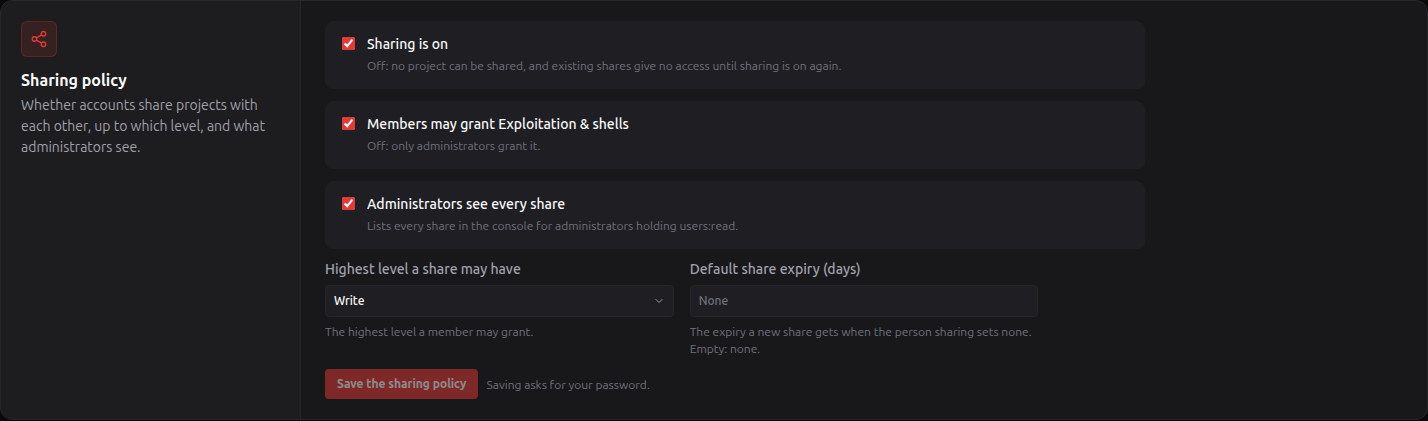
| Setting | What it does |
|---|---|
| Sharing is on | Off (the default): no project can be shared, and existing shares give no access until it is on again |
| Highest level a share may have | Read, or Write (Read & Write, which counts only with RBAC_SHARING_WRITE_ENABLED on). At Read, a share given Read & Write earlier reads as Read |
| Members may grant Exploitation & shells | Off (the default): only administrators and Root can grant Exploitation & shells; a member owner can still take it away |
| Administrators see every share | On (the default): an administrator with oversight can list a project's shares and sees the share rows in its activity, and IAM → Shares lists every share |
| Default share expiry (days) | Empty: a share has no end unless the owner sets one. A number from 1 to 3650: a share made without an end date ends after that many days |
Without the console switch Root sends the same change to the web app's PUT /api/admin/instance-settings: signed in as Root, open the browser's developer console on the RedAmon tab and run fetch('/api/admin/instance-settings', {method: 'PUT', headers: {'Content-Type': 'application/json'}, body: JSON.stringify({sharingPolicy: {enabled: true}, stepUpPassword: 'your Root password'})}). The settings go in sharingPolicy by name: enabled, maxLevel ("read" or "write"), membersMayGrantExploit, adminsSeeAllShares, defaultExpiryDays.
Turning sharing off again (the switch or the policy) makes every project private at once. The shares are kept and count again when sharing is back on.
Sharing a project
-
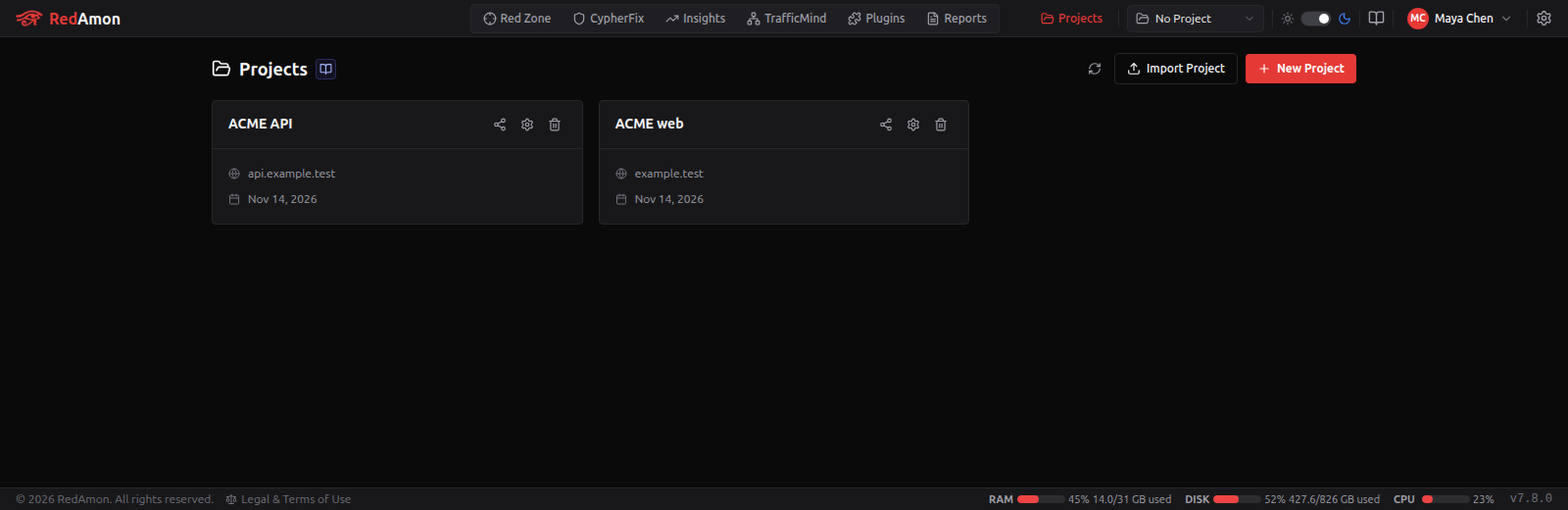
On the Projects page, click the share icon on your project's card (or Share beside the settings icon in the header while the project is open).
-
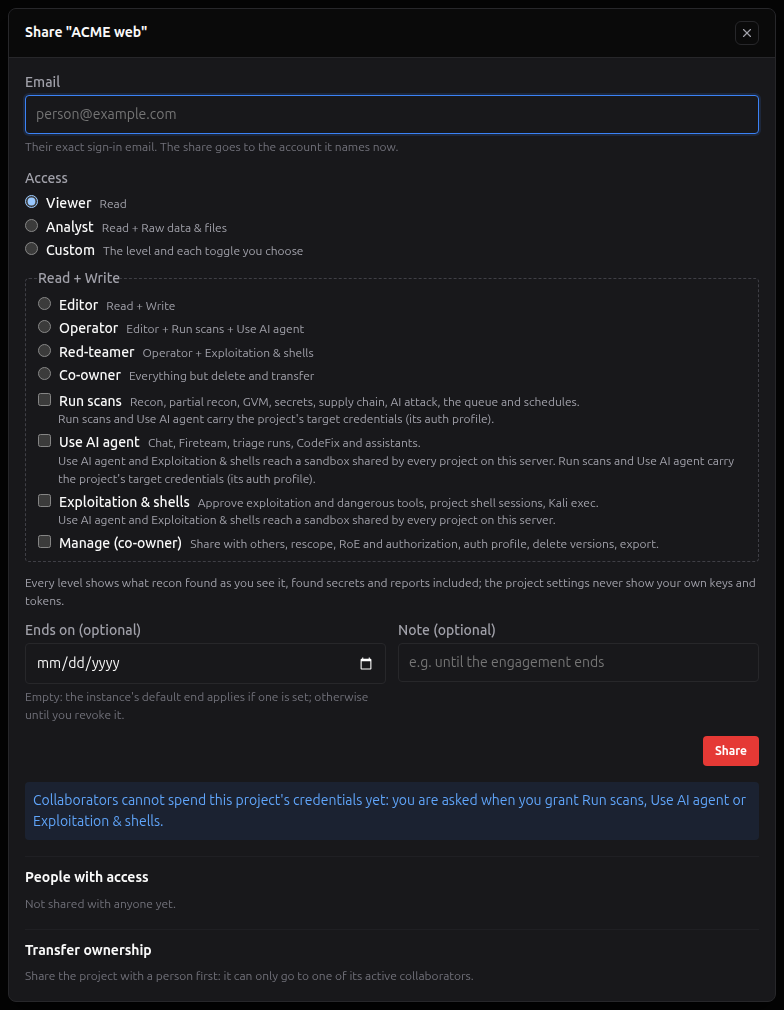
Type the person's exact sign-in email. There is no list of accounts to pick from.
-
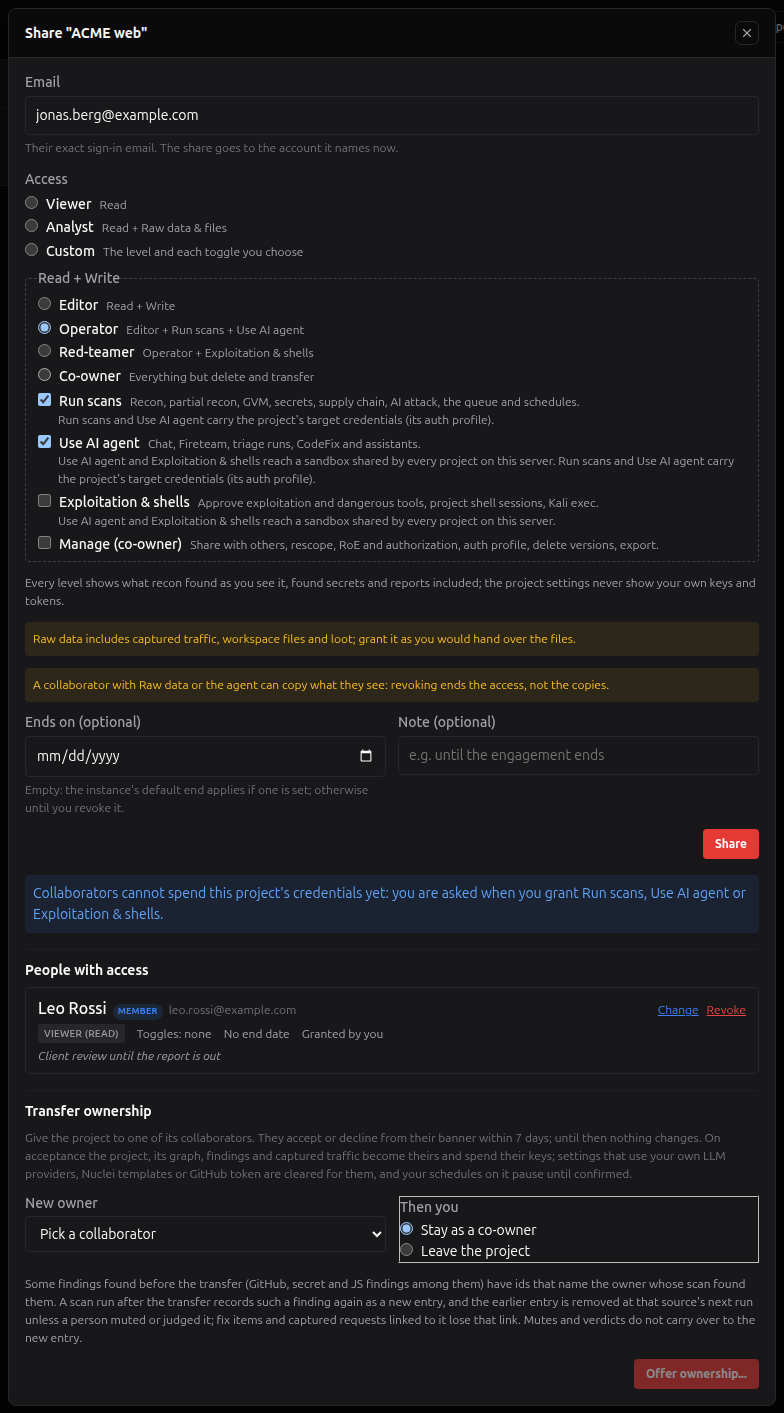
Pick an Access preset, or Custom to choose the level and each toggle yourself (a toggle you flip moves to the preset it makes). Optionally set Ends on (the share ends at the end of that day) and a Note (at most 500 characters).
-
Click Share. The window shows the person the server found, with their name, email and account type, so you can check it is the right one, and adds them to People with access.
Granting Run scans, Use AI agent or Exploitation & shells for the first time asks for your consent and your password first (here the Operator preset, which adds Run scans and Use AI agent):
| An Operator share | The consent, with your password |
|---|---|
 | 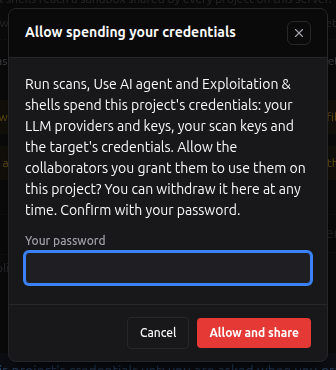 |
Granting Exploitation & shells asks your password too; one password prompt covers both.
The server refuses an email with no account ("No account has this email."), an account that is disabled or has not finished its invitation, yourself, the owner, and someone who already has a share (change theirs instead). Each lookup is recorded without the email; a person may look up 20 emails a minute.
You need the project:share permission (every member holds it unless an administrator took it away). Sharing is refused while an administrator acts as you: the window lists the shares but cannot change them. A co-owner can share too, offering only the toggles their own share holds (the others are hidden); choices you may not grant are disabled with the reason.
Access levels
| Preset in the share window | Gives |
|---|---|
| Viewer | Read |
| Analyst | Read + Raw data & files |
| Custom | The level and each toggle you choose |
| Editor | Read & Write |
| Operator | Read & Write + Run scans + Use AI agent |
| Red-teamer | Operator + Exploitation & shells |
| Co-owner | Everything but deleting and transferring the project: Red-teamer + Manage |
Without Read & Write sharing the last four are listed but disabled ("Coming when write sharing is on").
Read opens the project and its results. Raw data & files adds what can hold credentials or a target's private data: captured traffic, the agent's workspace files, the raw scan outputs and the content of the agent's attack-chain steps. Give it as you would hand over the files.
Read & Write always includes Raw data & files, and lets the collaborator change ordinary settings, write triage verdicts and mutes, manage reports, workspace files and versions. Each toggle adds more:
| Toggle | Opens |
|---|---|
| Run scans | Recon, partial recon, GVM, secrets, supply chain, AI attack surface, the scan queue and schedules |
| Use AI agent | The agent chat, Fireteam, triage runs, CodeFix and the assistants (Cypher assistant, report narratives, suggestions) |
| Exploitation & shells | Approving exploitation and dangerous tools, the project's shell sessions, Kali exec over MCP, and the Kali terminal for those who hold it |
| Manage (co-owner) | Sharing with others, rescoping, the Rules of Engagement and authorization, the authentication profile, deleting versions, exporting |
Only the owner deletes or transfers the project, gives the consent below, and reads the owner's secrets in the settings, whatever the toggles. The Permission reference lists, for every permission, the level and toggle it needs on a shared project.
Your credentials: the consent
Run scans, Use AI agent and Exploitation & shells spend the project's credentials: your model providers and keys, your scan keys and the target's credentials. They work for nobody until you allow it. The first time you grant one of them, the share window asks "Allow spending your credentials", with your password. The consent covers the project, for every collaborator you give those toggles. The share window shows it ("Collaborators with Run scans, Use AI agent or Exploitation & shells may spend this project's credentials") with Withdraw: their runs on the project stop, their connections close and their queued scans are cancelled.
Every time a collaborator spends your credentials it is recorded first, naming them (A collaborator spent the owner's credentials); if the record cannot be written, nothing is spent. The API usage report adds Spent by collaborators: the last 30 days, by person, feature and project. A collaborator's agent runs and assistants use the models you picked, never their own.
What a collaborator may change in the settings
The settings are classed by risk, and a collaborator's change is judged setting by setting:
- Ordinary settings: Read & Write.
- Safety switches (the dangerous-tool confirmation, the exploitation approvals, the guardrails, the tunnels, Kali installs, the tool phases of dangerous tools, CypherFix's approval): turning one on (tighter) needs Read & Write; turning one off needs Manage, and also Exploitation & shells for the ones that guard exploitation.
- Scope (targets, subdomains, ports, the engagement's dates, window and limits, the identity header): narrowing needs Manage; widening it is the owner's alone. Emptying a list that means "everything" when empty (such as the subdomain list) widens it.
- The owner's secrets and a project's first Rules of Engagement document: the owner's alone.
A refused change says which setting, what it needs and why, and nothing is saved. In the project form a collaborator sees the owner's models, Jev configurations, agent skills and MCP servers by name (never a key; key fields say Owner's setting); picking among them needs Manage. If someone else saved the project meanwhile, a save says "Someone else changed this project" and shows the current value.
What a collaborator sees
| Area | Read | Read + Raw data & files |
|---|---|---|
| Graph, Insights dashboards, Red Zone | Yes, the owner's graph, node for node | Yes |
| Attack chains | Their structure and findings; each step's thought, reasoning, command line, output and error are hidden, as are a failure's lesson, a decision's reason, a chain's final outcome and an exploit finding's commands and cracked password | Everything |
| Saved graph views | The owner's views, listed; a view whose query names a step's content is refused, and a view that returns a table rather than nodes answers no rows | Run in full |
| Recon status and logs, scan timeline and versions | Yes | Yes |
| Scan result downloads (recon JSON, GVM, GitHub hunt, JS recon, supply chain, TruffleHog) and the AI attack-surface transcript | No | Yes |
| Reports | Listed and opened; a report that holds the Fireteam's step content opens only with raw data | Yes |
| Priority Board, findings, evidence, muted findings, mute rules, remediations | Yes | Yes |
| Rules of Engagement | A summary: the document's name, type, size and date, the engagement dates and the limits RedAmon enforces. Never the contacts, the text or the document itself | Same |
| Authentication profile | Its type, header names, scope hosts and status, never a value | Same |
| Scan schedules | The list, with who created each one and who started each run | Same |
| Captured traffic (TrafficMind), workspace files | No | Yes, the owner's |
| Project settings | Every setting, read-only, except the owner's secrets (below) | Same |
A collaborator never gets, at any level (the Read & Write toggles above add the rest):
- The owner's secrets in the project settings: the CypherFix GitHub token, the GraphQL authentication value, the ownership token, the phishing SMTP settings, the OpenAPI sources, the Rules of Engagement contacts, document and parsed text, and every tool's custom request headers.
- Other people's agent conversations on the project, unless their author shares one (see Conversations).
- At Read: the Kali terminal, the agent chat, the Cypher assistant (it spends the owner's model key), a project export, or any change.
Found secrets are part of what recon found. Every level, Viewer included, shows the graph as the owner sees it, so the secrets recon found (the Red Zone Secrets screen, the full links that carried a token) and the reports are readable. The share window says so on every level.
The Kali sandbox is shared. Every project on the server runs its agent commands and terminal in one Kali container, so a collaborator given Use AI agent or Exploitation & shells works in a container where other projects' runs are visible to a determined user. A read share runs nothing there. The share window shows this notice beside both toggles, and a second one: scans and the agent carry the project's target credentials (its authentication profile). With Raw data & files or the agent, a collaborator can keep a copy of what they see: revoking ends the access, not the copies.
Changing, revoking and leaving
The share window lists People with access: each person's level and toggles, end date (an expired share says so and gives no access), who granted it, and the note.
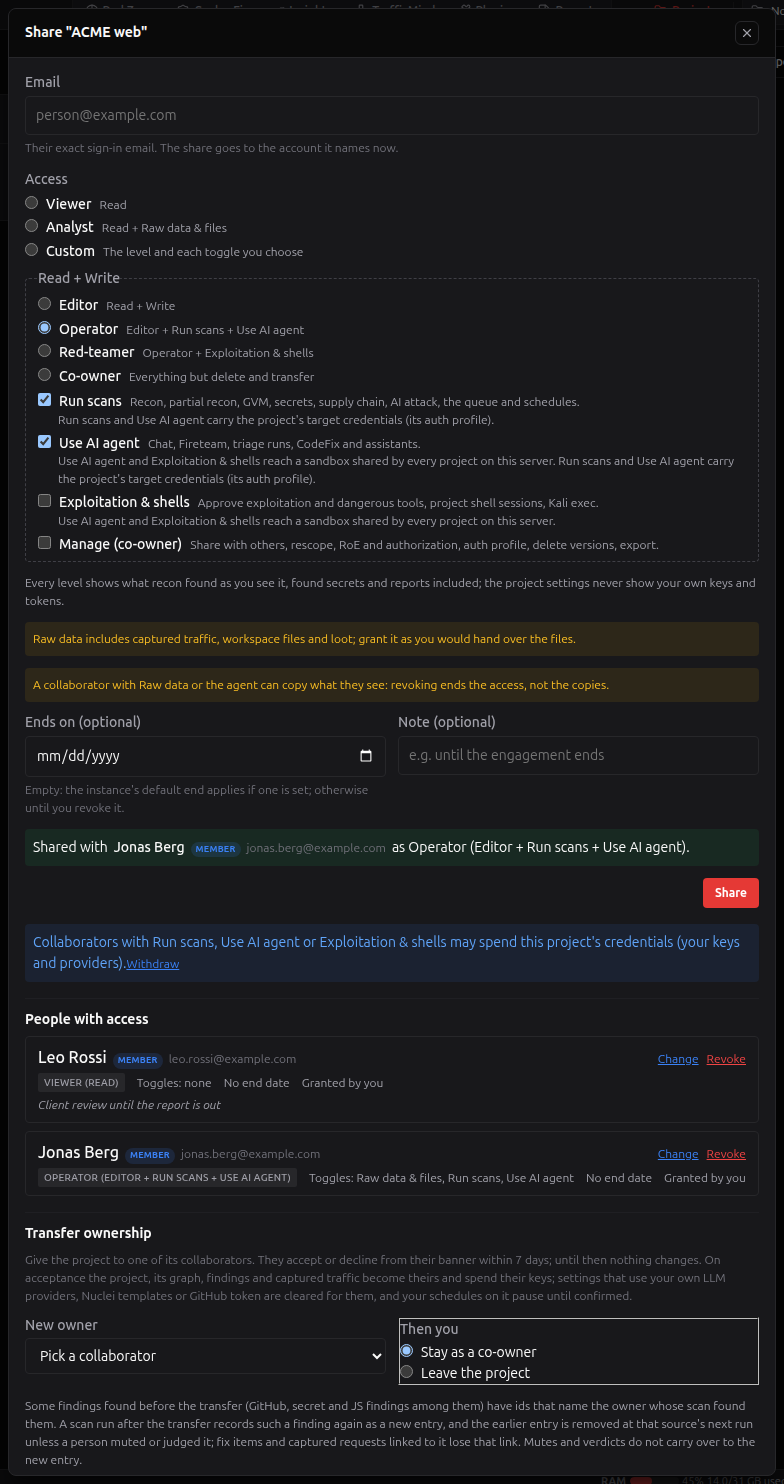
-
Change edits the level, the toggles, the end date or the note, then Save.
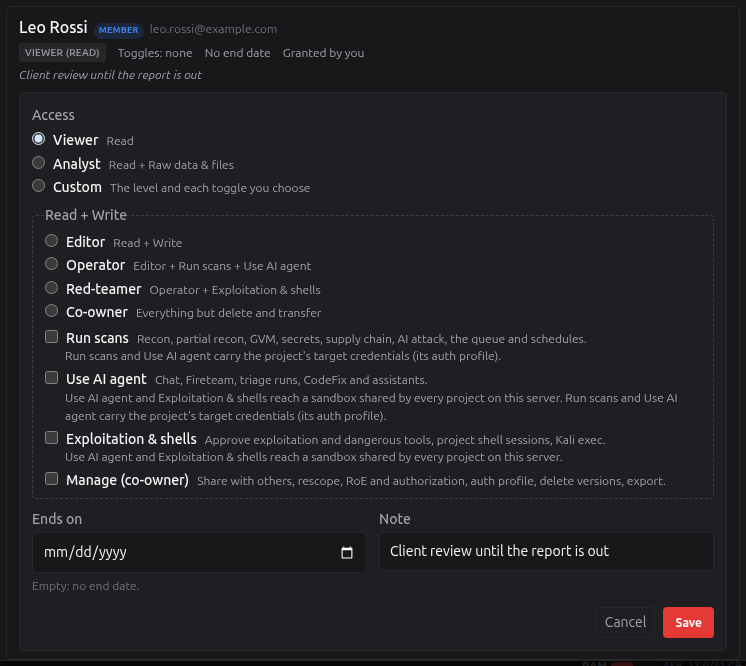
-
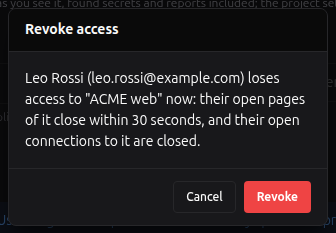
Revoke (after a confirmation) ends the access at the person's next click. A page they have open notices within 30 seconds, sends them to the Projects page and says "Access ended". Their agent runs on the project stop, their open chat and terminal connections close, their queued scans are cancelled, their schedules on it pause and a triage run they started stops. A scan already running finishes. Their MCP tokens stop reaching the project at their next call. You are told about a paused schedule (at sign-in and in My activity); on the Scans tab it says why, and Confirm runs it again with you as the person it runs as.
-
Lowering a level or turning a toggle off does the same for what it took away (a scan they may no longer start is cancelled; their connections reconnect with the narrower access).
-
Only the project's owner can change or revoke a co-owner's share.
-
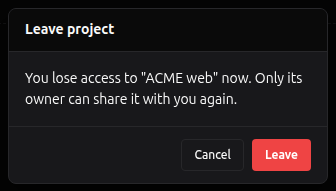
Leave: a collaborator gives up a share from the project's card or the header. The owner sees it in the activity.
Shared with me
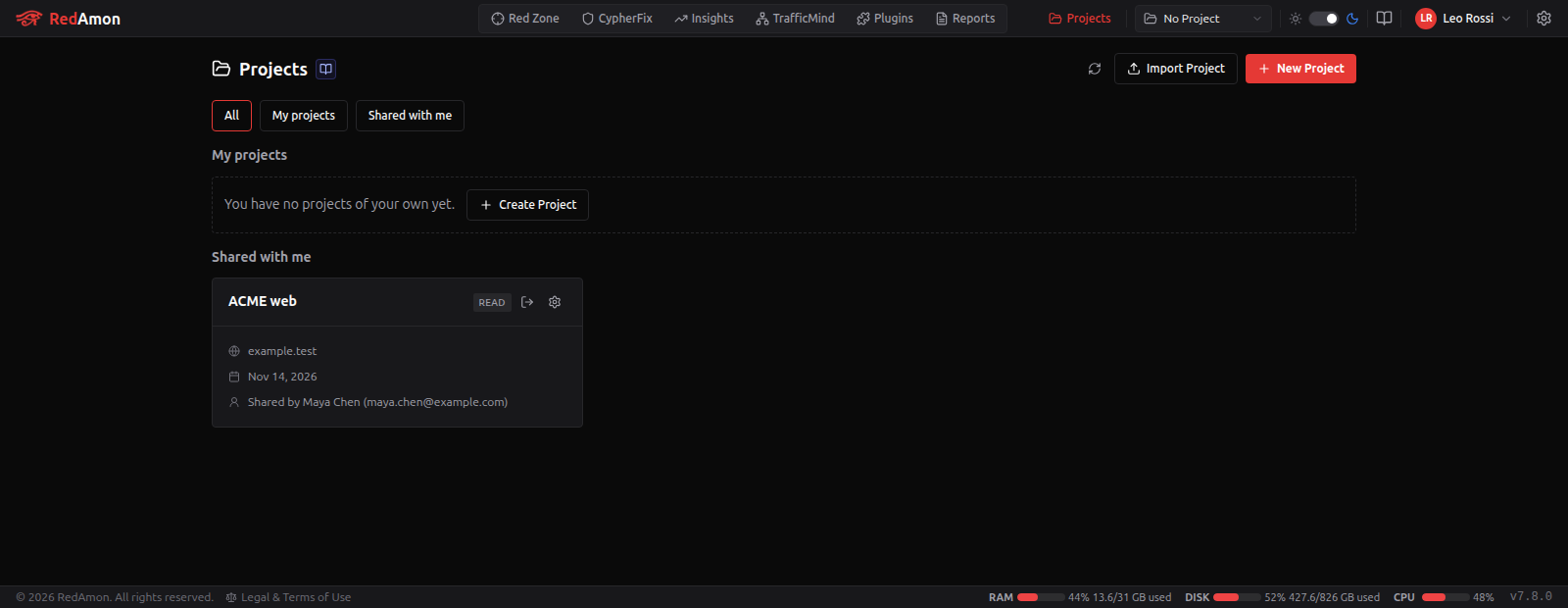
Once something is shared with you, the Projects page gets a Shared with me section and a filter All / My projects / Shared with me. Each shared card says who shared it (Shared by name and email) and your level (Read, Read + Raw data, or the Read & Write terms), and has Leave and never Delete.
Working in a shared project
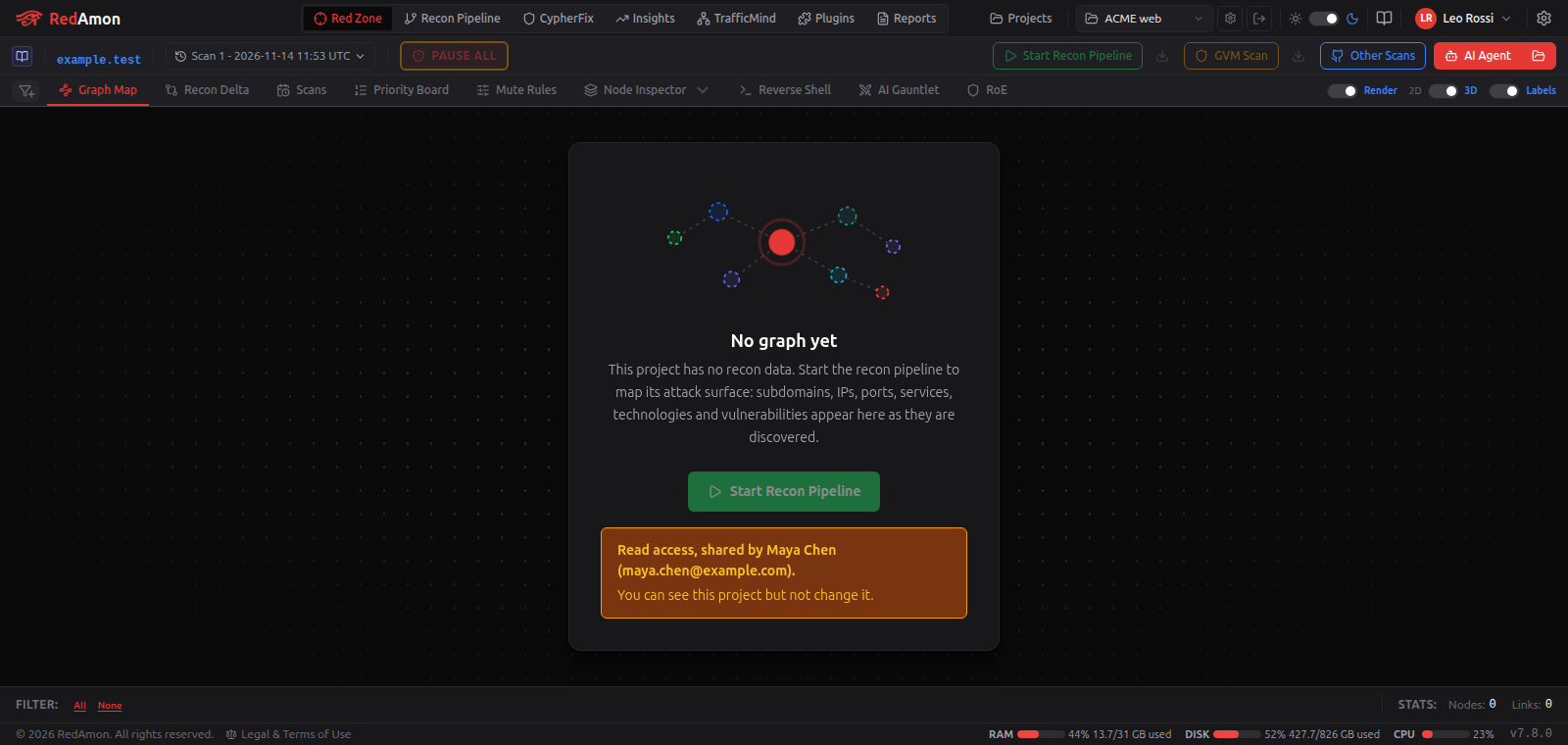
Everything you cannot do is greyed out with the reason as its tooltip: "Read access, shared by Maya Chen (maya.chen@example.com)", or at Read & Write "Read + Write access without Run scans, shared by ...". An empty graph says the same in a notice:
At Read: the scan starts, pauses and stops, the Priority Board's verdicts, mutes and triage run, report generation and deletion, the workspace uploads and deletions, traffic deletion, the scan versions and schedules, and the scan queue's actions. The project settings open read-only with a notice, and the RedAmon Terminal tab is hidden. Save as Preset stays: it copies the settings into your own presets.
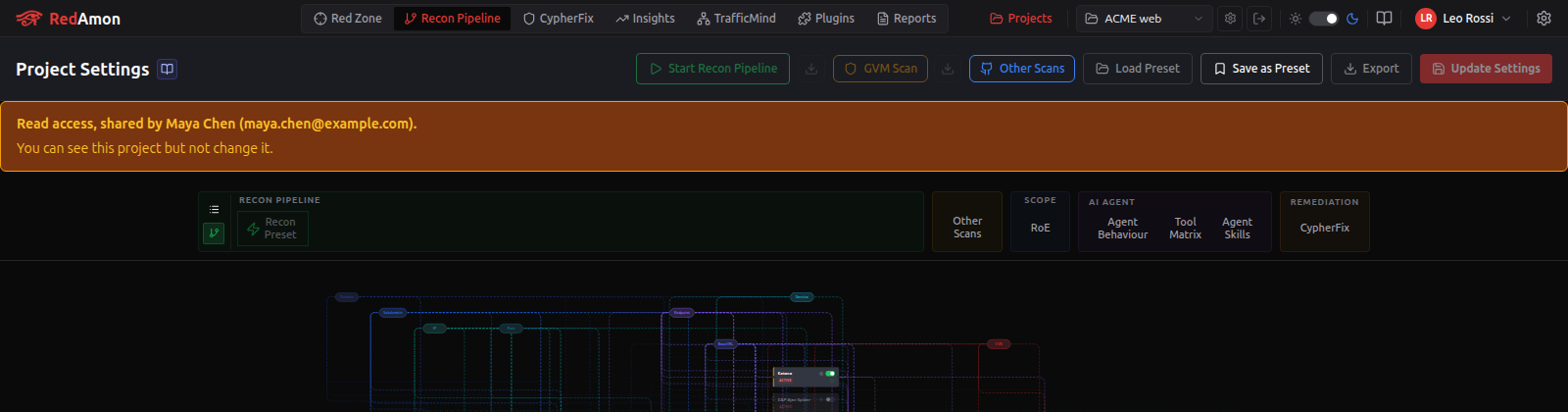
The page checks your access every 30 seconds while the project is open: when it ends you are taken to the Projects page, and when it narrows (raw data taken away) the controls follow.
At Read & Write, what you do on the project is yours in the activity (your scans, your verdicts and mutes, your agent runs) while the results land in the owner's graph, as if the owner had run them. One person writes the project at a time: while someone else's scan, agent run or triage run is live, the graph page names them ("Anna (anna@example.com) is running a partial recon on this project") and your start is refused with the same words until it ends; you can still run several things of your own at once.
Conversations
With Read & Write sharing on, each agent conversation stays private to the person who had it, the owner included. In the conversation history its author can share it with the project (the share icon, Share this session): everyone with Read & Write (or Raw data & files) can then open it read-only, without the message box, until the author stops sharing it. The owner can tick Co-owners can read every session of this project at the top of the history panel: the owner and the co-owners then read every conversation on the project, read-only; collaborators can see that the setting is on. A Read share without Raw data, and an administrator by oversight, never read anyone's conversation. When a collaborator's account is deleted, their conversations on your project pass to you, read-only, shown as by <name> (account deleted); you can delete them.
Transferring a project
The owner can give a project to a collaborator who has a share:
-
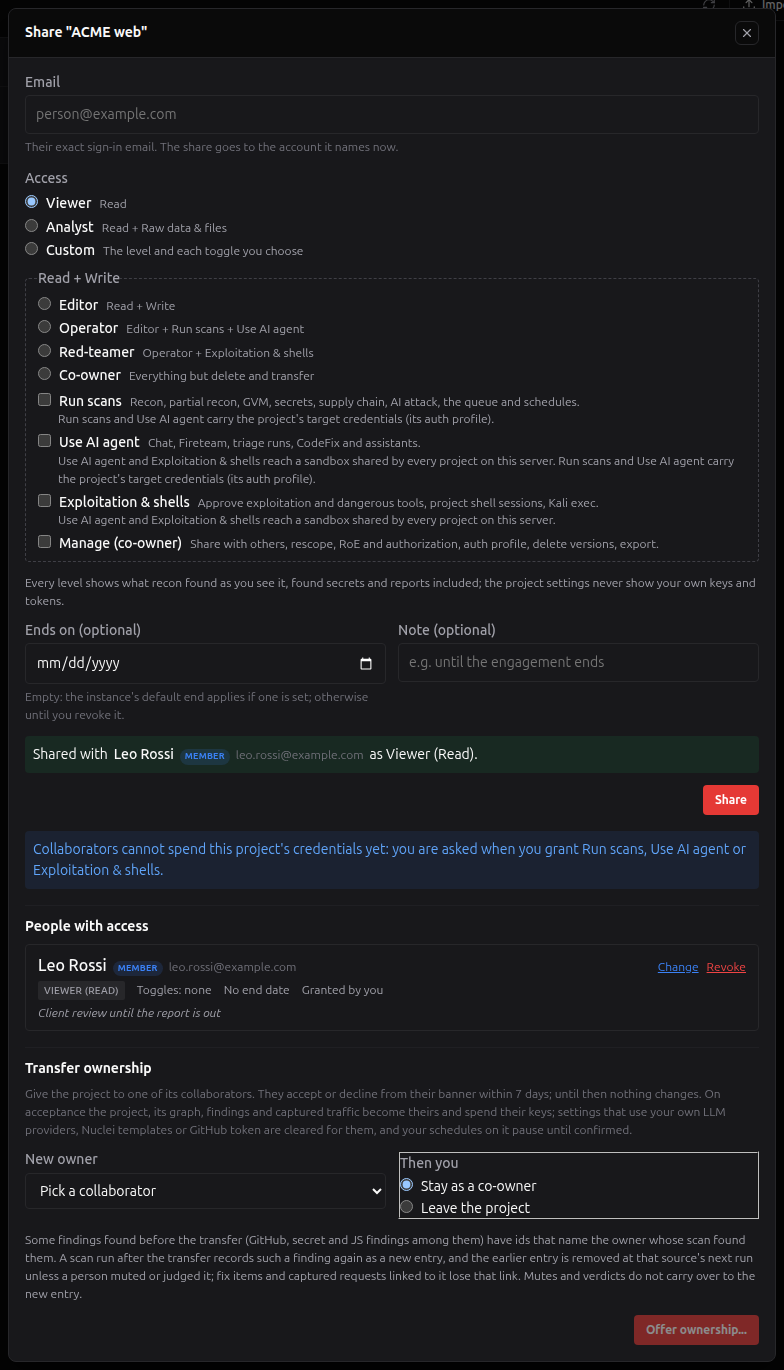
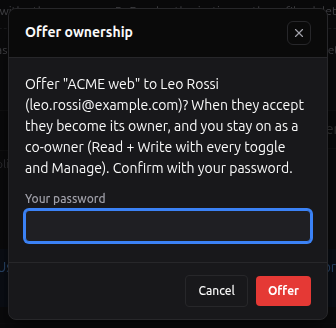
In the share window's Transfer ownership section (see the screenshot under Changing, revoking and leaving), pick the New owner and choose Then you: Stay as a co-owner (Read & Write with every toggle and Manage) or Leave the project.
-
Click Offer ownership and confirm with your password.
-
Until the person answers, a banner reminds you, with Cancel the offer. An offer lasts 7 days, and only one is open at a time.

-
The person sees the offer in a banner and accepts it with their own password, or declines.

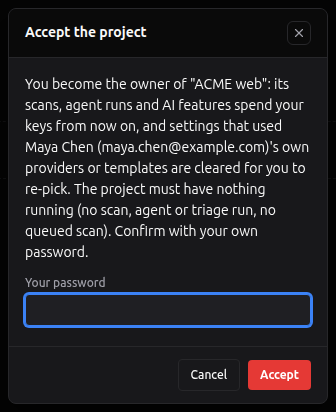
On acceptance nothing may be running on the project (a scan, an agent run, CodeFix or a triage run: the accept is refused naming it). The project's graph, settings, schedules and history move to the new owner together, or nothing moves. What named the old owner's own account does not move: the consent is cleared, and the old owner's model providers, Jev configuration, agent skills, Nuclei templates and CypherFix GitHub token are cleared from the settings; the new owner gets a banner listing them, to pick their own. The old owner's schedules pause until the new owner confirms them. Both of you are told.
If a transfer stops halfway (the agent lost while moving the graph), the project stays held: nothing can scan or run on it until the new owner accepts again, which completes it, or the offer is declined or cancelled, which first moves everything back. The banners say so.
Findings after a transfer: some findings found before it (GitHub, secret and JS findings among them) have ids that name the owner whose scan found them. A scan run after the transfer records such a finding again as a new entry, and the earlier entry is removed at that source's next run unless someone muted or judged it; fix items and captured requests linked to it lose that link, and mutes and verdicts do not carry over. The offer and the new owner's banner say this too.
An administrator deleting an owner of shared projects can offer each one to a collaborator, and Root can transfer it without the collaborator's acceptance (Identity & Access Management).
Plugins, Agent in the Loop and shell sessions
On a project shared with you at Read & Write, a plugin runs for you when it would for the owner (one that calls a model also needs Use AI agent, and uses the owner's model and keys); a plugin reads a chat only if it is yours or its author shared it. Agent in the Loop drives the chat runs you start there with Use AI agent. With Exploitation & shells, the shell sessions panel lists the project's sessions. Plugin overrides and their review on a shared project need Manage.
Expiry
A share with an end date stops working at that moment: every request checks it. Every 5 minutes the recon orchestrator also removes the expired shares (RBAC_SWEEP_INTERVAL in .env, in seconds), records each one as A share expired and stops the person's live work on that project as a revoke does (agent runs, open connections, queued scans, schedules, a triage run).
The project activity
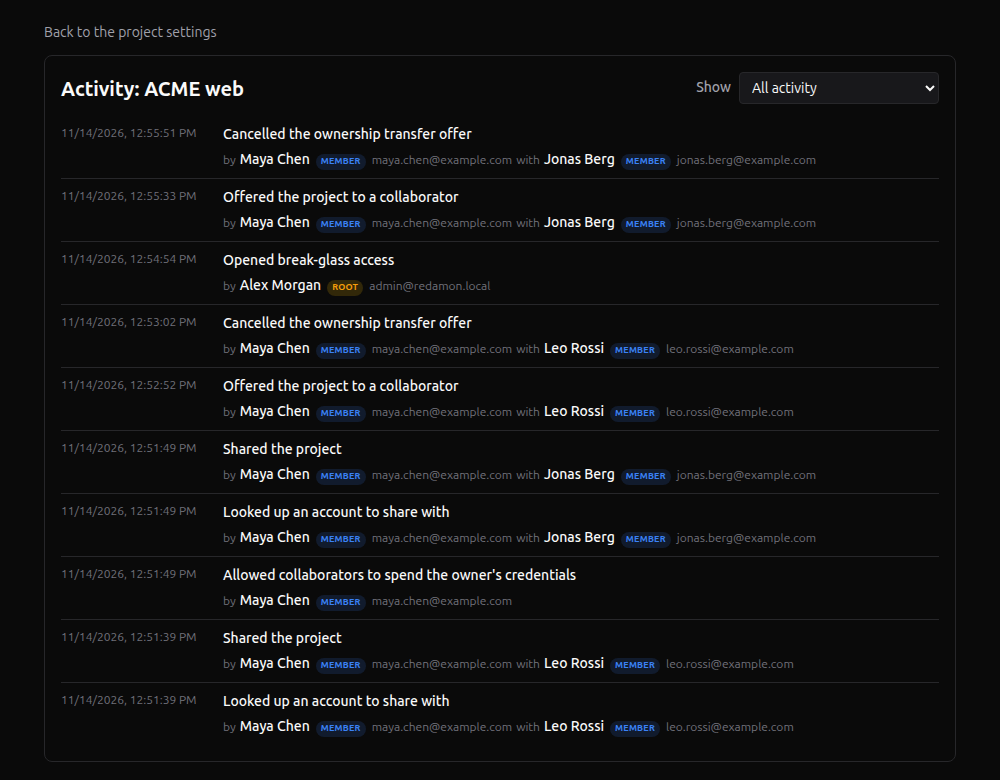
Under sharing, the project's settings page has an Activity link (/projects/<id>/activity) for the owner and for administrators with oversight. It lists who did what on the project, newest first, 50 at a time: sharing changes, oversight reads and break-glass, actions an administrator took while acting as someone, settings, scans, findings, agent work and MCP clients. Each line names the person with their email and account type, the person a share was given to, and when an administrator acted as someone, both of them. Show picks one group. It never shows the details of a change, a lookup's email or an account id. Collaborators have no Activity link.
Oversight and break-glass
Oversight. With sharing on, an administrator holding projects:oversee (Full admin, which every administrator without a profile is, and Security auditor) can read any project at Read, without raw data and files and without anyone's agent conversations. On the Projects page, All projects (oversight) lists every project with its owner, each tagged Oversight (read). The first read of a project by an administrator each day (UTC) is recorded as Read the project by oversight and shows in the owner's activity. Oversight never applies while the administrator acts as someone, and never reaches an MCP token.
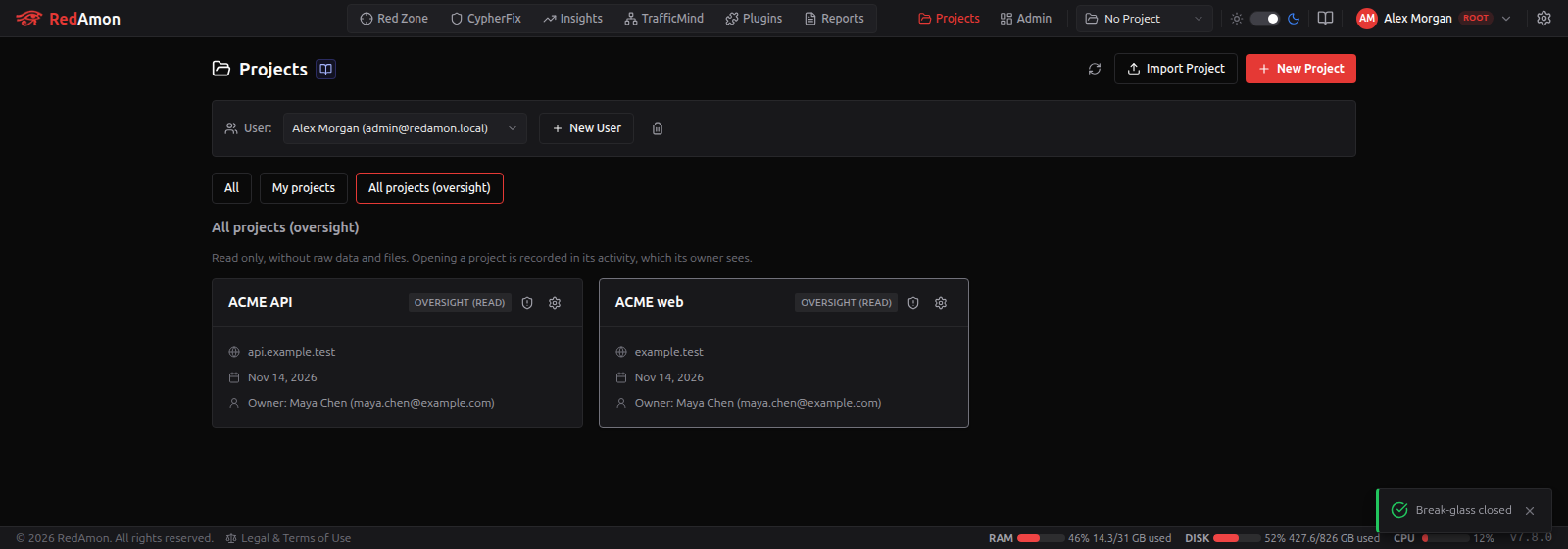
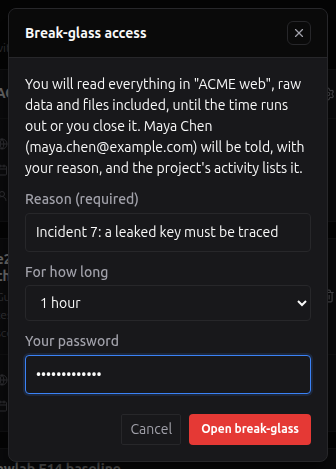
Break-glass. For an emergency, the confirmed Root can open a project with Raw data & files too: on the project's card in All projects (oversight) (the shield icon), or Break-glass in IAM → Projects, give a Reason, choose For how long (at most 240 minutes) and type Root's password.
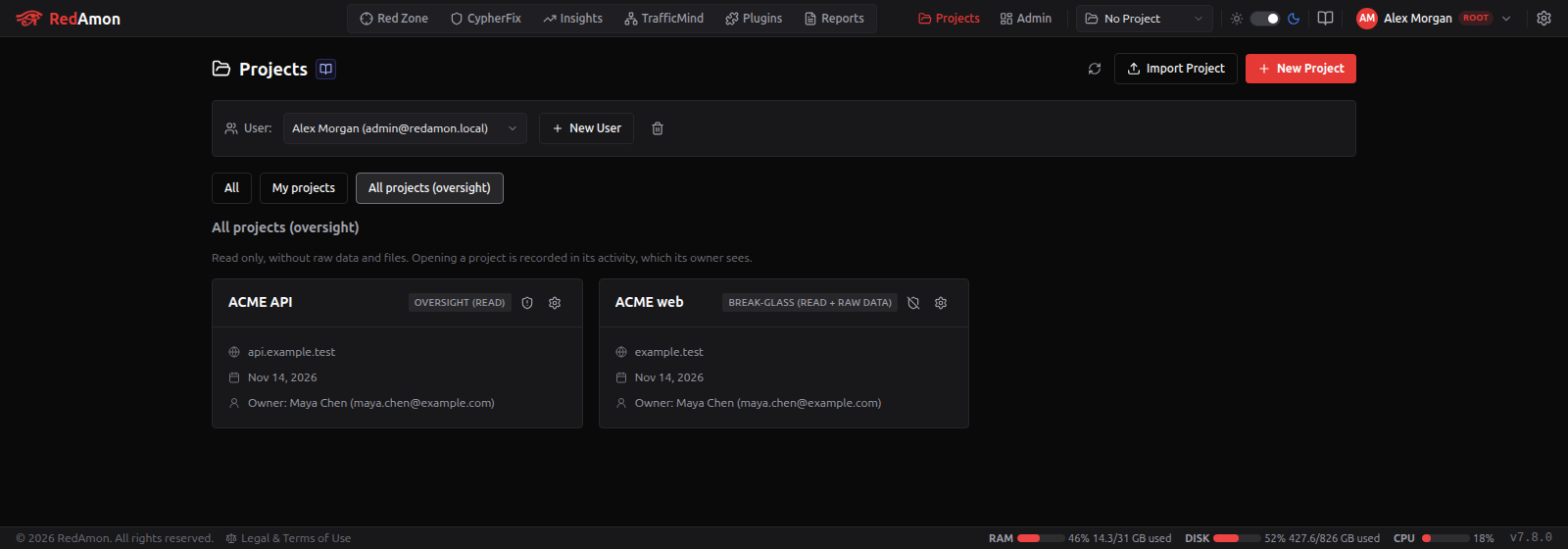
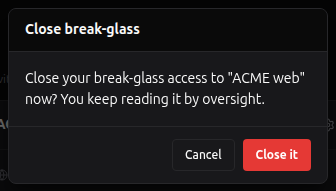
While it lasts the card is tagged Break-glass (read + raw data); the same icon closes it early. The access ends by itself when the time runs out.
| While break-glass is open | Closing it early |
|---|---|
 |  |
The owner is told at their next sign-in (and in My activity), and the activity shows Opened break-glass access (and Closed break-glass access when Root closes it early):
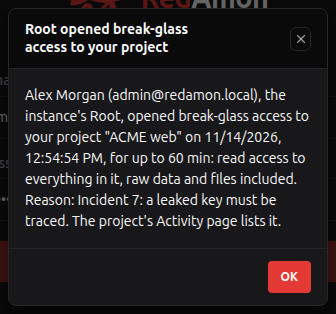
In the IAM console. With the IAM console on, IAM → Projects lists every project with its owner and live share count, with Open read-only (oversight, as above), and IAM → Shares lists every share on the instance with its level and expiry, while Administrators see every share is on. There the confirmed Root can also revoke any share (Root's password; the person's open connections to the project close, and the revoke is recorded as forced, also in the owner's activity) and delete a project.
Acting as a collaborator
An administrator acting as someone reaches the projects shared with that person read-only, never more, whatever the administrator's own access. The first time each day (UTC) the administrator opens such a project, the owner's activity shows Opened the project, naming the administrator and the person they act as.
MCP tokens
An MCP Server token reaches the projects shared with you only when you tick Include projects shared with me (asks your password), optionally limited to the shared projects you pick. On a Read share only the read tools answer; raw Cypher and saved views need a share with Raw data & files, and natural-language questions are refused. At Read & Write the write tools answer at their level: settings, presets, verdicts, reviews and mutes at Read & Write, starting and stopping scans with Run scans, triage runs with Use AI agent, Kali exec with Exploitation & shells, the scope with Manage; attaching an authorization stays the owner's.
What is recorded
Every share, change, revoke, leave and expiry, each email lookup (without the email), each day's oversight read, break-glass opened and closed, and a change of the sharing policy (its setting names) go to the audit log: project.share.grant, .update, .revoke, .leave, .expired, .lookup, project.oversee, project.breakglass, project.breakglass.end, instance.settings_changed. With Read & Write: the consent (project.owner_consent.grant, .withdraw), each collaborator's spend (credits.used), conversation sharing (conversation.share, .unshare, project.conversations_policy), each transfer step (project.transfer.offer, .accept, .decline, .cancel, .expired, .failed, .completed, .forced), a co-owner's export (project.exported), a paused or confirmed schedule (scan_schedule.paused, .confirmed) and an answer to the agent refused when given (agent.decision_refused). A share's note is never recorded.
Next steps
- Identity & Access Management: accounts, Root, admins, permissions and acting as a user.
- IAM Console: every project and share from one place.
- MCP Server: tokens for your own agents.